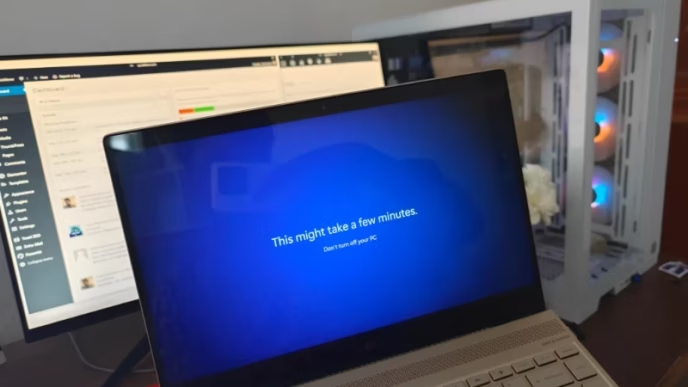
Google ChromeOS Flex is a fantastic way to turn an aging Windows laptop or slow PC into a snappy, lightweight Chromebook. While Google officially launched ChromeOS Flex to the public and it has been stable for quite some time, one thing Google made unnecessarily complicated is their instructions on how to download the raw system image. Unlike standard operating systems that distribute ISO files, the ChromeOS Flex system image is provided in a compressed .bin format. In this guide, we will walk you through how to create a ChromeOS Flex bootable USB installer on Windows, Linux, and Mac using both official and third-party flashing utilities.
Things You Need to Get Started
- 1 x USB 3.0 flash drive (at least 8 GB space, all contents will be formatted).
- A 64-bit x86-64 compatible PC, Mac, or laptop with at least 4 GB of RAM.
- Access to your computer’s BIOS/UEFI boot menu.
Need to revert later? If you want to test ChromeOS Flex without committing, remember that the installer lets you run it in live mode directly from the USB drive without touching your internal hard drive. If you decide to go back to Windows later, check our guide on how to uninstall ChromeOS Flex.
Download the ChromeOS Flex System Image
You have two ways to get your hands on the ChromeOS Flex installer: downloading the raw image file directly, or using the official Google browser extension.
- Direct System Image Download: You can download the latest official compressed file directly from Google’s server: ChromeOS Flex installer image (.bin.zip). We also maintain updated mirror links in our dedicated ChromeOS Flex download guide.
- Official Chrome Extension Method: Uses Google’s Chromebook Recovery Utility extension inside the Chrome browser to handle downloading and flashing automatically.
Method 1: Rufus or Etcher (Windows)
If you downloaded the .bin.zip file, extract the ZIP archive to get the raw .bin file on your computer. You can use either Rufus or BalenaEtcher to flash it in minutes:
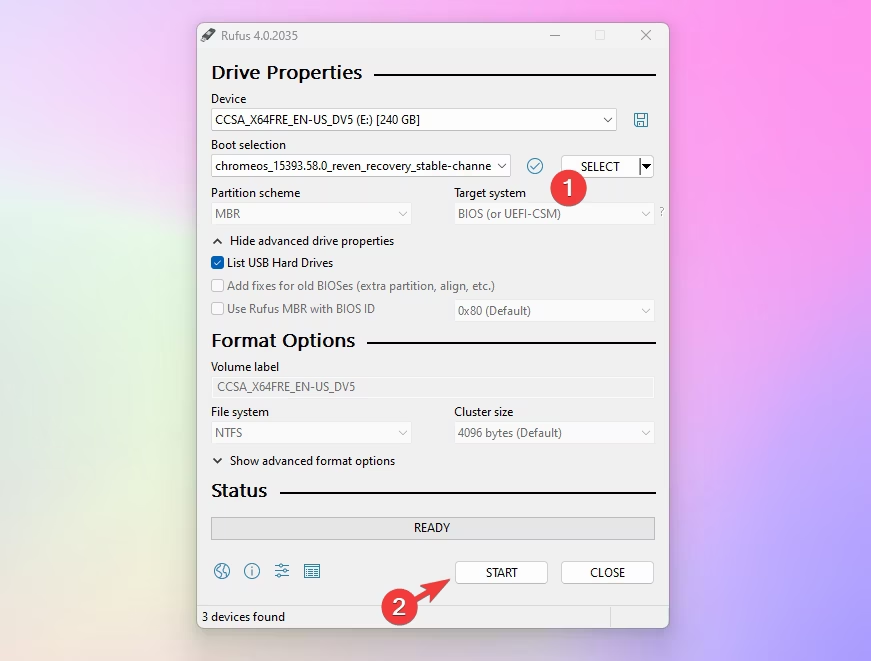
- Download and launch the portable Rufus tool (learn more in our Rufus walkthrough).
- Plug in your USB flash drive and select it under Device.
- Click Select. In the file browser window, change the bottom-right file filter from ISO Image (*.iso) to All files (*.*) so your extracted
.binfile shows up. Select the ChromeOS Flex image. - Click START. Rufus will automatically write the partition blocks to your drive in 1 to 2 minutes.
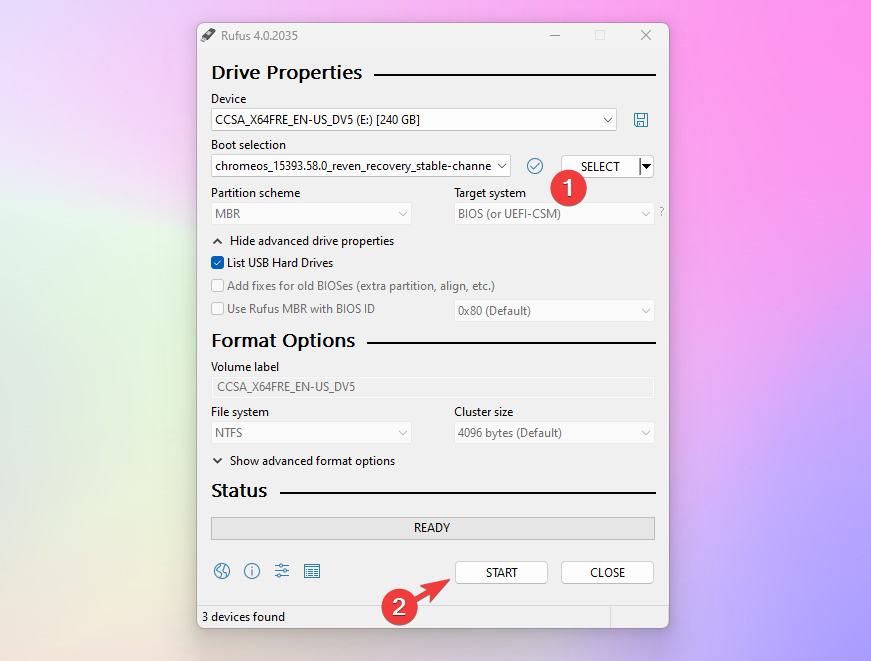
Alternative tool: You can also use BalenaEtcher on Windows or macOS. Etcher can flash the latest.bin.zip file directly without requiring you to unzip it first.
Method 2: Chromebook Recovery Utility
If you prefer using Google’s official automated tool that downloads and flashes the installer inside your web browser, follow these steps:
- Open Google Chrome and install the official Chromebook Recovery Utility extension from the Chrome Web Store.
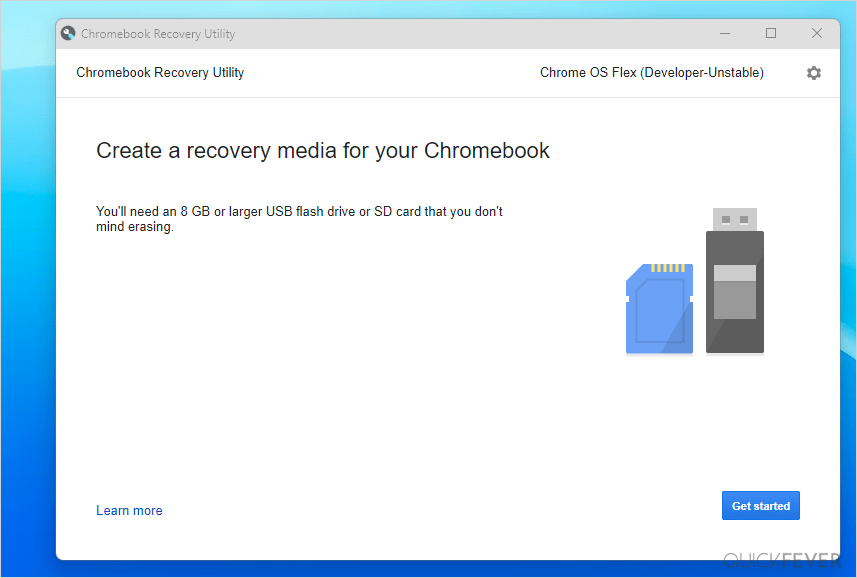
- Launch the extension from your Chrome toolbar and click Get started.
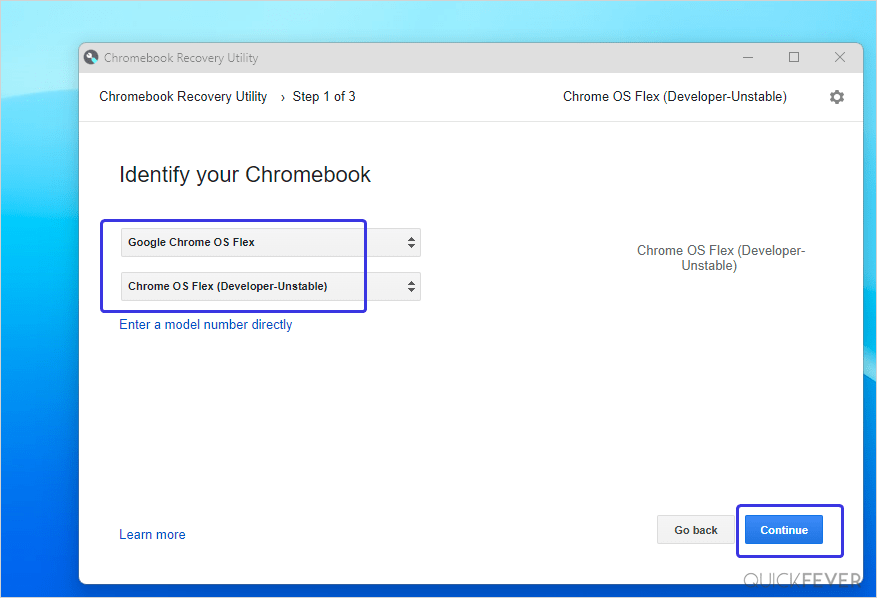
- Click Select a model from a list. Under Select a manufacturer, choose Google ChromeOS Flex. Under Select a product, choose ChromeOS Flex. (If you already downloaded a local image file, you can instead click the top-right Settings gear icon and pick Use local image).
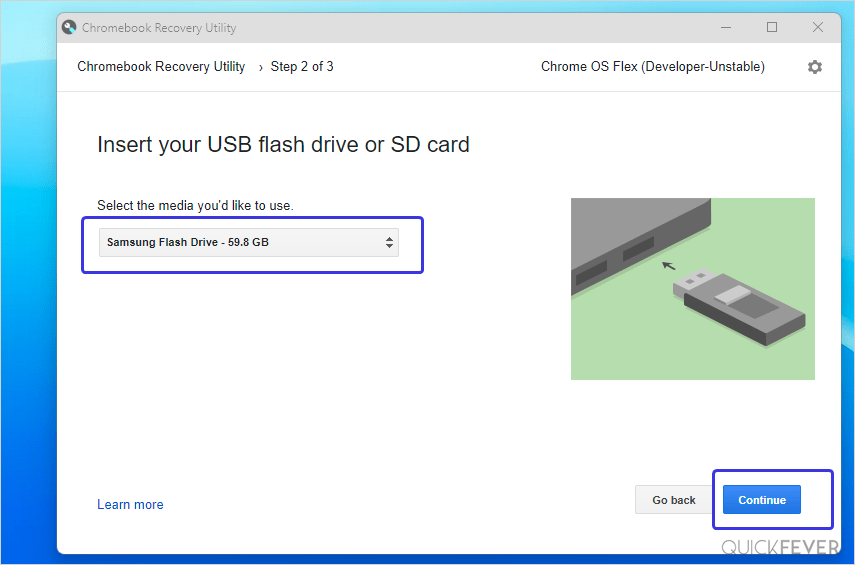
- Insert your 8 GB or larger USB flash drive, choose it from the dropdown menu, and click Continue.
- A confirmation warning will appear stating that all data on your USB drive will be deleted. Click the Create now button.
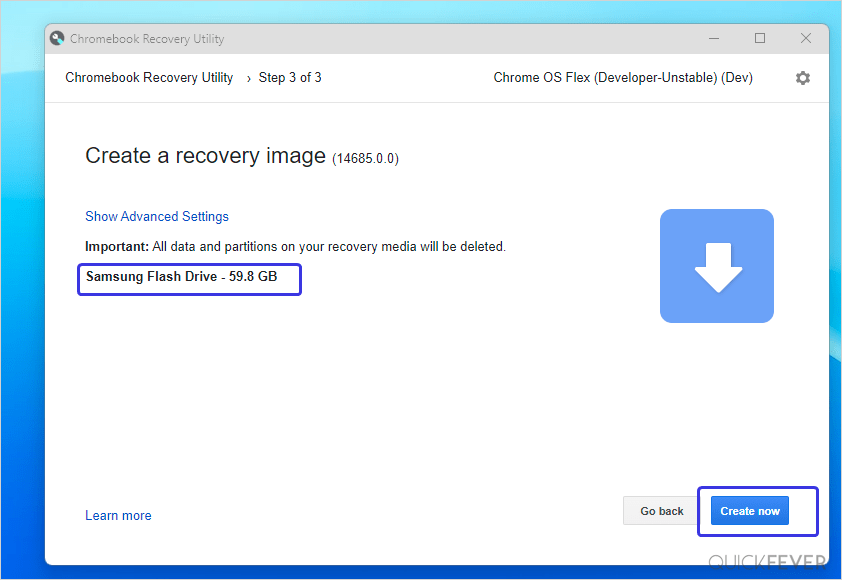
- The extension will automatically download the image, verify its integrity, and write the partition structure to your USB drive.
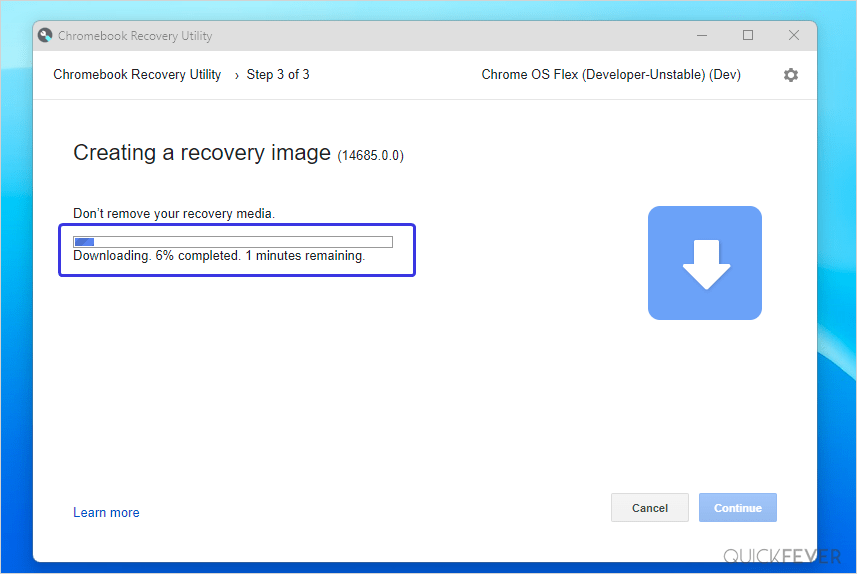
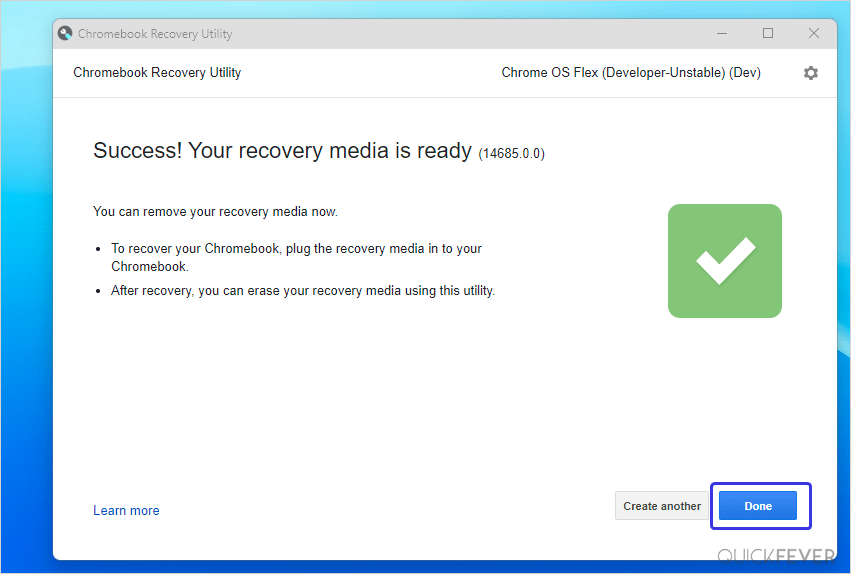
Because this method downloads the entire operating system image over the internet before flashing, it takes longer than flashing a pre-downloaded image with Rufus. Once finished, you will see a green checkmark saying your recovery media is ready.
Method 3: Linux (Terminal dd)
On Linux, you can write the raw .bin image file directly to your flash drive using the terminal dd command:
- Open your terminal and locate your USB drive identifier by running
lsblk. Take note of your drive node (for example,/dev/sdb; do not include partition numbers like sdb1). - Extract the downloaded
latest.bin.zipfile:unzip latest.bin.zip - Write the image to your USB drive using this command (replace
chromeos.binwith your actual file name, and/dev/sdXwith your USB drive identifier):sudo dd if=chromeos.bin of=/dev/sdX bs=4M status=progress conv=fsync
Caution: Double-check your target drive identifier carefully before running dd so you do not accidentally overwrite your internal Linux installation drive!
Boot ChromeOS Flex
Once your USB drive is ready, leave it connected and restart your computer:
- Immediately tap your computer’s boot menu key upon powering on (F12 on Dell/Lenovo, F9 on HP, F8/ESC on Asus, or F11/F12 on Acer/MSI).
- Select your USB drive from the boot menu (choose the UEFI option if available).
- When the ChromeOS Flex welcome screen appears, click Get started.
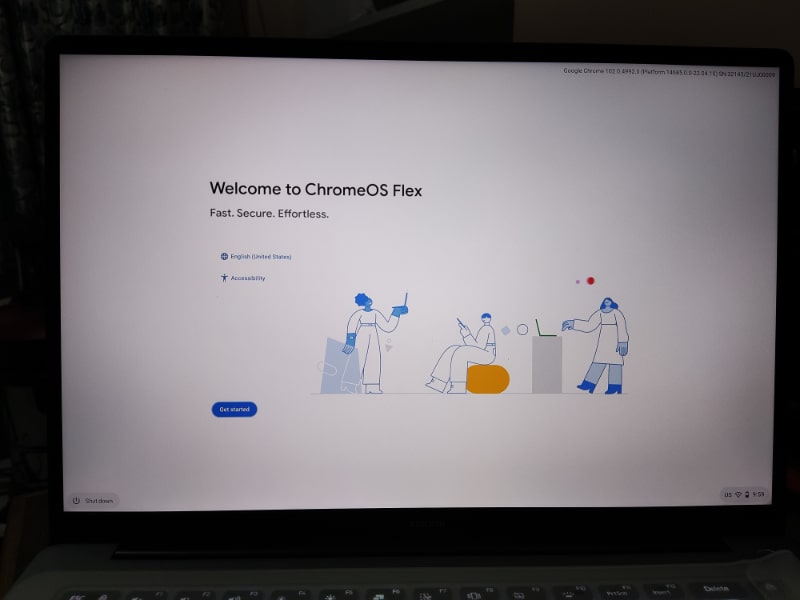
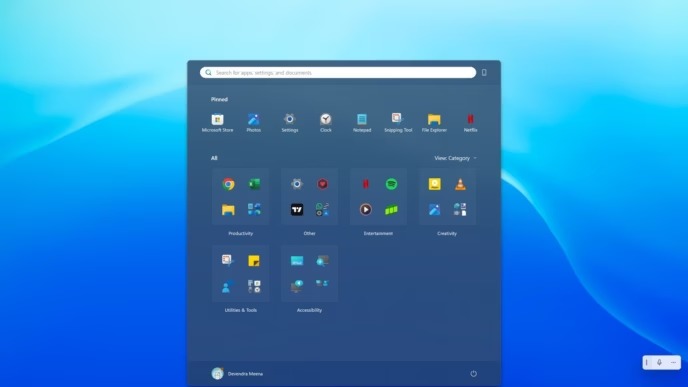
You will now see a prompt asking whether you want to Install ChromeOS Flex or Try it first. Selecting “Try it first” boots you straight into the desktop environment so you can test your Wi-Fi, audio, and trackpad without modifying any partitions. If everything works great and you love the speed, click Install to convert your laptop into a full Chrome device.
Did your USB boot smoothly on your hardware, or did your Wi-Fi or graphics have any hiccups? Let us know your laptop model in the comments below!