Ever closed a tab only to realize you needed it again? We’ve all been there. This guide shows you how to view and manage your tab history in Dia Browser on Windows 11.
Dia is the successor to Arc from The Browser Company. Arc is now in maintenance mode and shuts down on December 22, 2026, so if you used Arc for Windows, Dia is where its features (and your tabs) live now. Dia is available for Windows and macOS. It’s built on Chromium, like most modern browsers, so history works much like it does in Chrome or Edge, plus an AI assistant that can find pages for you. New to Dia? Start with our Dia Browser guide.
How to View Tab History in Dia
- Open Dia on your Windows 11 PC. Dia updates itself automatically. Check our Dia changelog to see what’s new in the latest version.
- In the toolbar, right-click or long-press the Back or Forward button. A list of pages you visited in that tab appears. Click any entry to jump straight to it.
See Your Full Browsing History
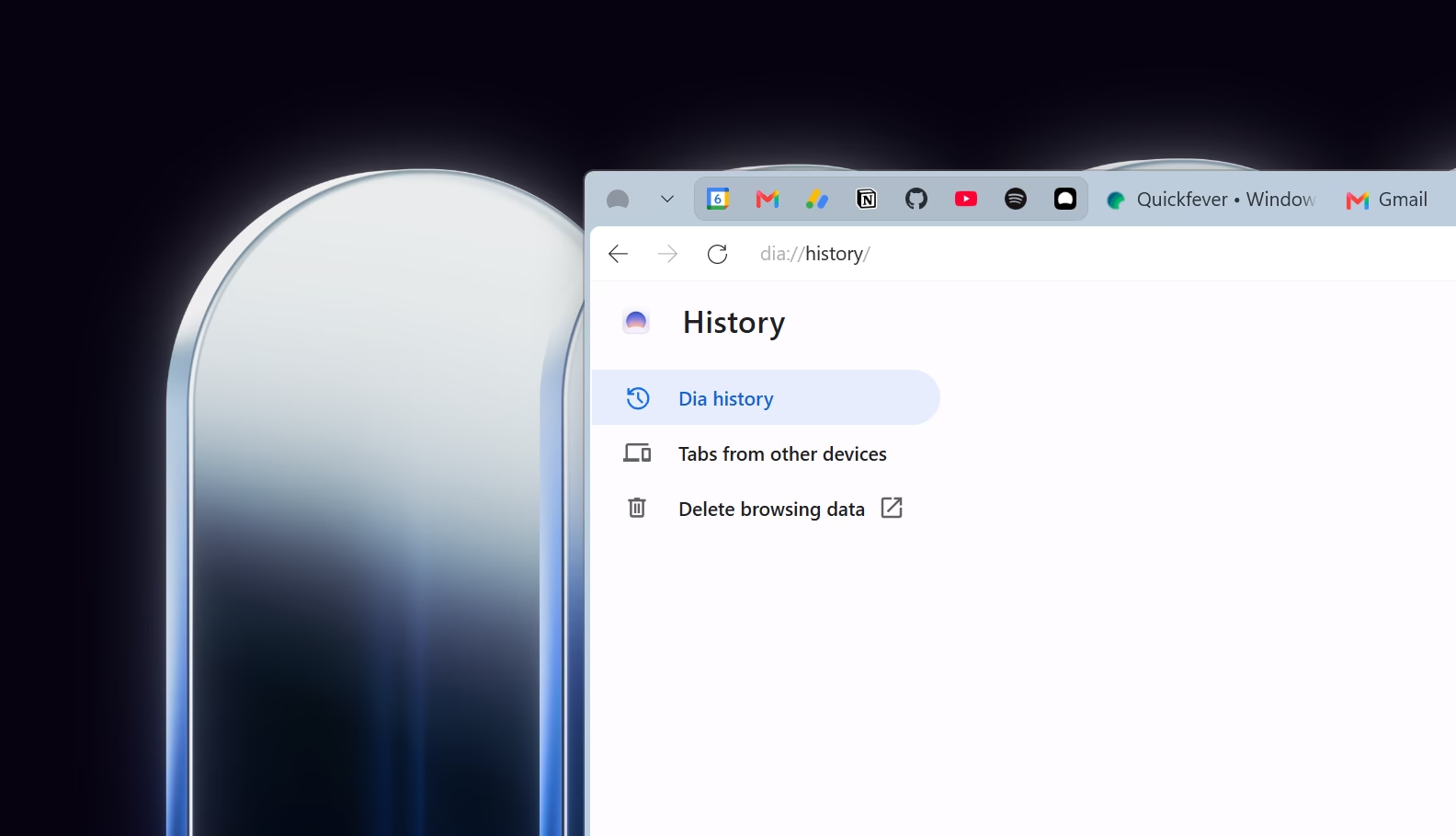
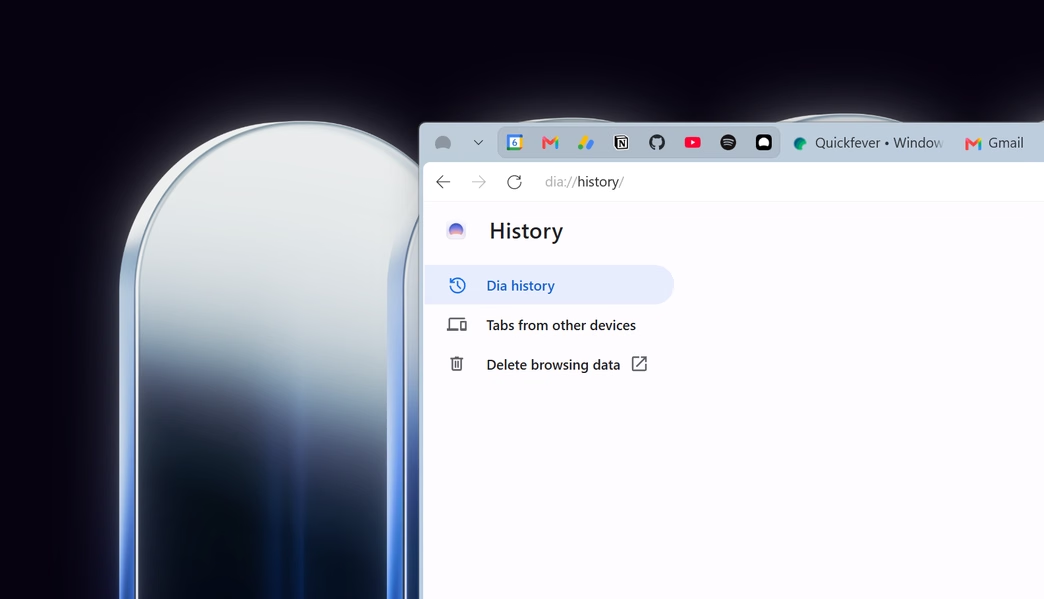
Press Ctrl + H to open your full browsing history across all tabs. You can also type dia://history in the address bar. Use the search box at the top to filter by page title or website.
Closed a tab by accident? Press Ctrl + Shift + T to bring back the most recently closed tab. Press it again to keep reopening tabs in the order you closed them.
Ask Dia to Find a Page for You
This is where Dia goes beyond Arc. If you can’t remember the exact page, open Chat and ask in plain language, such as “Find the DNS article I read yesterday” or “What GitHub pages did I visit this week?” Dia searches your browsing history by date, page title, or website and gives you the link.
How to Clear Your Browsing History
- Press
Ctrl+Shift+Delete. - Choose a time range, or select All time to clear everything.
- Tick Browsing history. Open the Advanced tab for more options, such as cookies and cached files.
- Click Delete data.
Good to know: by default, Dia avoids storing and processing data from sensitive sites such as banking and health.
That’s all, folks. Tab history helps you get back to what you were doing quickly, and Dia’s AI search means you don’t have to remember exactly where you saw something.
Dia keeps much of what Arc fans loved: Profiles for separating work and personal browsing, split view, pinned tabs, and your choice of top tabs or an Arc-style vertical sidebar. On Windows, Focus Mode hides all the clutter when you want to concentrate. If you’re coming from Arc, Dia can import your setup, including pinned tabs and GitHub Live Folders.
Comparing options? See our roundup of the best web browsers for Windows, or try Firefox if you’d rather skip Chromium.