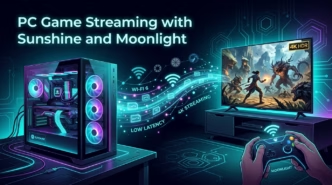
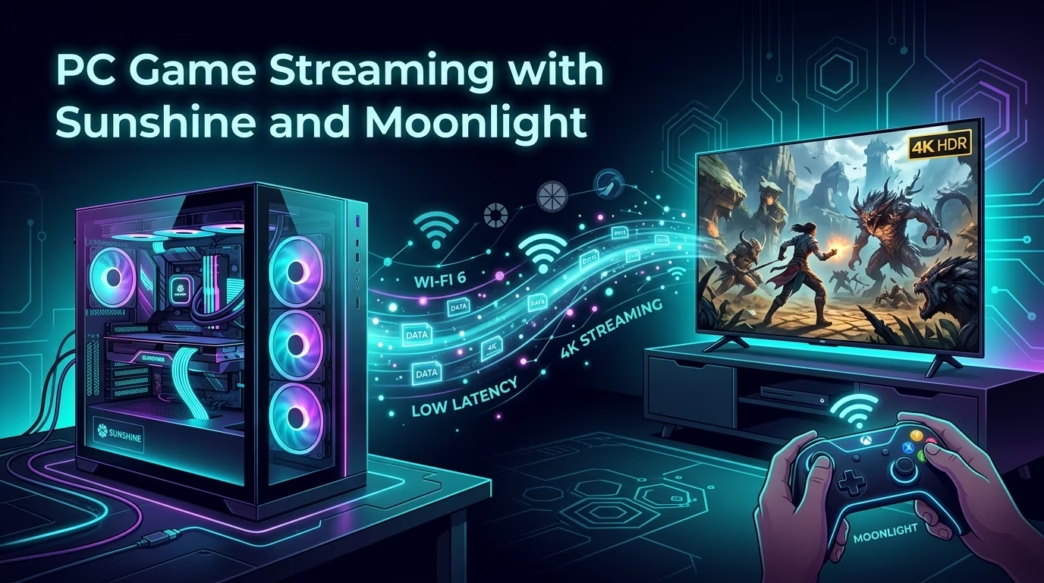
Looking for a reliable, ultra-low latency way to stream PC games from your Windows computer to your Android TV or Google TV box? While Steam Link works fine for games inside your Steam library, it quickly becomes cumbersome when you want to play non-Steam titles, Epic Games Store freebies, GOG releases, Xbox Game Pass PC games, or standalone emulators. Here is how to set up Sunshine and Moonlight to get smooth, responsive 60 or 120 FPS gaming right from your couch.
1. Why Sunshine and Moonlight Outperform Other Streaming Setups
Ever since NVIDIA officially discontinued GameStream from GeForce Experience, the open-source community rallied behind Sunshine. Sunshine is a self-hosted streaming server that pairs with the popular Moonlight client on Android TV. Unlike proprietary solutions, Sunshine gives you complete control over your stream without vendor lock-in or forced account logins.
| Feature | Sunshine + Moonlight | Steam Link | NVIDIA GameStream |
|---|---|---|---|
| GPU Support | NVIDIA GeForce, AMD Radeon, and Intel Arc / iGPUs | Any GPU (Steam client) | NVIDIA GTX / RTX only (Discontinued) |
| Hardware Encoders | NVENC, AMD AMF, Intel QuickSync (QSV) | NVENC, AMF, Software CPU | NVENC only |
| Non-Steam Games | Native full desktop, Game Pass, Epic, GOG, and Emulators | Requires manual Steam shortcuts | GeForce Experience scan only |
| Local Network Latency | Ultra-low (sub-10ms network decode over LAN) | Moderate (higher buffer overhead) | Low (legacy baseline) |
| Max Quality | Up to 4K at 120 FPS with HDR support | Usually capped at 1080p or 4K 60 FPS | 4K at 60 FPS with HDR |
| Software License | 100% Free and open source (zero telemetry) | Proprietary (Valve) | Proprietary (defunct) |
Because Sunshine runs as a lightweight background service, it introduces virtually no overhead while leaving your graphics card dedicated to rendering your games.
What’s required
Before installing any software, your local home network setup determines most of your streaming quality and latency:
- Wired Ethernet (Best Choice): Connect your gaming PC directly to your router with a Cat 6 cable. If your Android TV box or smart TV has an Ethernet port, keep it wired for rock-solid, stutter-free bitrates up to 80 to 100 Mbps.
- 5 GHz or Wi-Fi 6 (Solid Wireless Choice): If running a cable to your TV is not practical, connect both devices to the 5 GHz or 6 GHz Wi-Fi band. Stay completely away from 2.4 GHz Wi-Fi, because Bluetooth remotes, gamepads, and neighboring routers cause heavy packet jitter and sudden frame drops on 2.4 GHz.
- TV Ethernet Port Speed Notice: Many modern smart TVs still only include a 100 Mbps Ethernet port. If you plan to stream 4K at bitrates above 80 Mbps, a strong 5 GHz Wi-Fi connection or a USB Gigabit Ethernet adapter can actually offer higher throughput than the TV’s built-in Ethernet jack.
If you experience local DNS or network resolution hiccups across your smart devices, check our guide on the best free and public DNS servers to optimize network routing.
Step 1: Install Sunshine on Your Windows Host PC
Installing Sunshine on Windows takes just a couple of minutes:
- Open your web browser and go to the official Sunshine GitHub Releases page.
- Scroll down to the latest release assets and download the Windows installer executable (
sunshine-windows-installer.exe). - Run the setup wizard. During installation, leave the option checked to install the ViGEmBus driver. This virtual gamepad bus driver translates controller inputs sent from Moonlight into native Xbox or PlayStation gamepad signals on Windows.
- Finish the setup. Sunshine will start running in the background and configure itself as an automatic Windows service. You will also see a Sunshine icon in your system tray.
Step 2: Configure Sunshine
Sunshine does not use a traditional desktop window. Instead, all server settings are managed through a browser-based dashboard:
- Open your web browser on your gaming PC and visit:
https://localhost:47990/ - Your browser will show a security warning because Sunshine uses a self-signed local SSL certificate. Click Advanced and select Proceed to localhost (unsafe).
- On first launch, Sunshine will ask you to set up an admin Username and Password. Fill these in and click Save.
- Log in with your newly created credentials to enter the Sunshine dashboard. Sunshine automatically detects your primary GPU encoder (NVENC, AMF, or QuickSync) and default audio output device.
- Optional audio check: Go to the Configuration menu and click the Audio/Video tab. If you do not want your computer speakers playing sound while you game on the TV, enable the option to mute the host audio device during an active stream.
Step 3: Install Moonlight on Android TV
Now grab your Android TV remote or connected gamepad to set up the receiver:
- Turn on your Android TV, Google TV, or streaming box (such as an NVIDIA Shield TV, Chromecast with Google TV, or Xiaomi Box).
- Open the Google Play Store, search for Moonlight Game Streaming, and select Install.
- Launch Moonlight. As long as your TV and Windows PC are connected to the same local home network, Moonlight will automatically discover your host computer and show its name with a small lock badge.
If your smart TV feels sluggish or runs out of RAM while multitasking, see our walkthrough on how to debloat your Android TV to disable background manufacturer bloatware and free up system memory.
Step 4: Pair Sunshine and Moonlight
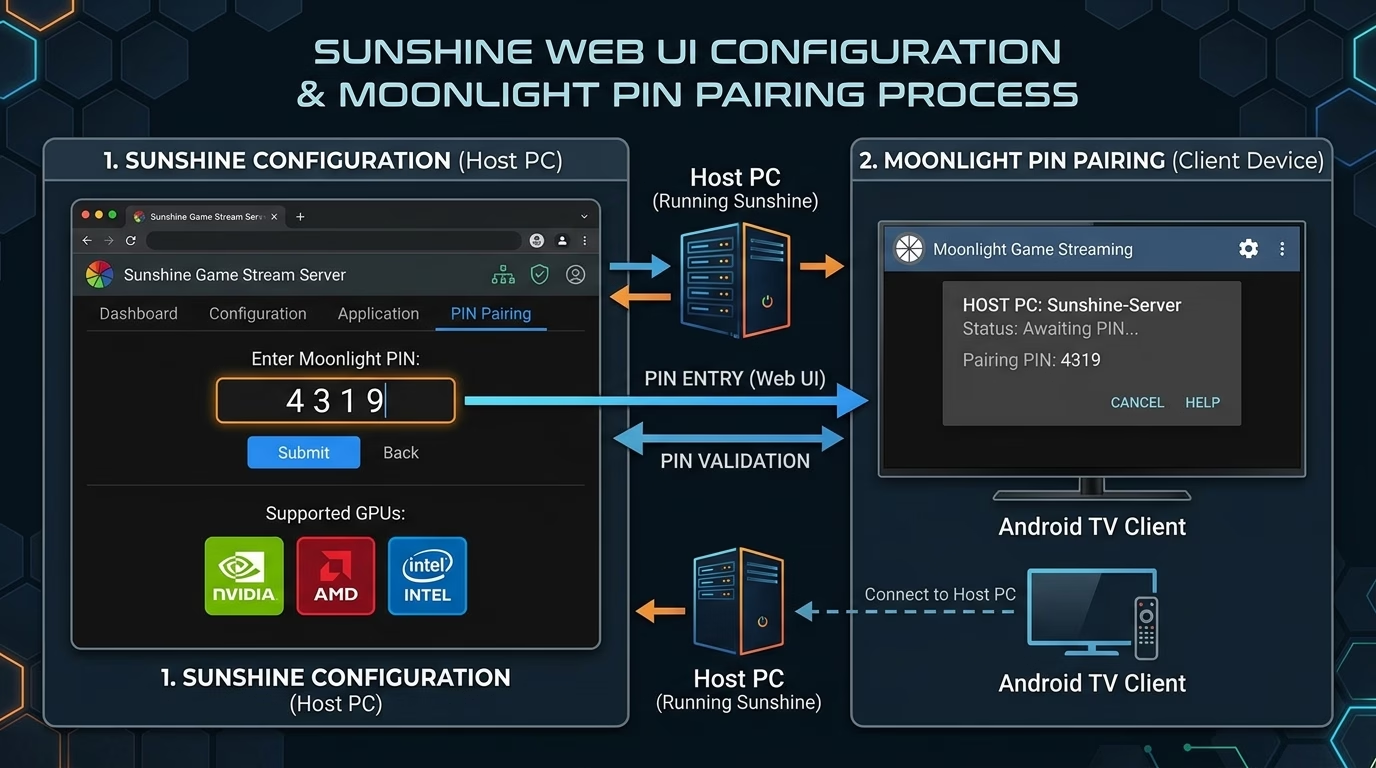
To secure your stream so unauthorized devices on your network cannot view your screen, Sunshine requires a one-time PIN handshake:
- Select your host PC icon inside the Moonlight app on your TV. A prompt will pop up displaying a random 4-digit PIN.
- Switch to your PC browser and head to the Sunshine dashboard at
https://localhost:47990/. - Click on the PIN tab in the top navigation bar.
- Enter the 4-digit PIN shown on your TV screen and click Send.
- Within two seconds, a success banner appears in Sunshine, and the lock badge on your TV disappears. Your PC is now paired and ready for gaming.
Step 5: Stream Non-Steam Games, Xbox Game Pass, and Emulators
Once paired, you have two flexible methods to launch your game library from the couch:
Method A: The “Desktop” Stream (Fastest and Most Versatile)
Inside Moonlight on your TV, click the default Desktop tile. Your entire Windows desktop mirrors to your TV in crisp resolution. From here, you can launch anything you want using your connected controller or remote:
- Xbox Game Pass for PC: Launch games straight from the Xbox app without dealing with UWP file permissions.
- Epic Games & GOG Galaxy: Open the launcher and boot any title directly.
- Standalone Emulators: Play retro classics or modern consoles using RPCS3, PCSX2, Dolphin, or DuckStation with full gamepad mappings.
- Couch Launcher Tip: If you want a full console dashboard interface on your TV, launch Playnite in Fullscreen Mode or start Steam Big Picture. Both give you a smooth, controller-navigable interface for all your combined PC storefronts.
Method B: Add Individual Game Tiles to Sunshine
If you prefer dedicated game banners right on the Moonlight home screen instead of loading the desktop first:
- In the Sunshine Web UI, click on the Applications tab and select Add New.
- Enter your game title (for example, Cyberpunk 2077 or Forza Horizon 5).
- In the Detached Commands section, enter the full path to your game’s executable file (such as
C:\Games\Cyberpunk2077\bin\x64\Cyberpunk2077.exe). - Upload a custom cover poster image and click Save. The game tile will immediately sync and appear on your Android TV’s Moonlight menu.
Fix Resolution Mismatches with Virtual Display Driver
A common hurdle when streaming PC games to a living room TV is display aspect ratio mismatch. If your gaming PC runs an ultrawide monitor (21:9) or a 1440p panel, streaming to a standard 16:9 4K TV often results in awkward black bars or squished resolutions.
Another issue occurs if your gaming PC is in another room and the physical monitor is powered off: Windows may disable display output, leading to a black screen in Moonlight.
You can solve both issues cleanly using either of these solutions:
- Virtual Display Driver (Free Software Fix): Install the open-source Virtual Display Driver on your PC. It creates an emulated 16:9 4K or 1080p display at 60Hz or 120Hz with optional HDR. Sunshine can bind directly to this virtual monitor whenever Moonlight connects, keeping your main monitor untouched.
- HDMI Dummy Plug (Hardware Fix): Pick up an inexpensive 4K 60Hz HDMI dummy emulator plug. Plug it into a spare port on your graphics card so Windows always detects an active 16:9 display, even when your main screen is turned off.
Recommended Moonlight Settings for Zero Stutter and Lowest Latency
Open the Settings (gear icon) at the top right of the Moonlight app on your Android TV to dial in optimal performance:
- Resolution and Frame Rate: Select 1080p at 60 FPS for budget TV boxes and streaming sticks. For high-performance devices like the NVIDIA Shield TV Pro or Google TV Streamer, set it to 4K at 60 FPS or 120 FPS (if your TV supports 120Hz HDMI input).
- Bitrate Slider:
- On Gigabit Ethernet: Set the bitrate between 60 Mbps and 85 Mbps. This produces clean visuals with zero compression artifacts without overwhelming the hardware decoder.
- On 5 GHz Wi-Fi: Keep the bitrate between 30 Mbps and 45 Mbps. Pushing Wi-Fi bitrates higher than 50 Mbps often causes buffer spikes and micro-stuttering on wireless links.
- Video Codec: Set to HEVC (H.265) or AV1 (if supported by your TV box hardware). HEVC offers much tighter compression efficiency than older H.264, preventing color banding in dark game environments.
- Frame Pacing: Choose Prefer lowest latency for fast-paced shooters or action games. If you notice occasional stutter despite having good network metrics, toggle it to Balanced.
- TV Picture Mode (Essential Step): Always set your physical TV input picture mode to Game Mode. Standard TV picture modes apply heavy post-processing motion smoothing that can add 50ms to 100ms of display lag, ruining controller responsiveness.
If you also use your streaming device for media and cord-cutting, take a look at our roundup of the best streaming apps for Android TV with community addon and debrid support.
Troubleshooting Common Streaming Issues
If you run into issues while setting up Sunshine or Moonlight, here are the most common fixes:
- Host PC Shows as Offline or Missing: Ensure your Windows Network Profile is configured as Private rather than Public. On a Public profile, Windows Defender Firewall blocks UDP and TCP discovery broadcasts. Go to Windows Settings → Network & Internet → Properties and change it to Private Network.
- Black Screen with Sound Playing: This typically happens when Windows turns off the physical monitor to save power. When no active display is detected, the GPU stops rendering desktop frames. Install the Virtual Display Driver mentioned above or plug in an HDMI dummy adapter.
- Controller Inputs Not Recognized in Games: Confirm that the ViGEmBus driver is active. Open Windows Device Manager, expand System devices, and verify that Virtual Gamepad Emulation Bus is listed without error warnings. If missing, reinstall Sunshine and ensure the ViGEmBus driver component is checked.
- Periodic Wi-Fi Latency Spikes: If your stream stutters every 30 to 60 seconds on Wi-Fi, Android TV might be scanning for nearby Wi-Fi networks in the background. Disable Location Services in Android TV settings or turn off background Wi-Fi scanning in Developer Options.
- Need a Clean Windows Setup: If background services and driver conflicts are causing frame drops on your PC, follow our guide on how to clean install Windows 11 for optimal system performance.
Video Walkthroughs and Community Guides
If you prefer a visual demonstration or want to explore advanced Sunshine configurations like virtual audio sinks and WAN internet streaming, check out these community resources: