Currently serving: Windows 11 26H2 (Current 22630.9711) on 29/10/2026
Windows 11 is Microsoft’s primary operating system, and there are several ways to download, install, or upgrade to it. Below is a complete walkthrough for downloading the official Windows 11 Media Creation Tool (MCT) and creating a bootable USB flash drive or saving the official ISO file.
Sidenote: If the tool takes too long or fails to download, you can grab the Windows 11 ISO file directly and create a bootable USB using Rufus instead.
What You Need Before Starting
- A reliable internet connection (the download is roughly 5 GB to 6 GB).
- A blank USB flash drive with at least 8 GB of storage space. Keep in mind that anything currently stored on the drive will be completely erased.
- A PC running Windows 11, 10, or 8.1 with administrative access to run the utility.
Part 1. Download Media Creation Tool & Save ISO
Visit the official Microsoft Windows 11 download page. Scroll down to the section titled Create Windows 11 Installation Media and click the blue Download Tool Now button to save mediacreationtool.exe to your computer.
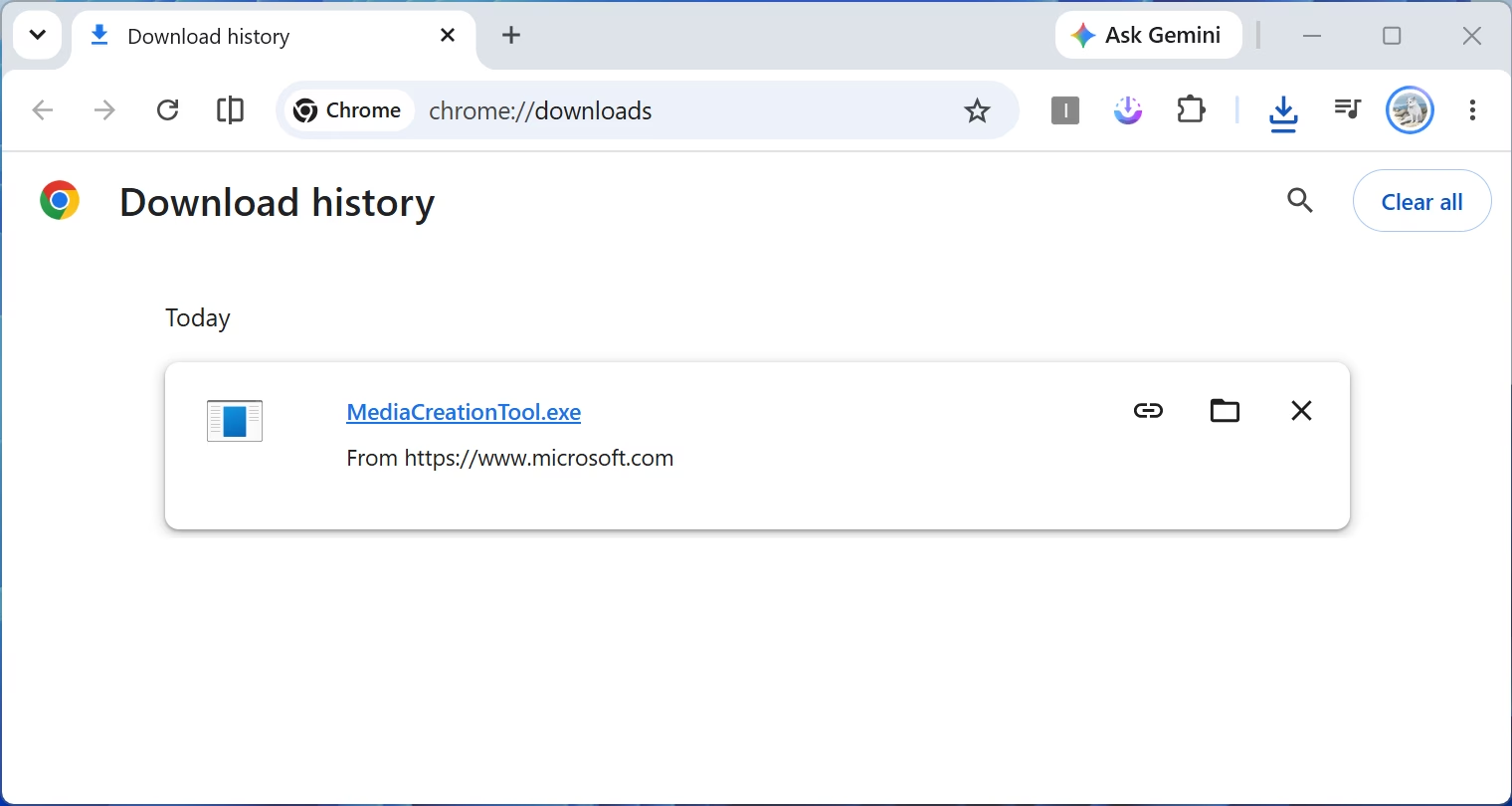
Once downloaded, right-click the file and select Run as administrator. When prompted with the license terms screen, click Accept to proceed.
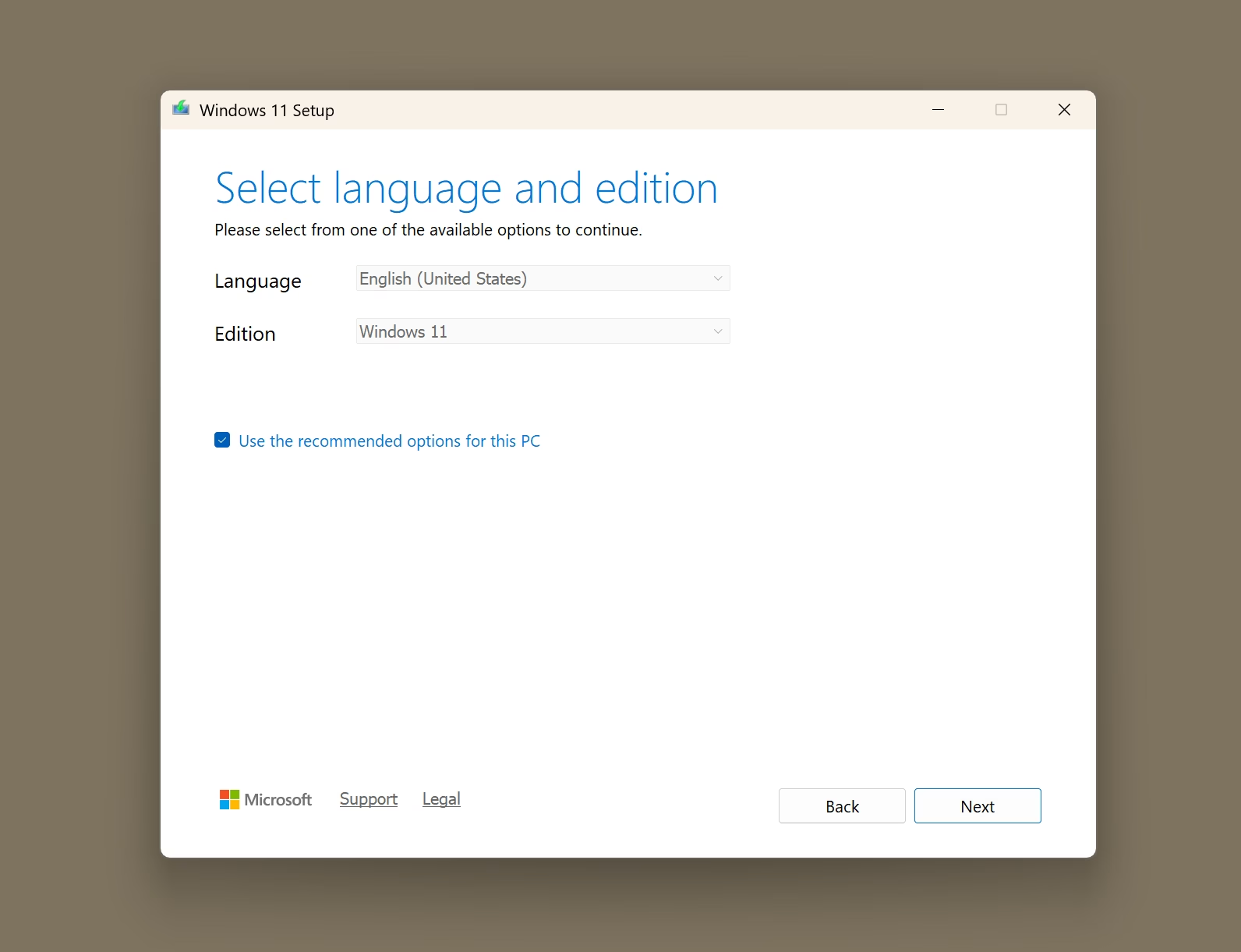
Next, the tool displays language and edition choices. By default, the option Use the recommended options for this PC is checked. This automatically matches your current PC configuration. If you plan to install Windows 11 on a different computer, uncheck this box to pick your preferred language. (Note: Unlike older Windows 10 setups, Windows 11 is exclusively 64-bit multi-edition, so there is no 32-bit selection).
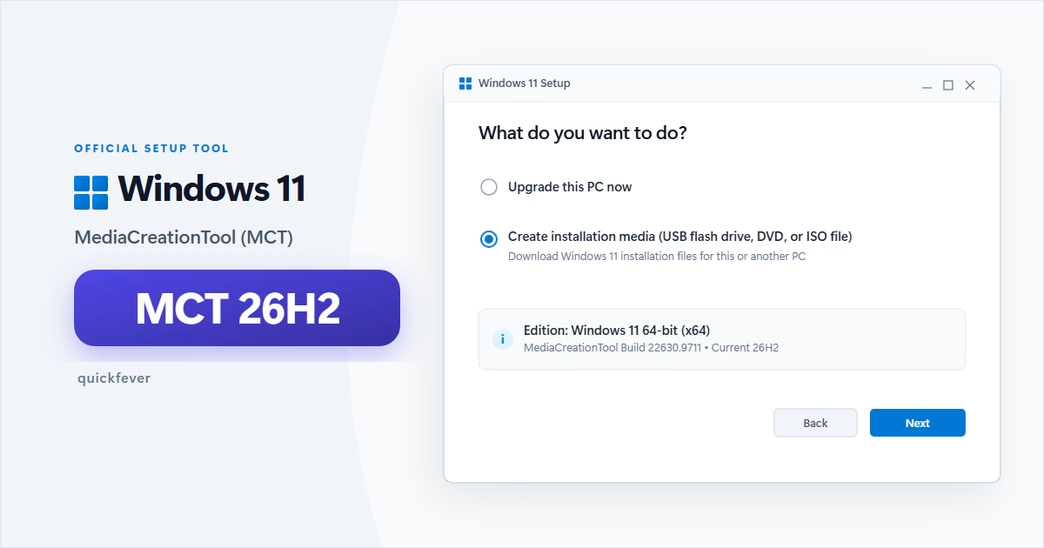
On the Choose which media to use screen, you have two options: USB flash drive or ISO file.
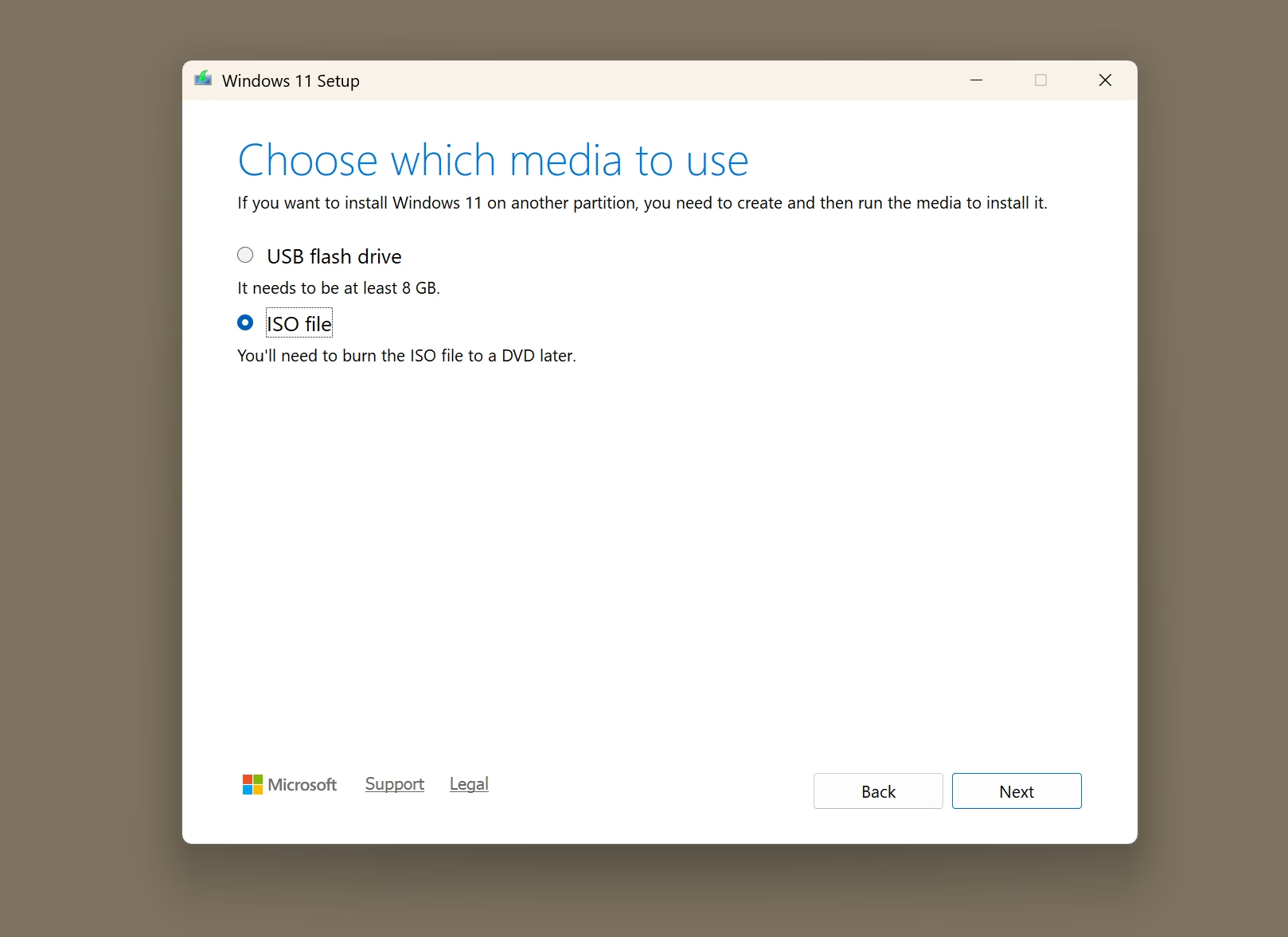
If you prefer saving the raw installation image file to your hard drive instead, choose the ISO file option on the media selection screen and click Next.
- Choose a folder on your computer where you want to save the
Windows.isofile. - Wait for the download and file verification process to finish.
- Once saved, you can double-click the ISO to mount it as a virtual drive in Windows Explorer, burn it to a blank dual-layer DVD, or flash it using Rufus (which also lets you bypass TPM 2.0, Secure Boot, or online Microsoft account requirements if installing on older hardware).
You can skip this and use MCT to build a bootable flash drive automatically, select USB flash drive and click Next:
- Plug in your USB flash drive (ensure it has at least 8 GB of capacity).
- Select your USB drive letter from the list and click Next.
- The utility will download the Windows 11 setup files and burn them directly to your USB drive. This takes 10 to 20 minutes depending on your internet speed.
- Once finished, click Finish. Your flash drive is now ready to boot and install Windows 11.
Troubleshoot USB Drive Detection
Media Creation Tool cannot find your USB drive: This occasionally happens with certain USB drives (like older SanDisk Cruzer sticks) when Windows flags them as a fixed local disk instead of removable storage, or when the drive partition table has corrupt metadata. Here is what to do:
- Plug into another port: Move the flash drive directly to a rear USB port on your PC motherboard rather than a front-panel hub.
- Reformat to FAT32: Open Disk Management (press
Win + Xand select Disk Management), right-click your USB partition, choose Format, and format it as FAT32. - Use the ISO + Rufus workaround: If MCT still refuses to list the drive, simply select the ISO file option in MCT. Once downloaded, use Rufus to write the ISO to that USB drive; Rufus detects all USB drives reliably.
Power-user tip (Universal MediaCreationTool script): If you want to download older Windows 11 builds, build ARM64 images, or automatically bypass system hardware checks during setup, take a look at AveYo’s open-source MediaCreationTool.bat wrapper on GitHub. It uses Microsoft’s official download servers while giving you full control over builds and editions.
Once your bootable media is prepared, check our step-by-step walkthrough on how to clean install Windows 11 from a USB flash drive. If you run into any hiccups during creation, drop a comment below and let us know.