

While Microsoft pushes constant Windows updates, people buy expensive laptops, and Instagram models post photos with their cats, it is your older computer that deserves a second chance at life. When Jide Technology introduced Remix OS in 2016, the internet went crazy about it. By skinning Android with a desktop taskbar, start menu, system tray, and multi-window app multitasking, Remix OS promised to turn standard PCs and laptops into fast, Android-powered workstations.

However, things are very different today. Jide officially discontinued Remix OS to pivot away from consumer products. The operating system remains permanently frozen on Android 6.0 Marshmallow, receiving zero security patches or platform updates. While it can still be installed from archived images on older hardware for nostalgia or offline testing, modern users should look at active alternatives.
Below, you will find preserved download links for the official Remix OS 3.0 release packages, a step-by-step walkthrough for dual booting with Windows, and modern working alternatives to run Android on your computer today.
Download Remix OS for PC (Archive Links)
Because the official Jide servers were taken offline, the installation packages are preserved on trusted software mirrors. Remix OS 3.0 was released in two separate builds:
| Package | Architecture | Firmware Support | Archive Source |
|---|---|---|---|
| Remix OS 64-Bit | x86-64 (AMD64) | UEFI and Legacy BIOS | FossHub / SourceForge |
| Remix OS 32-Bit | x86 (32-bit) | Legacy BIOS Only | FossHub / SourceForge |
Hardware requirements:
- A 2 GHz dual-core processor (Intel or AMD) or better.
- At least 2 GB of system memory (RAM).
- Minimum 8 GB of free hard drive space (16 GB or 32 GB recommended for app storage).
- A fast USB 3.0 flash drive with at least 8 GB capacity if you prefer live USB testing.
How to Dual Boot Remix OS with Windows
The safest way to run Remix OS alongside Windows 11, Windows 10, or Windows 7 is by using the official installation tool bundled inside the archive. This tool creates an Android disk image directly on your chosen drive without replacing your Windows system files.
- Extract Archive Files: Download the Remix OS zip package and extract it to a folder. You will find two key files: the Remix OS disk image (
.iso) and the official installation tool (Remix_OS_for_PC_Installation_Tool.exe).

- Launch Installer Tool: Right-click the installation tool executable and choose Run as administrator.
- Select Disk Image and Destination: Click Browse and locate the extracted Remix OS
.isofile. Under the Type dropdown, select Hard Disk. In the Drive menu, choose the partition where you want to place the OS image.
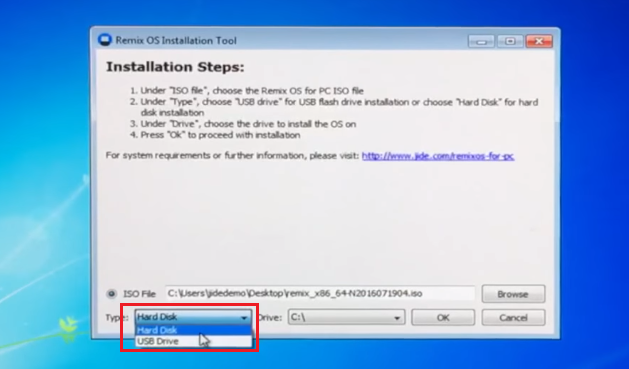
- Allocate Storage Size: Choose the system size for your Android apps (16 GB or 32 GB is recommended). Click OK to start copying files. The installer writes the boot files and adds Remix OS to your Windows boot menu.
- Reboot and Choose Remix OS: Restart your computer. Windows will present a boot selection screen displaying both Windows and Remix OS. Select Remix OS using your arrow keys and press Enter to complete initial language and Wi-Fi setup.
Testing via USB first: If you prefer not to touch your internal drives, choose USB Drive under the Type dropdown in the installer tool. You can then boot your PC from the USB drive to test hardware compatibility in guest mode without making permanent changes.
Modern Working Alternatives to Remix OS
Because Remix OS cannot run modern Android applications or receive browser security updates, you should consider one of these actively maintained alternatives:
- Bliss OS (Android 13 & 12): The most capable direct successor to classic Android x86 projects. Bliss OS features a desktop taskbar, multi-window mode, and broad hardware compatibility. Read our complete guide to Bliss OS review and dual boot setup.
- FydeOS: Built on Chromium OS with native Android 13 subsystem support (fyDroid) and Linux containers. It delivers a fast, modern Chromebook-like desktop experience on PC hardware. See our walkthrough for FydeOS installation and dual booting.
- ChromeOS Flex: If your primary goal is bringing an older laptop back to life for web browsing, streaming, and cloud documents, Google official operating system is the most stable choice. Learn how to create a ChromeOS Flex bootable USB.
- Android Emulators for Windows: If you only need to run specific Android games or messaging apps on your current PC without dual booting, check our curated list of the best lightweight Android emulators for Windows.
- Lightweight Linux Distributions: For decade-old computers that struggle with Windows, explore our roundup of lightweight Linux distributions that look and feel like Windows.
To compare every available option side by side, visit our central index of the best Android OS for PC.



Great article! I once installed it on my computer a year ago, I remember there were some problems with the player, but I did everything. I think Remix OS 3.0 is quite a decent alternative to Windows and Linux!
What about resurrectionremix?
Hello Sam, the link you’re referring is a project provides android custom ROM with many added features for “mobile phones”. On the other hand, Remix was (is) an Android OS for computers. If you need Remix alternative, do check “Phoenix OS and Openthos.”