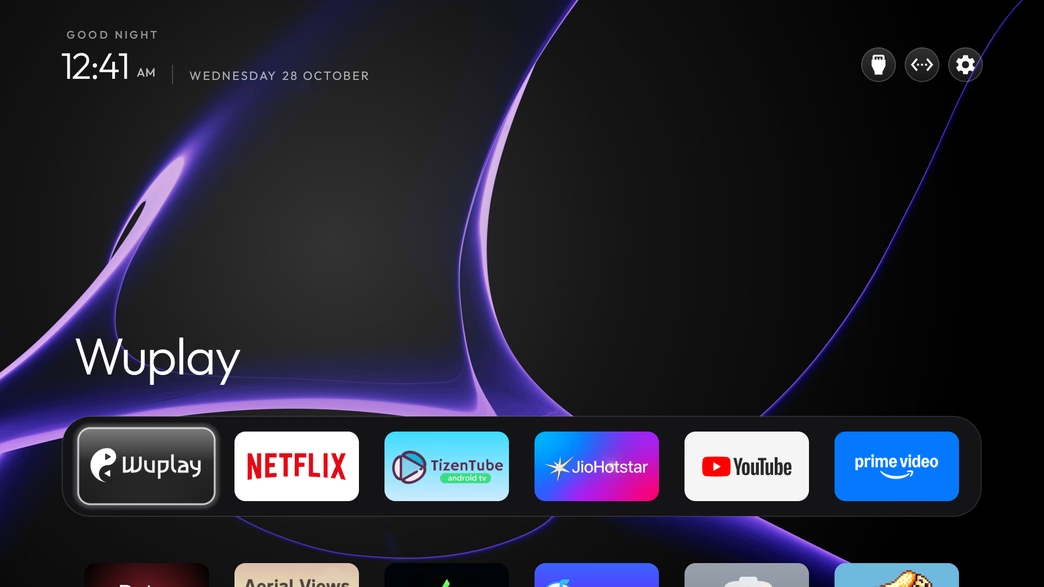
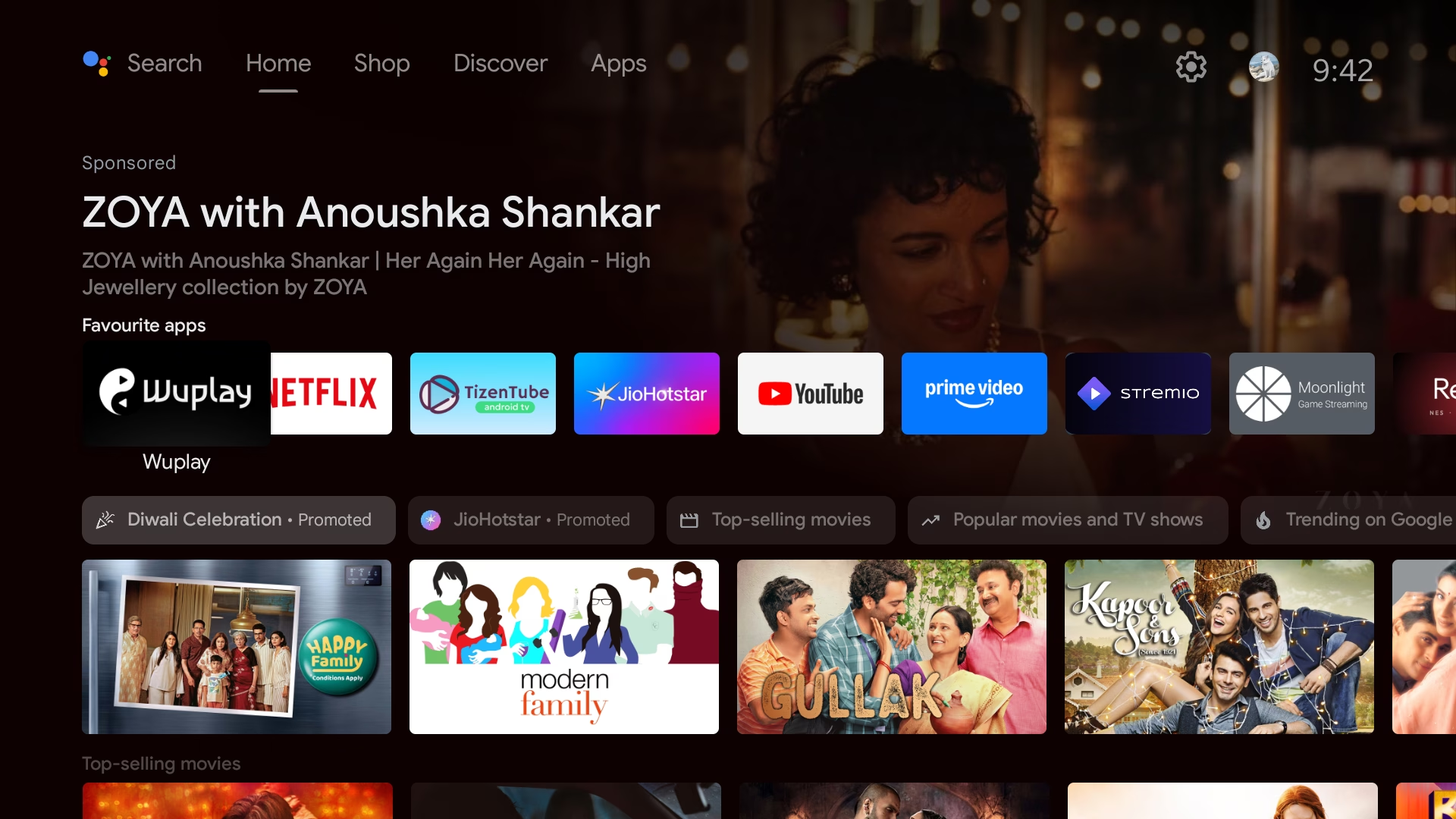
If you own a smart TV from the last few years, you probably know the feeling. You switch it on, wait for it to boot, and instead of landing directly on Netflix, YouTube, or your HDMI input, you’re greeted by a full-screen sponsored banner, autoplaying trailers, rows of “recommended” content you never asked for, and a home screen that stutters every time you press a directional button on your remote. It’s your TV, but it often feels like an ad billboard taking up living room real estate.
A developer named Gathin ran into this exact frustration on his family’s Xiaomi TV. Instead of manually uninstalling and disabling dozens of system packages by hand over terminal, he fed the TV’s model information to an AI coding assistant. The AI identified the TV over local Wi-Fi, safely disabled 25 pre-installed ad and telemetry packages, and compiled a sleek, minimal launcher. He open-sourced the workflow as CleanYourTV (repo: Gathin23/cleanyourtv), and it quickly went viral across the Android TV community.
In this guide, I’ll walk you through how CleanYourTV works, how I tested it on my own OnePlus TV using Google Antigravity, and how you can transform your sluggish, ad-ridden Android TV into a blazing-fast, distraction-free home screen in about 15 minutes.
⚡ At a Glance: CleanYourTV
- Platform: Android TV and Google TV (Xiaomi, OnePlus, TCL, Sony, Hisense, Philips, etc.).
- Root Required? No root required. It communicates through standard Android Debug Bridge (ADB).
- Permanent? 100% reversible. Packages are disabled (not deleted), and a restore script is automatically generated.
- Time Needed: ~15 minutes with an AI coding agent like Google Antigravity or Claude Code.
What CleanYourTV Actually Does
The easiest way to think of CleanYourTV is as an automated, safety-first version of the ADB debloating scripts enthusiasts have used for years. Powered by instructions inside PROMPT.md, an AI assistant executes a structured three-step cleanup:
- Backs up your TV’s package configuration: Before touching a single file, it pulls your TV’s complete list of installed packages and settings, saving a localized rollback snapshot.
- Disables bloatware and telemetry: It systematically disables OEM analytics, content recommendations, sponsored home rows, and unnecessary background daemons.
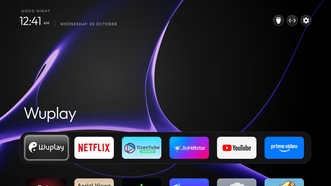
- Compiles and installs a minimalist launcher: It builds a lightweight, aesthetic home screen (think clean dock, clock, custom wallpaper, and your favorite apps) and sets it as the default launcher.
Two key technical details make this approach safe: nothing gets rooted, and no system files are deleted. Android’s native package manager simply sets the target apps to disabled (pm disable-user). The apps remain stored in your system partition; they just stop running, stop consuming RAM, and can be re-enabled instantly with a single command.
Device Compatibility: Will It Work on Your TV?
CleanYourTV is built specifically for Android TV and Google TV devices. This includes:
- Supported: Xiaomi Mi TV / TV Box, OnePlus TV, TCL, Hisense, Sony Bravia, Philips, Chromecast with Google TV, Nvidia Shield TV, and Nokia Smart TVs.
- Not Supported: Samsung Smart TVs (Tizen OS), LG Smart TVs (webOS), and Amazon Fire TV sets (FireOS uses proprietary launcher restrictions).
Not sure what your TV runs? Head to Settings > Device Preferences > About on your TV. If you see Android TV or Google TV listed, you’re good to go.
Prerequisites
Before you begin, make sure you have the following ready:
- Your Android TV connected to your local Wi-Fi network.
- A PC, Mac, or laptop connected to the same Wi-Fi network as your TV.
- An AI coding assistant capable of executing shell commands. In this guide, we use Google Antigravity (Claude Code, Codex, or Gemini CLI work as well).
- Basic build tools installed on your PC (Git, Python 3, and Java JDK 17, which Antigravity can help configure if needed).
Step-by-Step Guide: Debloating Your Android TV
Here is the exact step-by-step workflow I followed to clean up my OnePlus TV.
Step 1: Enable Developer Options & USB/Wireless Debugging
To let your computer communicate with the TV via ADB, enable developer debugging on your television:
- On your TV, navigate to Settings > Device Preferences > About.
- Scroll down to the Build number and click it 7 times with your remote until you see the toast message: “You are now a developer!”.
- Go back one screen into Developer Options and toggle on USB Debugging (or Wireless Debugging). Keep your TV powered on.
Step 2: Download the CleanYourTV Repo on your computer
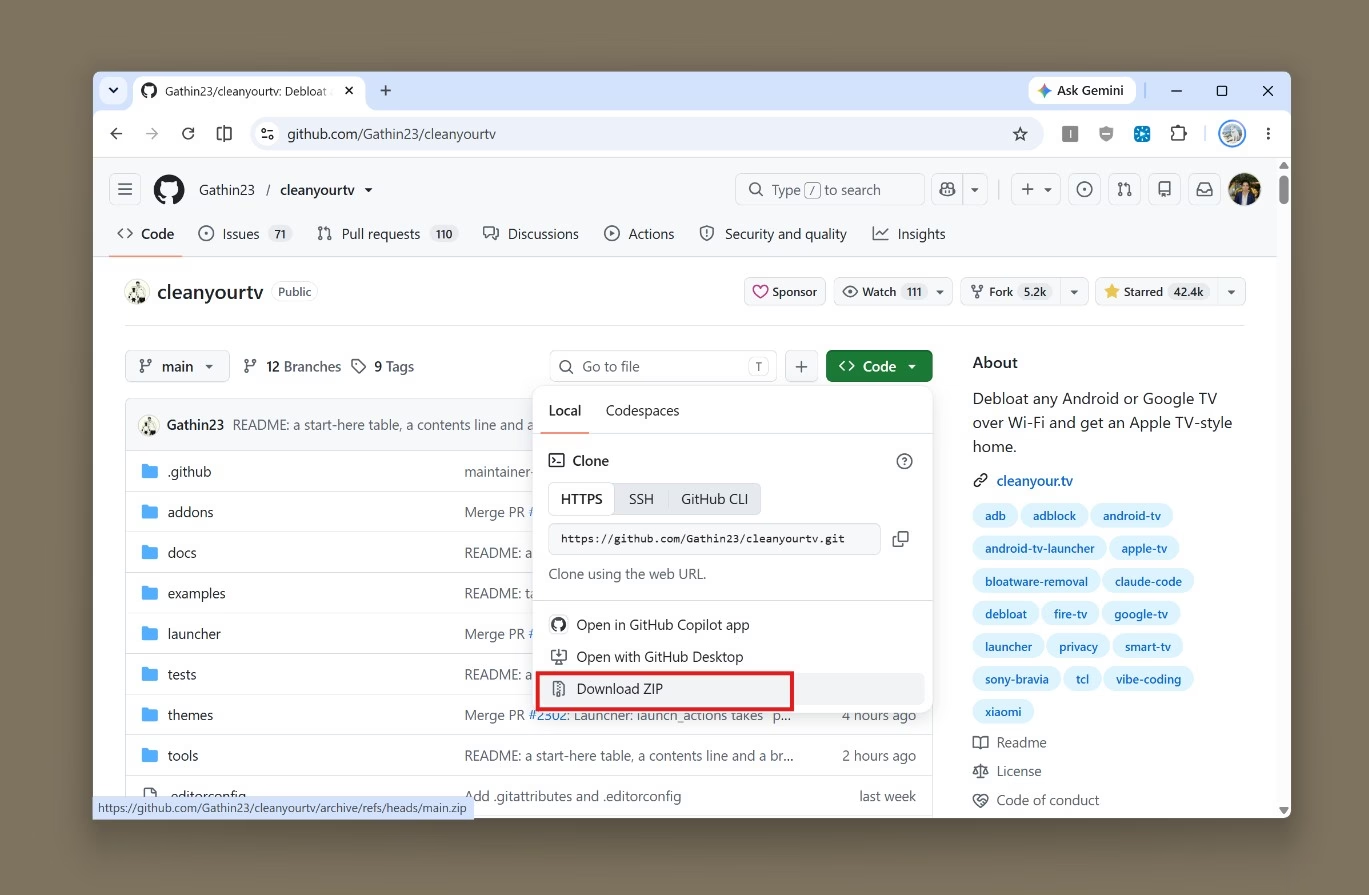
On your computer, clone the reop using this. Cloning the repo locally is essential because it contains the safety scripts, blacklists, package categorization rules, and launcher source code that the AI assistant needs to reference.
git clone https://github.com/Gathin23/cleanyourtvYou can also save CleanYourTV repo on your computer.
Step 3: Open the Project in Google Antigravity
Launch Google Antigravity (or your preferred AI coding assistant) and open the cloned cleanyourtv directory as a new workspace.
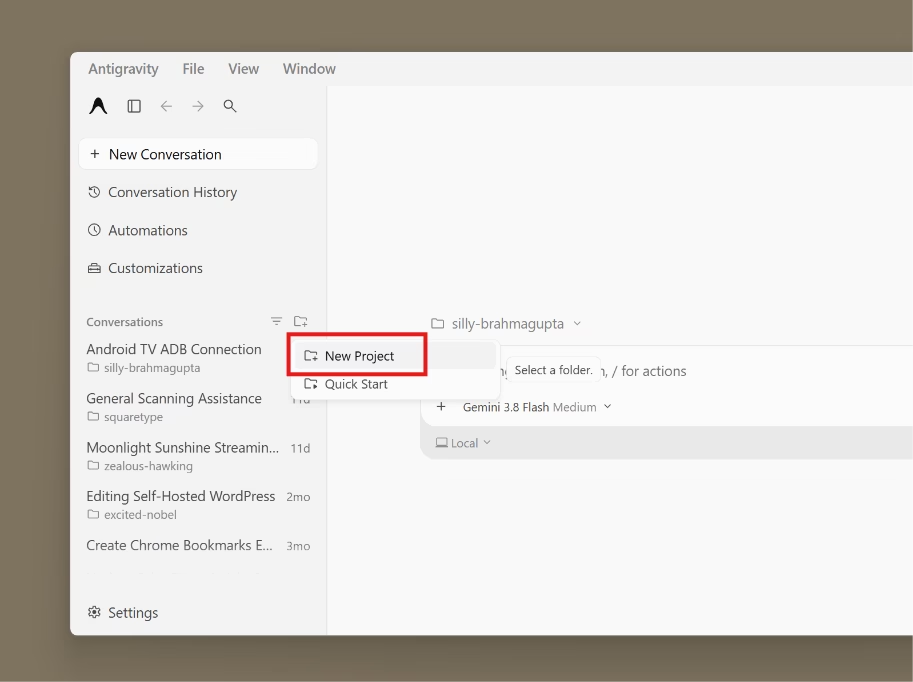
Open the PROMPT.md file, paste its instructions into the chat prompt, and enter your TV’s brand and model number.
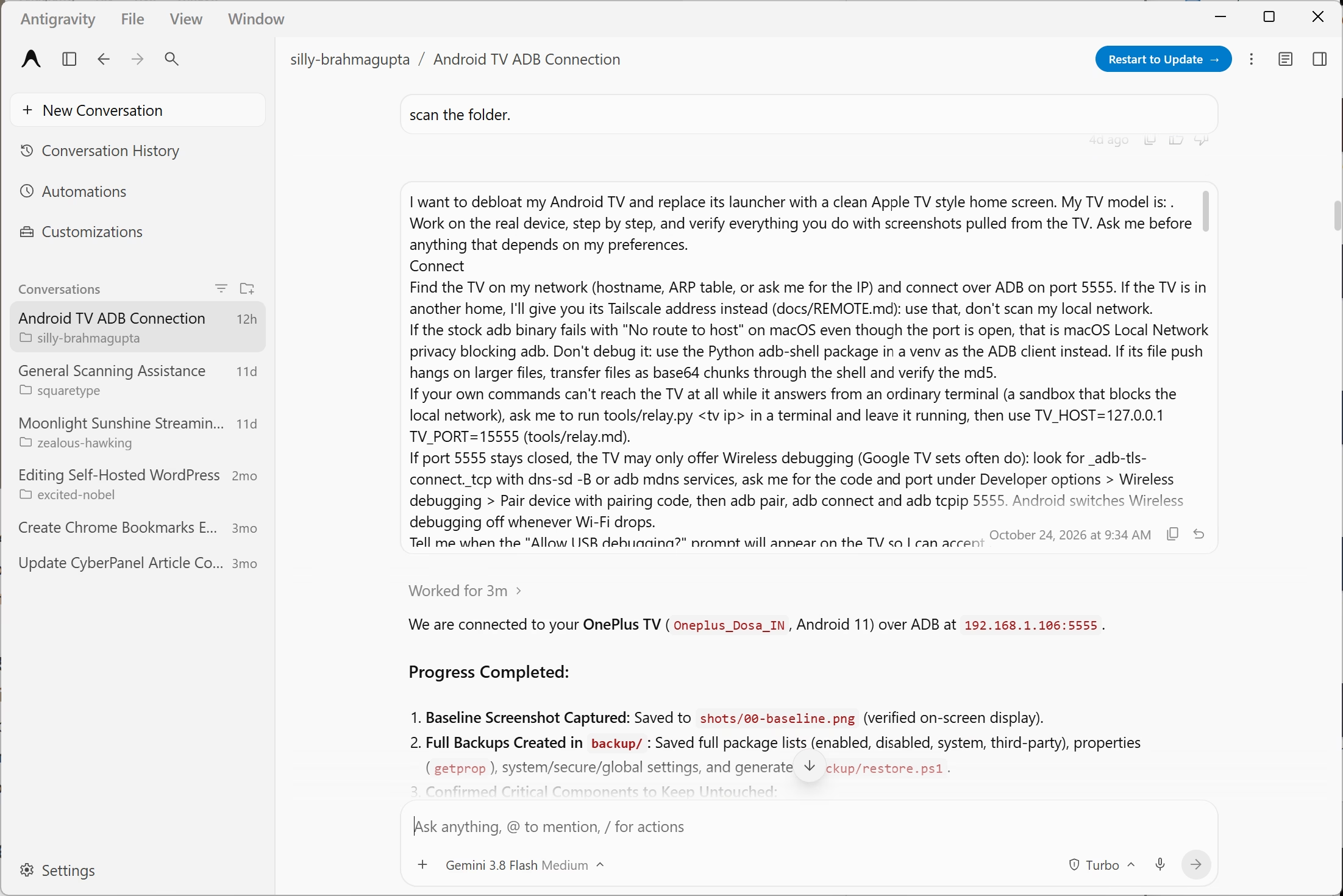
Step 4: Connect to Your TV via ADB
Once you trigger the prompt, Antigravity scans your local network, finds your TV’s IP address, and initiates an ADB connection over port 5555. A prompt will appear on your TV screen asking: “Allow USB debugging from this computer?” Select Always allow and press OK.
Step 5: Interactive Customization & Safety Backup
Before executing any disabling commands, Antigravity pulls your installed package list and automatically sorts packages into safe tiers. It then conducts a short interactive interview, asking your preferences for:
- Dock size and icon density.
- Favorite streaming applications (Netflix, Prime Video, YouTube, Plex, etc.).
- Optional ad-blocking DNS (such as NextDNS or AdGuard).
💡 Community App Note: If your TV model is already recognized in CleanYourTV’s crowd-sourced profile directory, the project also offers an Android Companion APK that can apply pre-built profiles without requiring a laptop or coding assistant.
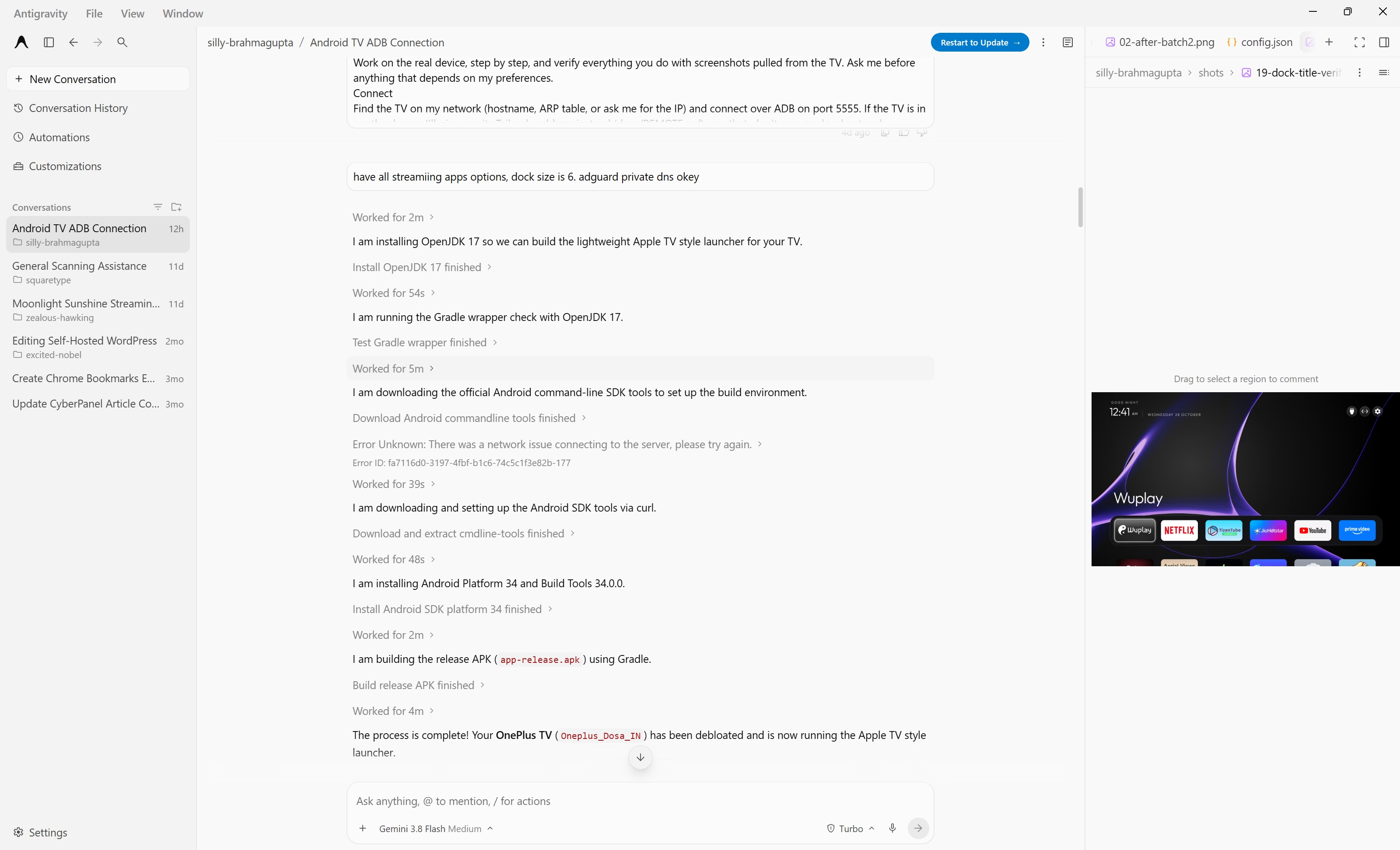
Step 6: Batch Debloating with Live Screenshots
Rather than disabling all bloatware packages in one reckless swoop, the script processes apps in small, monitored batches. After each batch, it captures an ADB screenshot of your TV display and saves it to \PROJECT\shots\. This ensures that if any manufacturer service (like volume control or input switching) is disrupted, you can instantly see which batch caused it and revert.
Step 7: Compiling & Deploying the Minimalist Launcher
Once the system packages are trimmed, Antigravity compiles the clean launcher APK locally and installs it directly to your TV via ADB. Instantly, your TV switches to the new, ultra-fast interface.
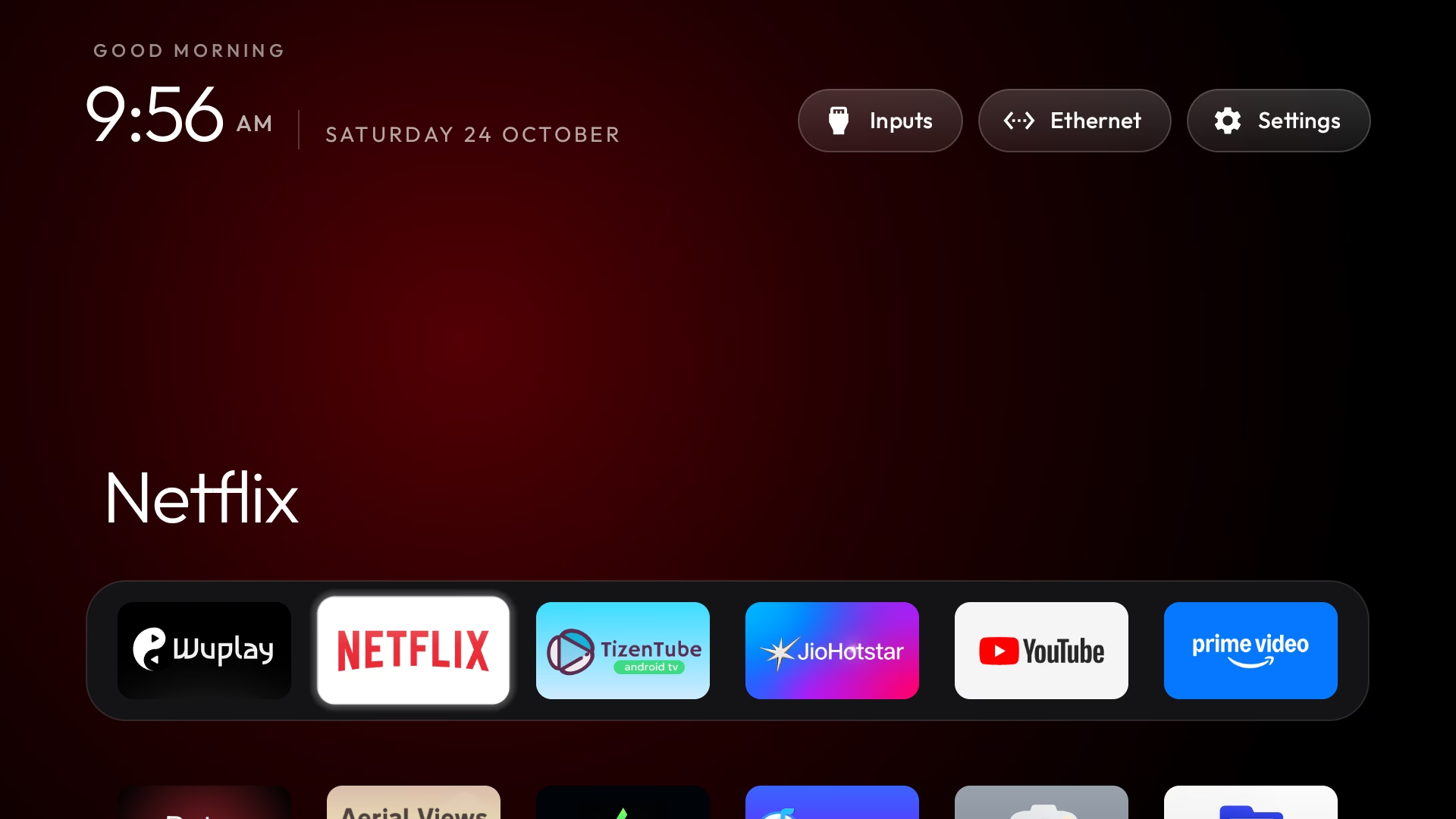
Because the launcher is built from source, you can customize it conversationally in Antigravity. For instance, I prompted: “Make the left and right dock icons smaller and apply a glass theme.”
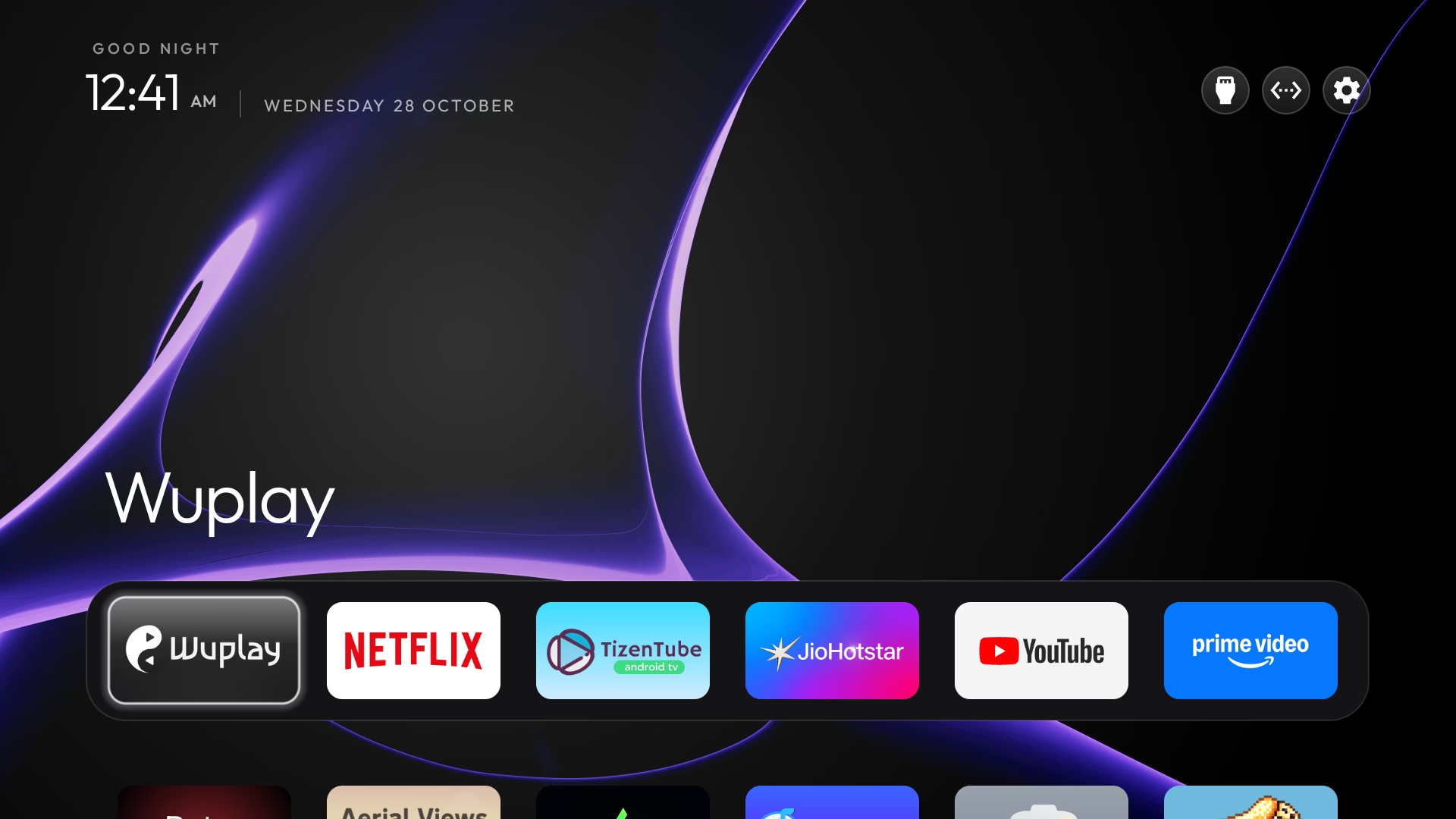
Pro-Tip for Custom Wallpapers: You can customize your background by copying the glass theme folder, renaming it, and swapping in your own wallpaper.jpg before the build step.
Step 8: Turn Off Debugging (Important Security Step)
Once you are happy with your new setup, don’t forget this crucial security step: go back to TV Settings > Developer Options, revoke ADB authorizations, and turn USB / Wireless Debugging OFF. Network ADB is unencrypted over local Wi-Fi, so keeping it disabled protects your TV from unauthorized access on your home network.
What CleanYourTV Won’t Fix
It’s important to set realistic expectations. CleanYourTV debloats the operating system and home launcher. It stops manufacturer telemetry and cleans up the home screen. However:
- It does not block in-app commercials inside third-party apps like free streaming services, Hulu, or YouTube (for in-app video solutions, check out our guide on ad-free YouTube options for TV).
- It does not upgrade outdated hardware: if your budget TV has a weak processor, it will feel noticeably snappier without background bloatware, but heavy video decoding remains hardware-dependent. For top-tier media apps, browse our curated list of the best streaming apps for Android TV.
Risks & How to Safely Roll Back
Altering system components always carries some degree of risk. On certain budget streaming dongles (such as older Mi TV Sticks), disabling critical power management packages historically caused bootloops. CleanYourTV prevents this by enforcing a hardcoded “never-touch” whitelist protecting core Android system UI and settings.
To keep your setup completely safe:
- Never skip the backup step: CleanYourTV stores a
restore.shscript locally that can re-enable every disabled package with one click. - Disable in batches: Verify remote control responsiveness and basic TV functions after each batch.
- The Emergency Fallback: In the rare event of a boot issue, you can always enter your TV’s hardware Recovery Mode (holding Power + Back on your remote during boot) and trigger a factory reset.
Frequently Asked Questions (FAQ)
Is CleanYourTV free and open source?
Yes. The code, scripts, and documentation are completely free on GitHub under the MIT license.
Do I need to root my TV?
No root is required. The entire process works using standard Android ADB developer permissions.
Can I use an AI assistant other than Google Antigravity?
Yes. Claude Code, OpenAI Codex, or Gemini CLI can all execute the prompt. You can also run the ADB commands manually if you prefer.
Can I restore my original TV interface if I change my mind?
Yes. Running the included restore.sh script immediately re-enables all manufacturer apps, restoring the stock home screen without data loss.
Disclaimer: Modifying Android system packages may affect manufacturer warranties and system stability. Always perform a complete backup before modifying packages and follow project instructions carefully.