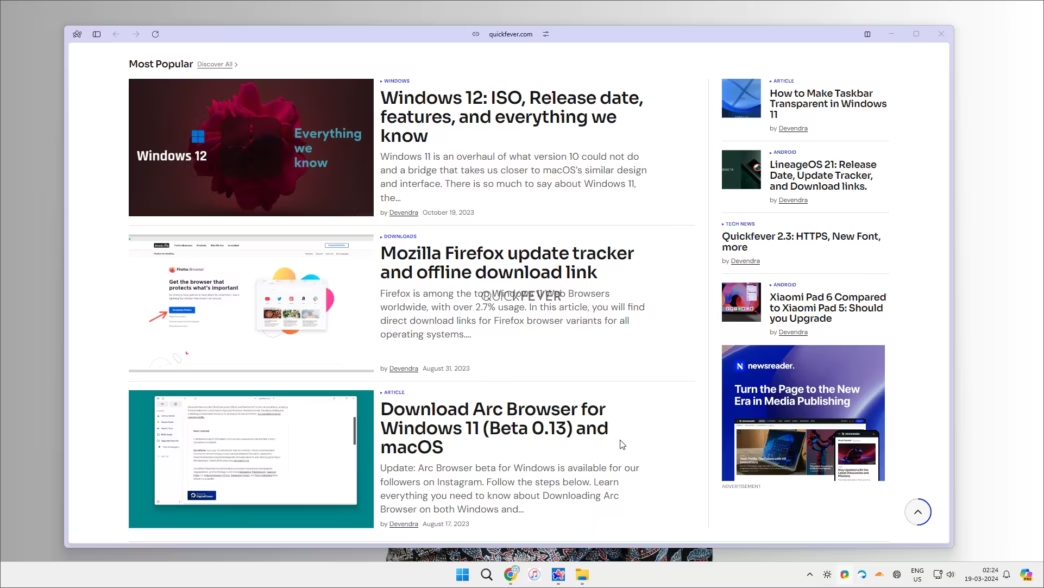
Arc Browser was released last year and created a buzz on the Internet. There are many good points where it excels. Just after we got rolled out in the beta version, we installed and tested it out. While making this article, we instantly noticed that opening a page from the WordPress editor opens the preview in a pop-up layout, which is a neat feature indeed.
In this post, we’ll look at how to make Arc Browser a Default Browser on Windows 11.
Step 1. Install Arc Browser: Use the above link to get started with Arc Browser.
Step 2. Visit Windows Settings
Click on Arc Logo and select the first option, that litrelly shouts the same.
Otherwise, you can do the same from Settings > Apps > Default Apps > Arc and make it default.

Arc Browser is new in terms of how you interact with a browser, while the Windows version is a step behind the Mac version, but eventually we’ll get all the features it has to offer.