

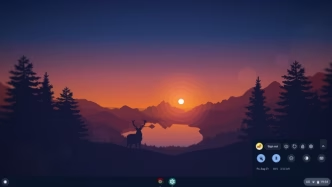

FydeOS is an operating system based on Chromium OS that brings the lightweight, cloud-first Chromebook experience to regular PCs. Google doesn’t offer a general ChromeOS installer for non-Chromebook hardware, so forks like FydeOS and ChromeOS Flex fill the gap. What sets FydeOS apart from Flex is built-in support for Android apps alongside a Linux environment.
FydeOS also runs as a virtual machine in VMware, including VMware Fusion on Apple silicon Macs.
You can quickly make a bootable USB to test FydeOS on your computer without touching your internal hard drive or Windows installation.
Verdict
In our testing on an HP ENVY laptop (Intel Core i7 8th Gen), FydeOS 23 cold-booted in under 20 seconds and ran Linux containers and Android apps side by side smoothly on mid-range hardware. If you want a Chromebook-style OS on an existing PC and need Android apps, FydeOS is the strongest option. If you only need the browser and want Google’s official support, ChromeOS Flex is simpler.
Pros
- Android 13 apps out of the box via fyDroid, with the F-Droid store included
- Linux environment on top of a fast, lightweight Chromium OS base
- Hardware video decoding (H.264, AV1, VP9, HEVC) on supported hardware
- Runs live from USB, so you can test it without risk
Cons
- Google Play needs Developer Mode and rootfs verification turned off
- No official support for discrete NVIDIA GPUs
- Signing in with a Google Account requires a FydeOS account first
- Dual booting on a single drive takes manual partitioning
FydeOS vs ChromeOS Flex
| FydeOS 23 | ChromeOS Flex | |
|---|---|---|
| Developer | Fyde Innovations | |
| Android apps | Yes (fyDroid, Android 13) | No |
| Google Play | Optional, via GApps Configurator | No |
| Linux apps | Yes | Yes |
| Account | FydeOS account (Google sign-in optional), guest, or local | Google Account |
| Best for | Users who want Android apps on a PC | Browser-first use, managed fleets |
What’s New in FydeOS v23: Chromatic Cadence
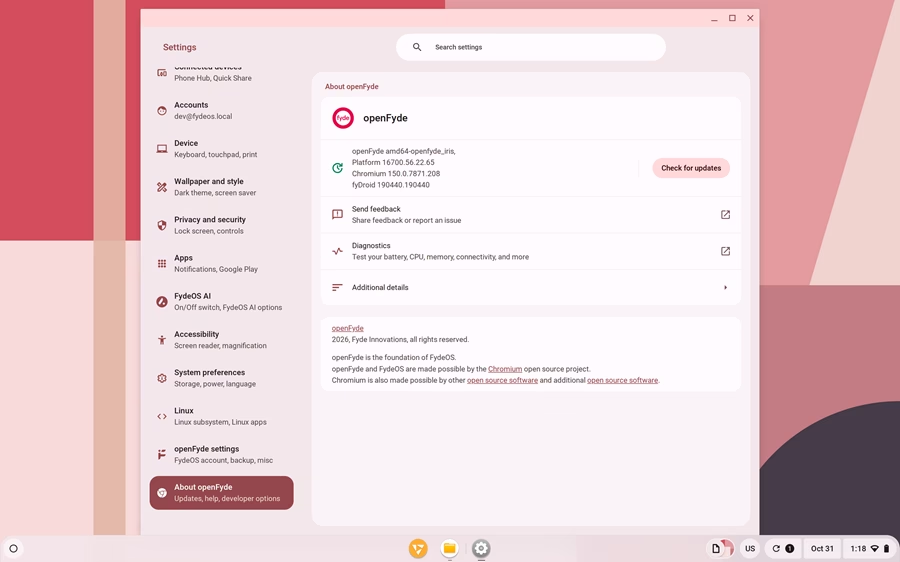
FydeOS v23 (Chromatic Cadence)** moves the core from Chromium OS r144 to Chromium OS r150. Highlights:
- fyDroid (Android 13): A new Android subsystem replaces the old one across all editions. It runs by default with no manual setup, supports ChromeOS-style game controls, includes the open-source F-Droid app store, and uses Mesa 26.1.3 with Vulkan drivers (on compatible hardware) for better graphics. FydeOS plans to open-source fyDroid. Availability can vary by device.
- Hardware video decoding: H.264, AV1, VP9 and H.265 (HEVC), where your hardware supports them.
- Built-in VNC server: Lets a VNC client view and control your FydeOS device remotely, which is handy for maintenance and support on a local network.
- Vertical tabs (experimental): Enable at
chrome://flags/#vertical-tabs, relaunch, then right-click the tab strip and choose Show tabs vertically. - Better VMware support: fyDroid now works in 64-bit VMware Fusion VMs on Apple silicon, with clipboard and file sharing between the VM and the host.
- Rebuilt system apps: New Imager and Writer apps, plus rebuilt GApps Installer and FydeOS Installer.
- AMD GPU support in Intel Modern: Some Intel-CPU laptops with AMD graphics can now use the Intel Modern build.
- Smaller improvements: Network troubleshooting in the Diagnostics app, more reliable accessibility settings sync, and stability fixes.
v23.1 maintenance update
- Fixes Google Play services so the Play Store works on affected devices (including WhatsApp installs)
- Fixes copying text from Android apps into the browser, and opening Android app links in the browser
- Fixes Android Bluetooth state sync and repeated Bluetooth service crashes
- Restores Google Drive in the Files app for Google-account users
- Fixes the on-screen keyboard on the sign-in screen in tablet mode, and DisplayLink support
In our real-world testing on an HP ENVY laptop (Intel Core i7 8th Gen), FydeOS booted in under 20 seconds from cold start. We were impressed by how smoothly it juggles Linux containers and Android applications simultaneously on mid-range hardware.
1. Download FydeOS for PC
FydeOS for PC is split into hardware-specific variants. Before downloading, check your processor and graphics card to pick the matching build from the official FydeOS download page:
| Variant | Supported Hardware |
|---|---|
| Intel Modern | Intel 6th to 14th Gen Core CPUs with HD/UHD or Iris Xe graphics, plus select AMD GPUs (2015 and newer) |
| Intel Slim | Intel Celeron and Pentium processors with Intel HD/UHD graphics (2015 to 2019) |
| AMD Graphics | AMD discrete or integrated Radeon graphics with Intel or AMD processors (2011 and newer) |
Note on NVIDIA graphics: FydeOS does not officially support discrete NVIDIA GPUs. If your laptop features hybrid graphics (Intel CPU with an NVIDIA GPU), FydeOS will typically run using the integrated Intel graphics chip.
2. Boot FydeOS from USB
The safest way to experience FydeOS is by booting it live from a USB flash drive. This keeps your internal Windows or macOS installation completely untouched, while session files and installed apps remain saved persistently on the flash drive.
- Download the correct
.img.xzdisk image for your hardware from the FydeOS download portal. - Get a fast USB 3.0 or 3.1 flash drive with at least 8 GB of storage (32 GB is recommended if you plan to install multiple Android apps). Using older USB 2.0 drives will result in slow boot times.
- Open Rufus or BalenaEtcher on your computer.
- Select the downloaded
.img.xzfile (both Rufus and Etcher can flash compressed.xzfiles directly without extracting them first). - Select your USB drive and click Start (or Flash). This will erase the flash drive and write the FydeOS partitions.
- Once flashing completes, restart your computer and press your boot menu key (commonly F9, F12, Del, or Esc). Select your USB drive to boot.
- On the welcome screen, choose Try it first to run FydeOS directly from the USB drive.
3. Enable Android Subsystem and Google Play
FydeOS is built outside Google’s commercial licensing ecosystem, meaning the Google Play Store is not pre-installed out of the box. However, with the new fyDroid subsystem, you can easily enable the Android container and add Google Play Services:
Method 1: F-Droid or APK sideloading (no Google Play)
This is the simplest route if you only need a few apps, and it avoids running Google Play Services in the background.
- Open F-Droid from the app launcher to install open-source apps directly.
- For other apps, download
.apkfiles from trusted sites like APKMirror. - Double-click the APK in the Files app and confirm the install.
Method 2: Install Google Play Store via Open GApps
To get the official Google Play Store and sync your purchased apps, use the built-in GApps Configurator:
- Launch the Android environment at least once via the app launcher so the subsystem files are initialized.
- Press
Ctrl + Alt + Tinside the browser to open the crosh shell. - Type
shelland press Enter, then typesudo -ito get root access. - Disable root filesystem verification by entering:
/usr/sbin/crossystem_mode-switch.sh disable-rootfs-verification - Restart your computer. Once back on the desktop, open the FydeOS App Store.
- Navigate to the Made by FydeOS category, find the Configure Open GApps installer, and click install.
- Launch the GApps Installer app, accept the terms, and allow it to download and integrate Google Play Services.
- Reboot one final time. The official Google Play Store will now appear in your app launcher ready for sign-in.



4. openFyde: Open-Source Edition
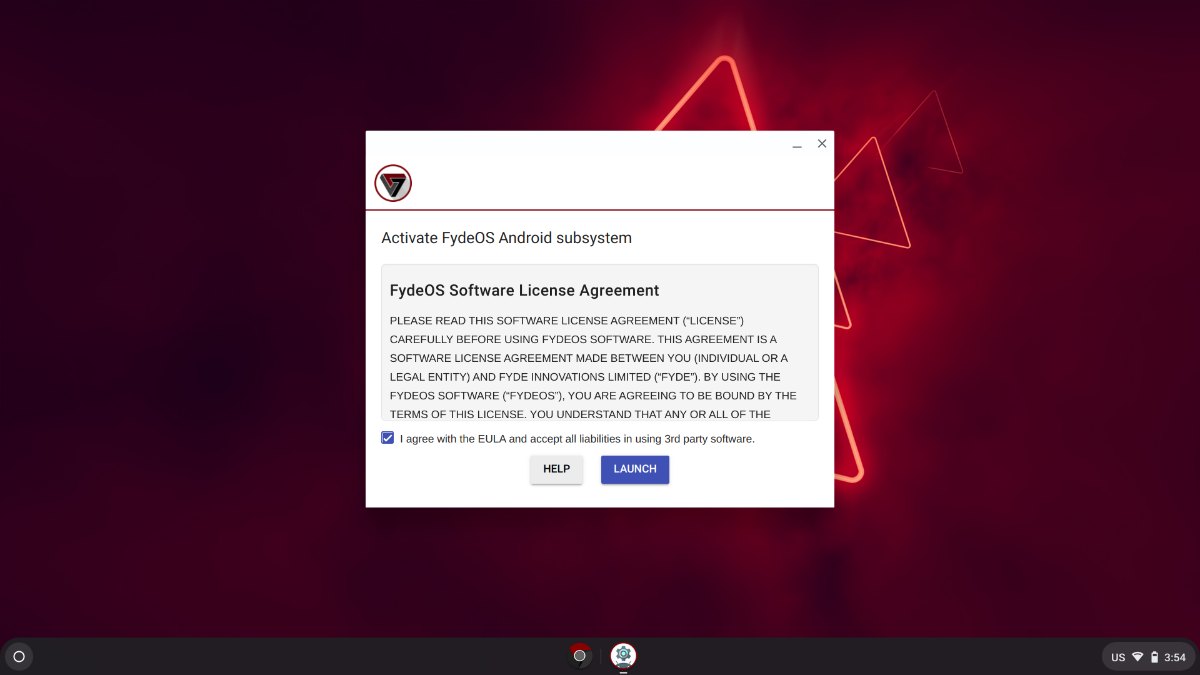
If you prefer an entirely open-source operating system free of proprietary branding, take a look at openFyde, the community-driven upstream project behind FydeOS. Hosted publicly on GitHub, openFyde gives developers and enthusiasts full access to compile, modify, and inspect the Chromium OS base.
The openFyde development team recently released a major milestone: openFyde r150 (fyDroid + Notialis r4), detailed by the team on Reddit. This release pairs two dedicated container runtimes directly with the Chromium OS desktop:
- fyDroid (Android 13 Subsystem): Brings open-source Android app compatibility to openFyde, featuring improved physical keyboard input handling and independent volume controls.
- Notialis r4 (Arch Linux and Steam): While Google discontinued Steam Borealis on standard ChromeOS, openFyde includes Notialis, a full Arch Linux container runtime. It bundles the Pamac package manager, terminal access, and pre-integrated Steam gaming with Gamescope support on PC hardware and FEX translation for ARM boards.
- Broad Hardware Targets: The r4 build provides ready-to-flash images for Intel PCs (Broadwell and 8th Gen+), AMD Ryzen APUs, Raspberry Pi 5, the FydeTab Duo tablet, and VMware virtual machines (including Apple Silicon Macs).
Install FydeOS to Your Internal Drive
Warning: Installing to a drive erases everything on it. Back up first. To keep Windows, see Dual Boot with Windows.
- Boot FydeOS from USB as shown above and finish the initial setup.
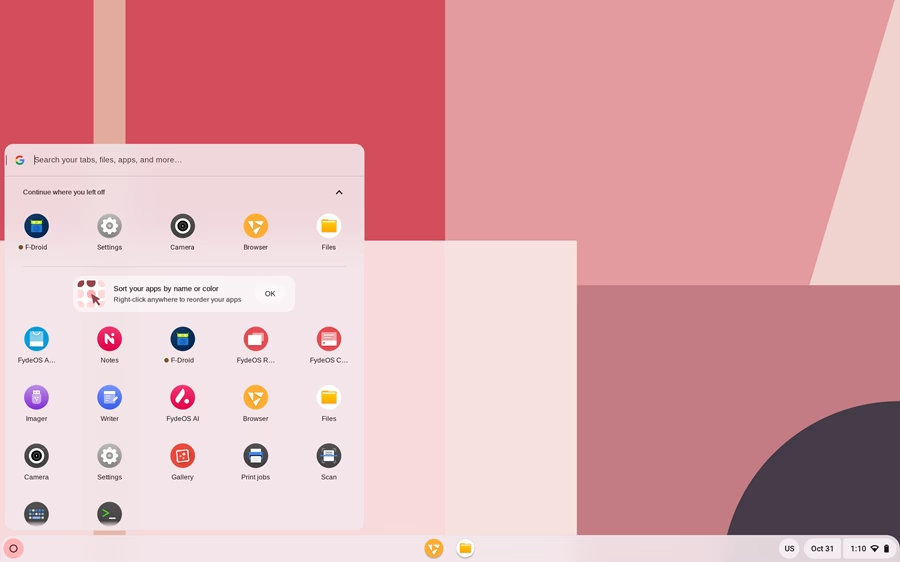
- Open the app launcher and start FydeOS Installer.
- Select the target drive and confirm the erase warning.
- When the installer finishes, shut down, remove the USB drive, and boot from the internal drive.
See FydeOS’s step-by-step install guide for more detail.
5. Dual Boot with Windows
Chromium OS uses a multi-partition layout (root, state and kernel partitions) that the Windows boot manager can’t handle directly. There are two safe options:
Here are the two safest approaches for dual booting:
- Separate drive (recommended): Install FydeOS on a second SSD or M.2 drive. Neither OS touches the other’s partitions, and you pick one at startup with your boot menu key (for example, F12).
- Custom Partitioning with rEFInd: If you must install on a single drive, shrink your Windows partition via Disk Management to leave unallocated space, and use the FydeOS installer’s multi-boot option. Use a custom UEFI boot manager like rEFInd to manage the boot selection menu gracefully.
If you ever decide to remove FydeOS and reclaim your disk space, refer to our step-by-step instructions on how to safely uninstall ChromeOS forks and restore Windows EFI boot entries.
Troubleshooting
Stuck on the FydeOS logo when booting from USB
- Make sure you downloaded the right variant for your GPU. This is the most common cause.
- Disable Secure Boot and make sure the PC boots in UEFI mode, not Legacy/CSM.
- Re-flash the USB drive, or try a different USB 3.0 drive and port.
- See FydeOS’s Why FydeOS won’t boot on my PC page.
Android apps won’t load
Wi-Fi, keyboard or touchscreen not working
USB drive shows many partitions after flashing
- That’s normal for Chromium OS images. To restore the drive for normal use, see USB drive partitions & restoration.

The boot from a USB drive doesn’t work. It stuck in the FydeOS logo and doesn’t go further. What can I do?
Hi, it happens, you should try the official Chrome OS flex http://quickfever.com/chrome-os-flex/
test
Very 🙂🙂🙂