
Microsoft regularly releases Windows 11 Insider Preview builds that allow users to test upcoming Windows 11 versions and new features before they are officially released in the stable 25H2 public build. In this guide, we focus on Windows 11 27H2 and Windows 11 26H2. You’ll learn how to download the latest Windows 11 Insider Preview ISO files and install them step by step on your computer.
Testing the Windows 11 Insider Dev Channel is a great way to explore upcoming features in future versions of Windows 11, or even Windows 12. Microsoft releases Insider Preview builds to test new changes and gather feedback before rolling them out to the public. While many of these features are likely to appear in the final public release of Windows 11, some may remain purely experimental and never make it to the stable version. Make sure to check our best apps for Windows 11, and clean temporary files once you’re done with it.
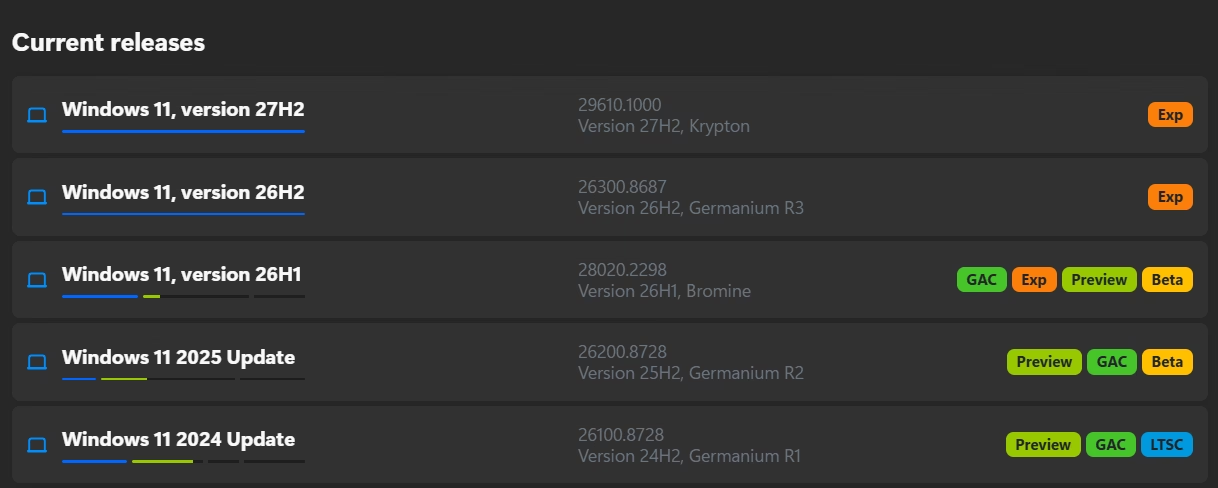
Timeline: We’ve simplified the codes for you.
| Channel | Info |
|---|---|
| 🔴 Experimental Future | 29000 Series, 26H2, 27H2 latest version |
| 🟠 Experimental Channel | 28000 Series (26H1), 26300 (25H2) |
| 🟡 Beta Channel | 26220 Series, 25H2 |
| 🟢 Release Preview / GAC | 26H1 |
A comprehensive page / 2 to know more about latest builds and versions.
Make Windows 11 Insider Preview Build ISO
Step 1. Download Windows 11 Insider preview
Download Windows 11 Insider preview build system images directly to your PC. Also, guide to making ISO on your computer using our method.
* 27H2 is currently in Experimental (Canary Channel)
🟠 Experimental / Canary build Windows 11, 27H2🐱🏍(view changelog)
➔ Windows 11 Insider preview (27H2 ISO) — Download 64-bit Pro | English *Latest ISO
➔ Download Windows 11 Insider preview (27H2 ISO) — Build ISO
If you have selected the ISO directly prepare the Bootable USB and installation method. If you want to build ISO at your computer follow the below instructions.
Download the tool from the link above and use the 64-bit option to download 64-bit Windows 11 UUP files. Use the ARM option to build an ARM-based Windows Insider Preview ISO.
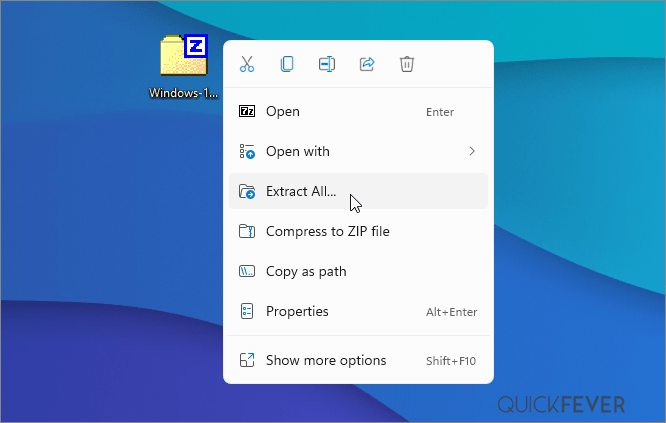
Step 2. Now extract the tool, right-click, and select Extract All option.
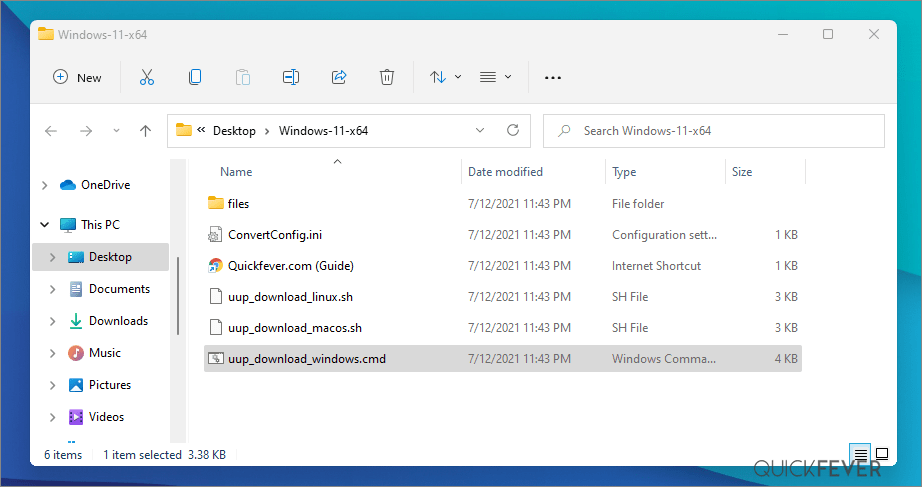
Step 3. Open the extracted folder, and run uup_download_windows file, this script is an automated script that will download all the files using the Aria2 download program. This is necessary to download multiple files at once
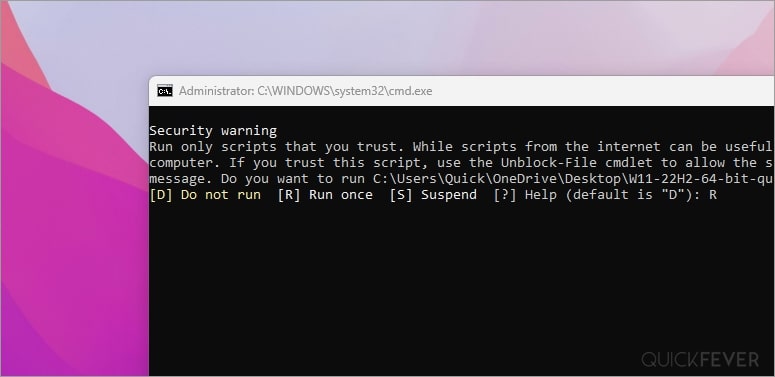
Step 4. Press R to run the tool.
* If it throws an error, simple Enable Cloudflare WRAP (1.1.1.1 with WRAP settings).
Step 5. This will take some minutes, use a high-speed internet connection. you can see the progress inside the command prompt window and all the files that this tool downloads are from the Microsoft server, so yes there is no involvement of third-party files.

Note: If for some reason, you see an error in downloading, just close and start the tool, it will skip downloaded files and confirm all files are downloaded.
5-2. After a few minutes, the tool automatically creates ISO from the files. We’ve optimized some settings to make the process even faster. For an estimated the tool will take less than 5 minutes to build ISO on your computer.
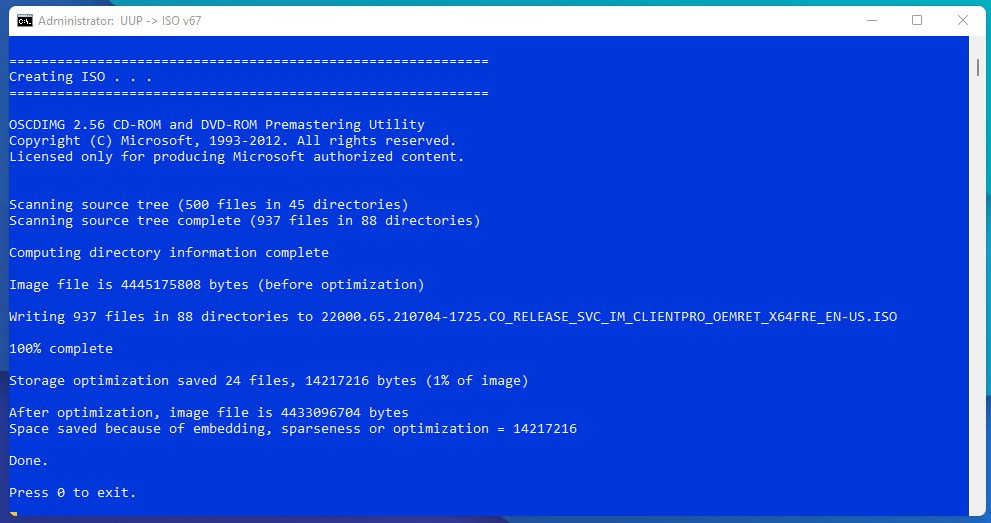
Step 6. Find the ISO file inside the Windows-11-x64 folder. Now you can install Windows 11 by creating a bootable USB using a tool like Rufus.

(Optional) Once the tool downloads all the files, this script will execute another tool you can find inside the same folder. If you wish to trigger the ISO building process manually, please run the convert-UUP to convert downloaded files to Windows 11 Insider preview ISO.
Step 7. Find the ISO file inside the Windows-11×64 folder. Now you can install Windows 11 by creating a bootable USB using the Rufus tool.
Install Windows 11 on UEFI – Bypass TPM 2, Secure boot, and CPU Requirement
Install Windows 11 on Legacy BIOS and no TPM 2.0
Getting the latest Insider builds from Microsoft.
You can join the Windows Insider program within Windows settings to receive official Insider preview builds. This method usually takes longer than a manual install.
- Go to computer settings, press Windows Key + I (shortcut)
- Update & Security > Windows Insider Program > Setup with Microsoft Account.
- Update & Security > Windows Update > Check for updates.
This should hook you with the insider program, and you will get the latest insider build if you choose Skip Ahead at the time enabling the insider program.
Download from Microsoft. What’s available: Every new Experimental and Insider Preview build is now available.
- First, go to this page and log in with a Microsoft account, if you don’t have one; create one. Unlike downloading a Windows 11 stable ISO, this will require a Sign-in.
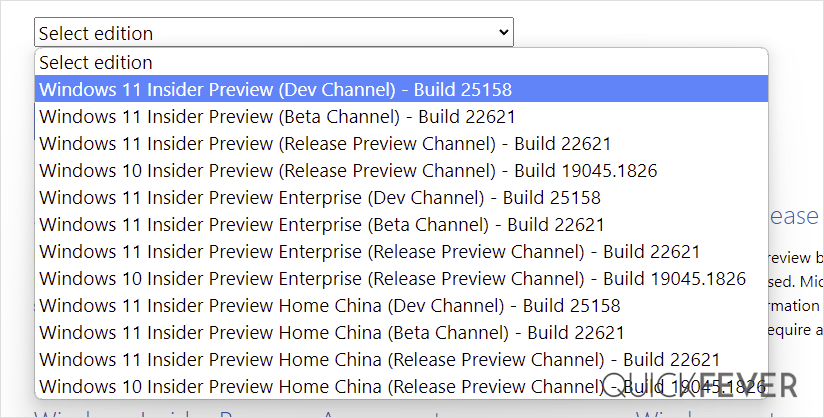
- From the page select the Edition and the Language. Here I choose “Win 11 Insider Preview. Not every recent version is available from Microsoft if you didn’t find a recent version by using this method, feel free to jump to the bottom of this article where we add links to the latest versions.
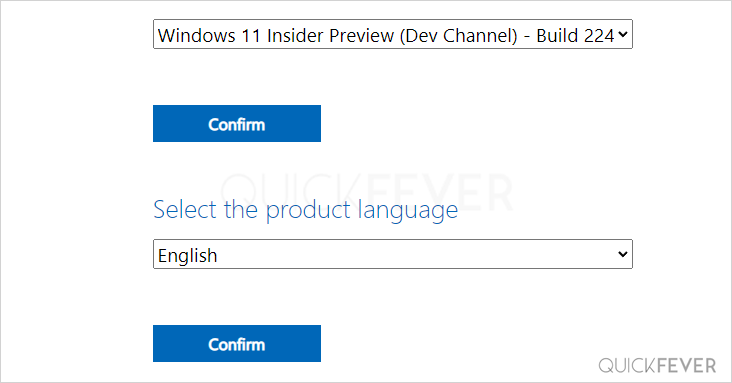
Choose the language and select Confirm.
- Links will be created for both 64-bit and ARM machines; you need to download one according to your PC architecture. For some editions you will find only a 64-bit version How do I know which one I have?
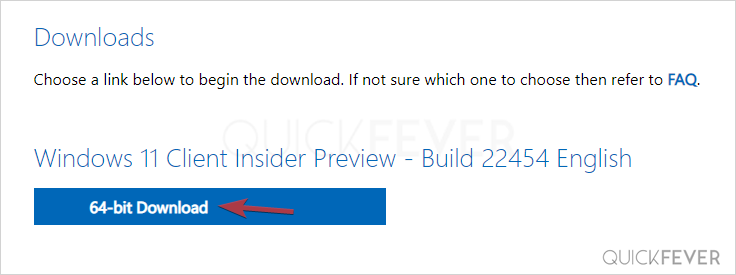
Remember, these links are valid for only 24 hours. If you want to download the file after a few days, you can use an alternative method. Simply paste the download link provided by Microsoft into any cloud storage service to download the file remotely. Once the file is stored in the cloud, you can download it to your device in the usual way.
Enroll your PC to Windows Insider Without Microsoft Account
Officially, to get started with the Windows Insider Program, you must sign in with a Microsoft account through the Windows Settings app. This is required to enroll your device and receive Windows Insider Preview builds.
However, you can bypass this requirement using a GitHub project. The tool uses a simple command-line script to enroll your device in the Windows Insider Program without linking a Microsoft account. Once the command is executed, all you need to do is select the Insider channel from which you want to receive preview builds, such as Dev, Beta, or Release Preview.
How to Enroll into Windows 11 Insider Preview Channels Without MS Account
Creating Bootable Media
There is more than one way to create a bootable installation media. Creating a bootable USB is a fast way, and installing Windows 10 from USB just makes sense.
- How to Create Bootable USB of Windows 11, Linux, Chrome & Android
- How to Clean Install Windows 11 and 10 Version 26H2 on a Laptop and PC
- How to Install Windows 11 From a USB
- How to Burn Disc Image (ISO & IMG) in Windows 10, 7 or 8
- Windows 10 Media creation tool Download & Create Bootable USB
I hope this helps you get your hands on the latest features and new tweaks. Do more with Windows 10 here are some interesting guides to get going.
- How To Make The Windows 10 Taskbar Translucent (100% Transparent)
- Windows 10 Performance Tweaks to Make it Faster
Features
- How to Disable Windows 11 Built-in Advertising Completely
- How to Disable Cortana in Windows 10 in One-Click
Windows Insider is like a treat for developers and tech-savvy people who are interested in testing out upcoming and bleeding-edge features of Windows 10. This article helps folks download Windows 10 Insider ISO (building one on your own).
Windows 11 insider preview is divided into two channels: one is beta, and the other is Dev. Beta is the next version that will be released, while the Dev channel includes features that can make it into the next stable update. It’s counterintuitive to test the Beta channel, rather than just download and hop to the latest Windows 10 insider preview ISO and get it installed on your computer.
PS: Thank you for all the love, we’re proud that we were the original content creators of the story, almost all popular websites now started following this tutorial.
PS2: Although the insider Canary and Dev aren’t tied to a specific build version officially, you can be sure that what is suggested in this article is correct.
3 comments
this is the longest proses i have gone through just to download an OS. 4hrs 22min on high speed internet. i think files takes long to build up. pop some popcorn and relax
Yes sometimes it does take that much time. You can try editing the Configfile where set AddUpdates value to 2, it’ll be done under 30 minutes then.
Hello, this is unfortunate, after it downloads the required files, open and edit the UUPconfig files and change the AddUpdates option to “2” so the setup won’t add the update to the ISO file.