Pinning Command Prompt to the Windows 11 taskbar should be straightforward, but Microsoft’s push toward Windows Terminal often creates unexpected friction. You search for cmd in the Start Menu, click Pin to taskbar, launch the shortcut, and suddenly you are staring at a Windows Terminal tab running Windows PowerShell instead of the command prompt you asked for.
On older Windows versions, pinning cmd.exe gave you a dedicated black console window every time. In Windows 11, command-line routing goes through a shared host application by default. Whether you want the modern tabbed terminal to open Command Prompt automatically, prefer the classic standalone console host, or need an icon that always launches with administrator rights, here is how to configure it properly.
If you recently set up your computer, check our walkthrough on how to clean install Windows 11, or read our guide to making the Windows 11 taskbar transparent for a cleaner desktop layout.
Why Windows 11 opens PowerShell instead of Command Prompt
Starting with Windows 11 22H2, Microsoft set Windows Terminal (wt.exe) as the default console host across the operating system, replacing the legacy Windows Console Host (conhost.exe). Windows Terminal is designed to run multiple command-line environments under one roof, including PowerShell, Command Prompt, Azure Cloud Shell, and Windows Subsystem for Linux (WSL).
The problem is that Windows Terminal comes pre-configured with Windows PowerShell as its default startup profile. When you pin Command Prompt from the Start Menu, Windows 11 often pins the parent Windows Terminal application instead of an isolated cmd.exe process. When you click that icon, Windows Terminal boots into its default profile, dropping you into PowerShell.
Pin Command Prompt using the Start Menu
The standard way to pin Command Prompt takes just a few clicks:
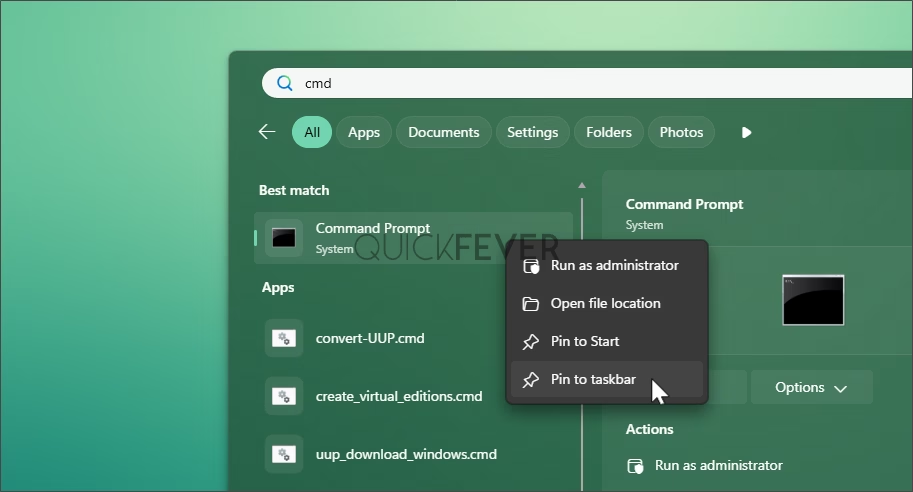
- Open the Start Menu or press the Windows key + S to open Windows Search.
- Type cmd or Command Prompt into the search box.
- Right-click Command Prompt in the results list and select Pin to taskbar.
If clicking the new taskbar icon opens Command Prompt directly, you are all set. If it opens a Windows Terminal window running PowerShell, use the quick setting adjustment below to fix the default profile.
Change Windows Terminal default profile to Command Prompt
If you like Windows Terminal for its tab management, custom fonts, and modern text rendering, you do not need to give it up. You can simply tell Terminal to open Command Prompt by default instead of PowerShell:
- Open Windows Terminal by pressing Windows key + X and selecting Terminal. (You can also Pin Terminal)
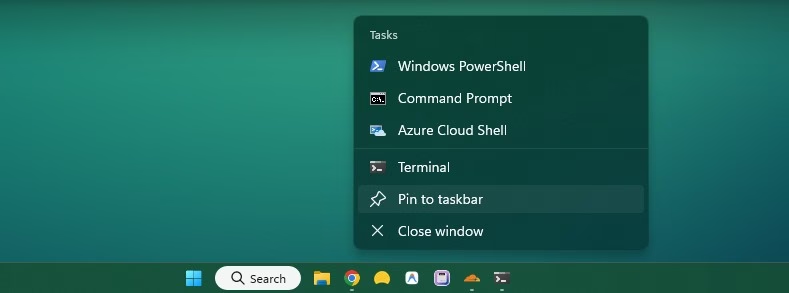
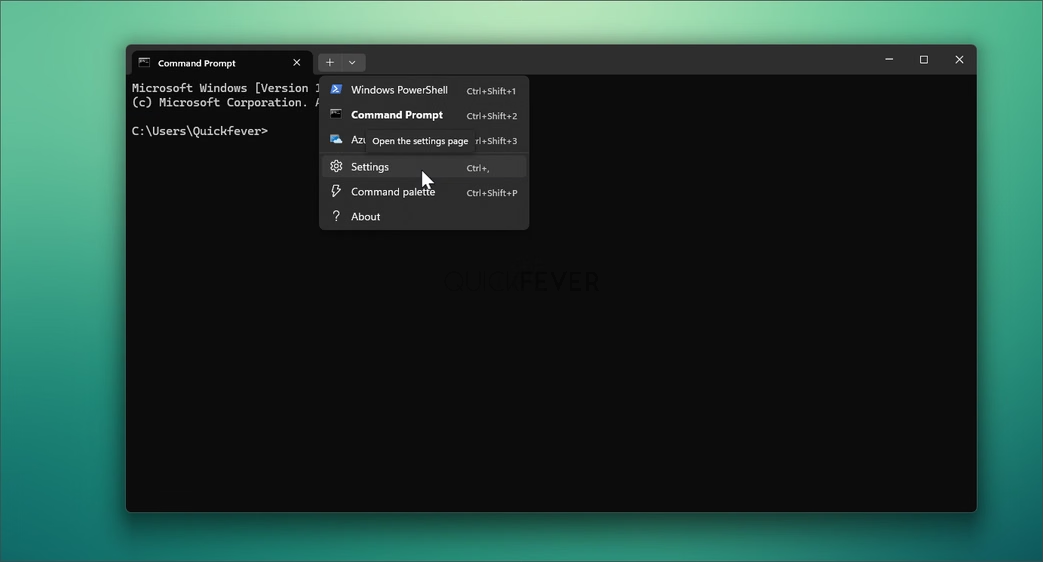
- Click the downward-facing arrow in the title bar tabs and select Settings, or press Ctrl + Comma.
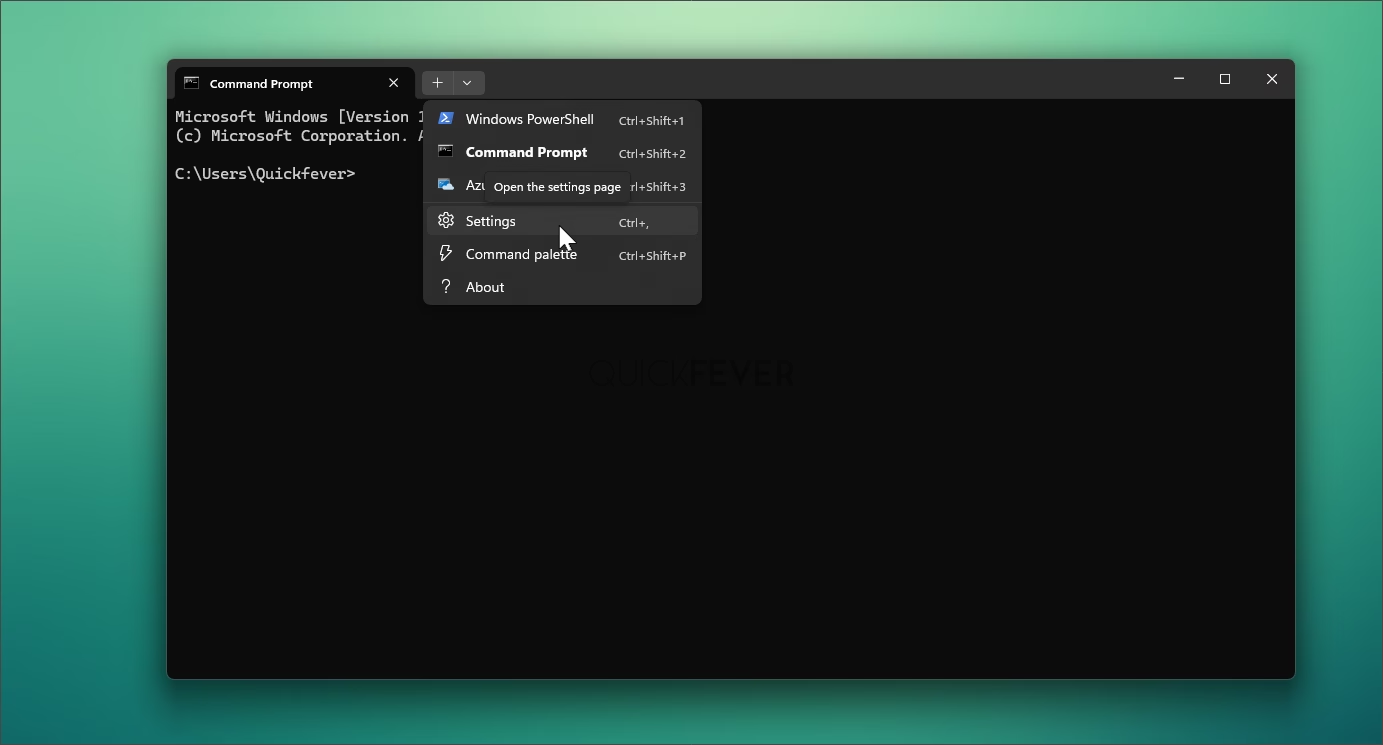
- In the left sidebar, click on Startup.
- Locate the Default profile dropdown menu and change it from Windows PowerShell to Command Prompt.
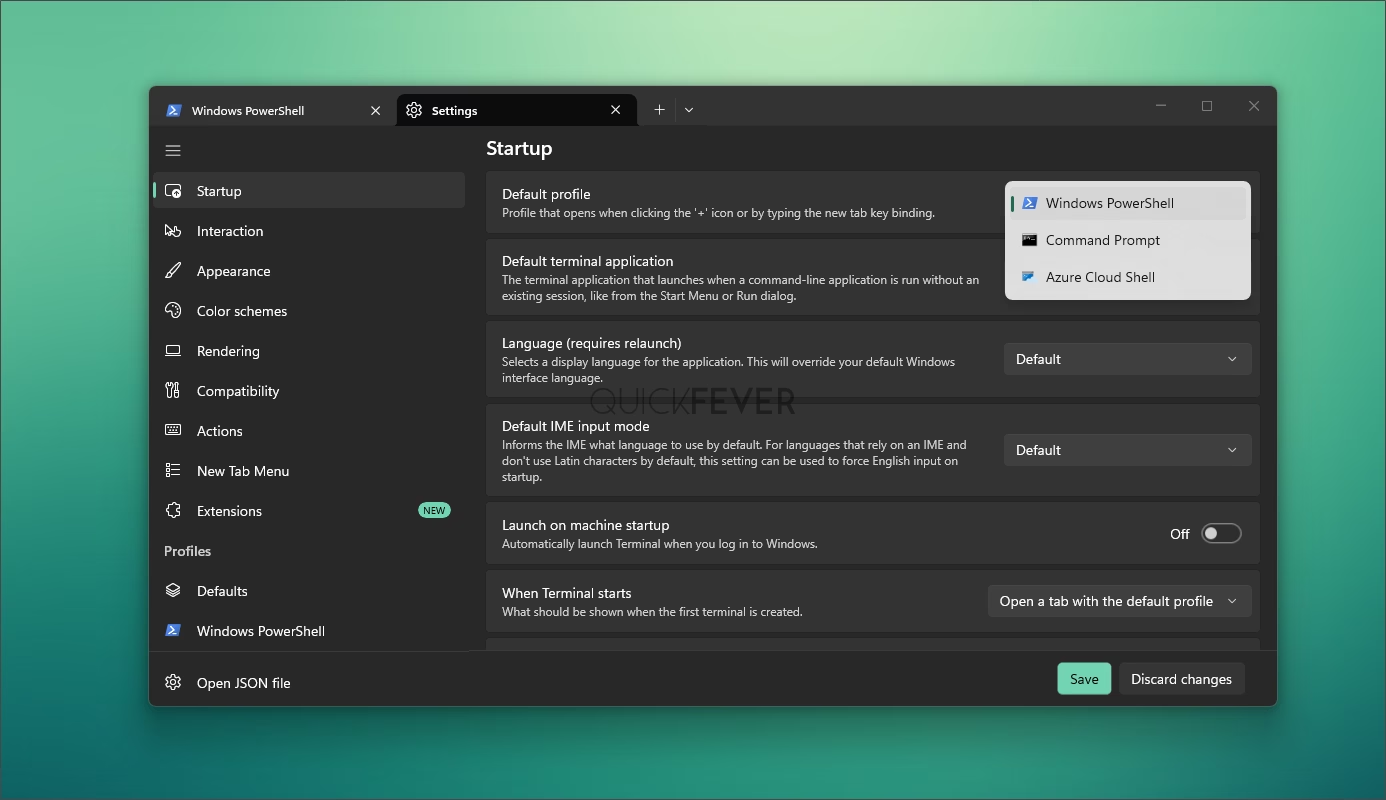
- Click the Save button in the bottom right corner of the window.
Now, whenever you launch Windows Terminal from your taskbar or press a shortcut, it immediately opens a Command Prompt tab ready for input.
Pin classic standalone Command Prompt using an explicit shortcut
If you dislike the tabbed Windows Terminal interface and want the classic black console window that launches instantly without extra overhead, create a direct shortcut to the system executable:
- Right-click any empty space on your desktop, hover over New, and click Shortcut.
- In the location field, type the exact path: C:\Windows\System32\cmd.exe
- Click Next, type Command Prompt as the shortcut name, and click Finish.
- Right-click your newly created desktop shortcut, select Show more options, and click Pin to taskbar.
Once the icon appears on your taskbar, you can safely delete the shortcut from your desktop. The pinned taskbar item remains fully functional.

To ensure Windows always opens batch files and command-line scripts in the classic host, go to Windows Terminal Settings, select Startup, and change Default terminal application from Windows Terminal to Windows Console Host.
Make pinned Command Prompt always run as administrator
Most maintenance commands like disk checks, system file repairs, and network resets require administrator privileges. Instead of right-clicking the icon and choosing Run as administrator every time, configure the pinned shortcut to launch with administrator rights automatically:
- Right-click the pinned Command Prompt icon on your taskbar to open its jump list.
- In the jump list, right-click the Command Prompt entry directly above Unpin from taskbar and select Properties.
- Stay on the Shortcut tab and click the Advanced button near the bottom.
- Check the box labeled Run as administrator.
- Click OK, then click Apply and OK on the main properties window.
From now on, clicking the taskbar icon directly triggers User Account Control (UAC) and opens an Administrator: Command Prompt session with a single click.
Create a dedicated Windows Terminal shortcut for Command Prompt
If you frequently switch between PowerShell and Command Prompt and want two separate taskbar icons that both take advantage of modern Windows Terminal features, you can pass a profile argument to the terminal executable:
- Right-click your desktop and select New, then Shortcut.
- Enter the following target in the location box:
wt.exe -p "Command Prompt"- Name the shortcut Command Prompt Terminal and finish the wizard.
- Right-click the shortcut, select Properties, and click Change Icon on the Shortcut tab.
- Browse to C:\Windows\System32\cmd.exe, select the classic black CMD icon, and click OK.
- Right-click the shortcut, choose Show more options, and click Pin to taskbar.
This gives you an icon on your taskbar that opens a Command Prompt tab inside Windows Terminal without disturbing your main PowerShell settings.
Faster ways to open Command Prompt without clicking the taskbar
Even without a pinned taskbar icon, Windows offers built-in shortcuts that get you into a command prompt in seconds:
- Press Windows key + R, type cmd, and press Ctrl + Shift + Enter to launch an administrator prompt immediately without touching the mouse.
- Open any folder in File Explorer, click directly on the address bar, type cmd, and press Enter. This launches Command Prompt already focused on that specific folder path.
- If you frequently run network troubleshooting tools like ipconfig and nslookup, pair your command prompt with our guide on how to change DNS servers on Windows 11 to verify connection speeds.