

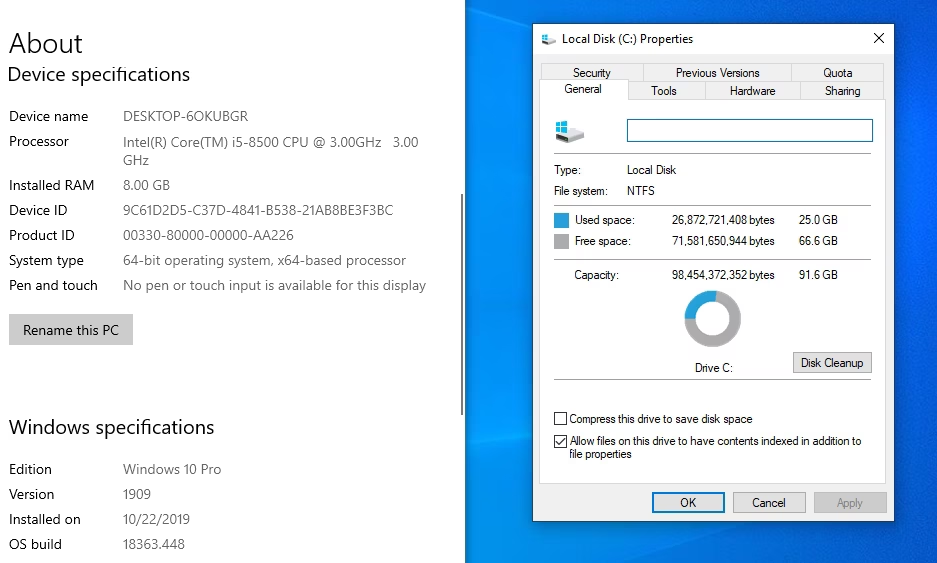
If you are planning to install Windows 10 or Windows 11 on your computer, or are preparing for a fresh clean install, you probably want to know: how much space does Windows actually take after installation?
While Microsoft’s official spec sheets list minimum requirements of 32 GB for Windows 10 and 64 GB for Windows 11, real-world disk usage behaves quite differently. How much space Windows occupies depends on your RAM size, virtual memory paging, driver caching, and background Windows Updates. Below is our hands-on breakdown based on clean installations across multiple SSDs and partition sizes.
1. Quick Comparison: Windows 10 vs Windows 11 Install Size
Here is an upfront look at how much storage space clean installations take across different setups:
| Installation State | Windows 10 (22H2 x64) | Windows 11 (24H2/26H2 x64) | Practical Recommendation |
|---|---|---|---|
| Clean Install (Offline) | 12 GB to 16 GB | 20 GB to 24 GB | Minimum space needed to finish setup |
| After Updates & Drivers | 22 GB to 28 GB | 28 GB to 35 GB | Standard baseline for fresh internet-connected PC |
| Daily Apps (Chrome, Office, Utilities) | 35 GB to 45 GB | 45 GB to 65 GB | Realistic everyday working footprint |
| Official Minimum Spec | 32 GB storage | 64 GB storage | Official Microsoft requirement |
| Recommended C: Partition | 64 GB to 100 GB | 100 GB to 128 GB+ | Prevents Windows Update storage chokeholds |
| x64 ISO Download Size | ~5.8 GB | ~7 GB to 7.5 GB | Requires at least an 8 GB USB flash drive |
2. Windows 11 Storage Occupied After Install
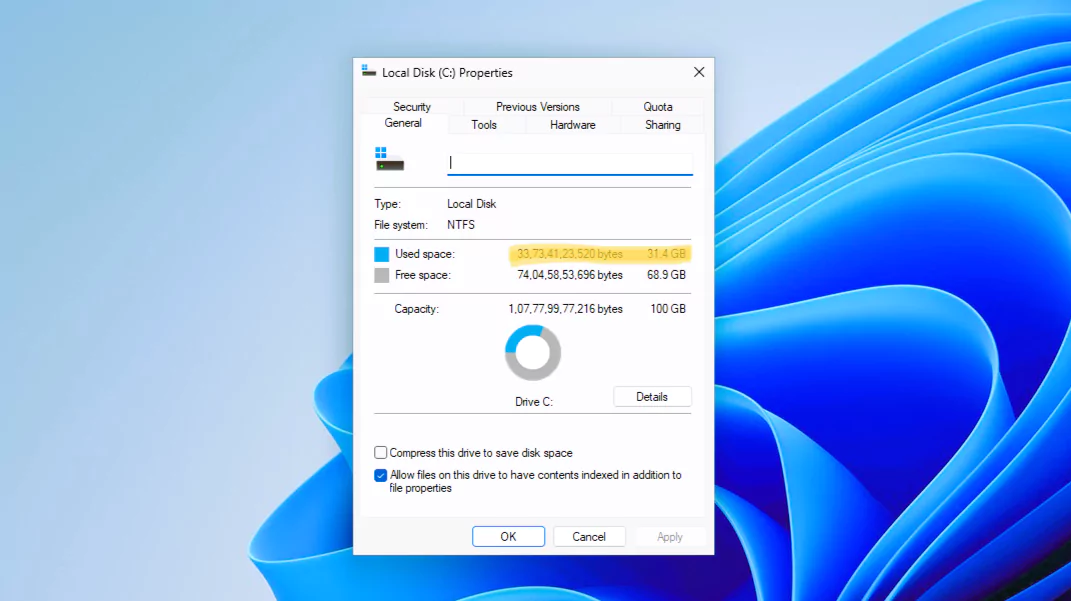
Windows 11 Pro (64-bit) takes a little more than 30 GB right after install and updating. While the core system files occupy about 20 GB initially, background Windows Updates, graphics drivers, and system telemetry quickly bring the total footprint past 30 GB.
We recommend clean-installing Windows every 24 months. This clears accumulated junk, registry bloat, and orphaned driver stores, keeping your PC clean and fast.
Pro tip for keeping Windows responsive
Remember that once you connect to the internet, Windows Update will automatically download cumulative patches and hardware drivers in the background. If you recently upgraded to a new feature release, check our walkthrough on how to delete Windows.old and temporary files. For step-by-step setup, see our guide on how to clean install Windows 11 on PC and laptop.
3. Windows 10 Install Size on Storage (Real Hardware Tests)
To see how Windows 10 adapts to different storage capacities, we tested clean installations across partitions ranging from 12 GB up to 150 GB+.
Test 1: C: Drive is 20 GB or Smaller (Windows 10 x64)
On a partition constrained to just 12 GB, a fresh Windows 10 installation squeezed into roughly 11.6 GB, leaving barely 300 MB free. Windows achieves this by automatically shrinking the pagefile and triggering CompactOS to compress system binaries.
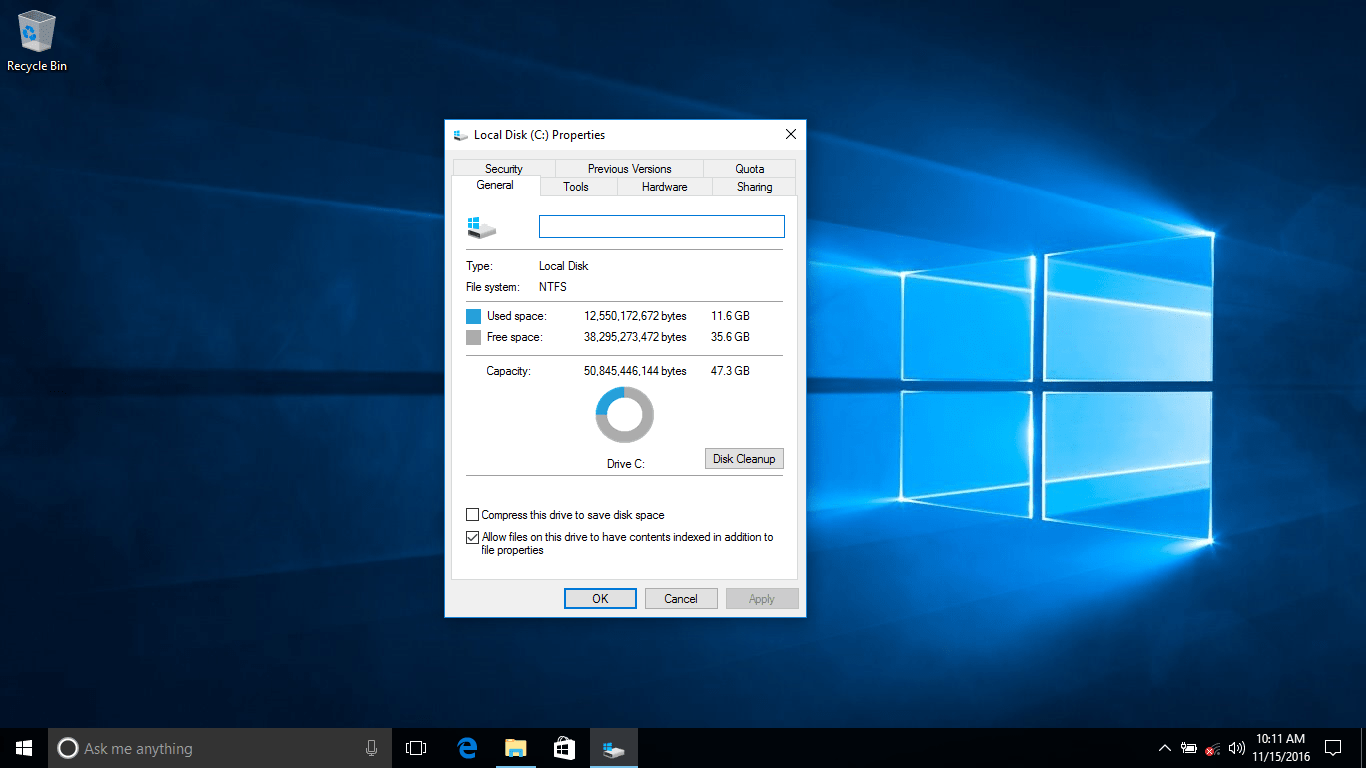
This tight fit is fine as an experiment, but impractical for daily use because the next cumulative update will fail due to lack of temporary staging space.
Test 2: C: Drive Has 50 GB or More
When installed on a C: partition with 50 GB+ free space, Windows 10 took roughly 24.4 GB to be exact. With extra headroom available, Windows allocates a standard-sized pagefile and driver cache without compressing system files.
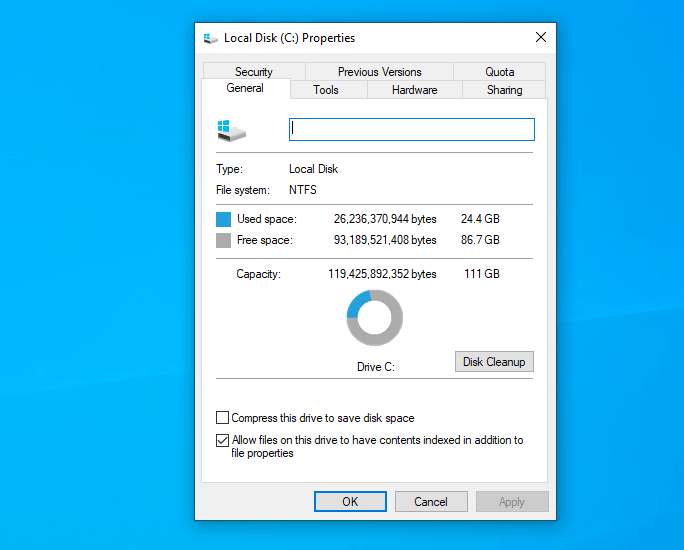
We also tested Windows 10 version 2004 / 21H1 / 22H2 (Pro edition 64-bit) on an M.2 SSD. It took similarly around 24.5 GB, growing to about 25.5 GB once Google Chrome was installed.
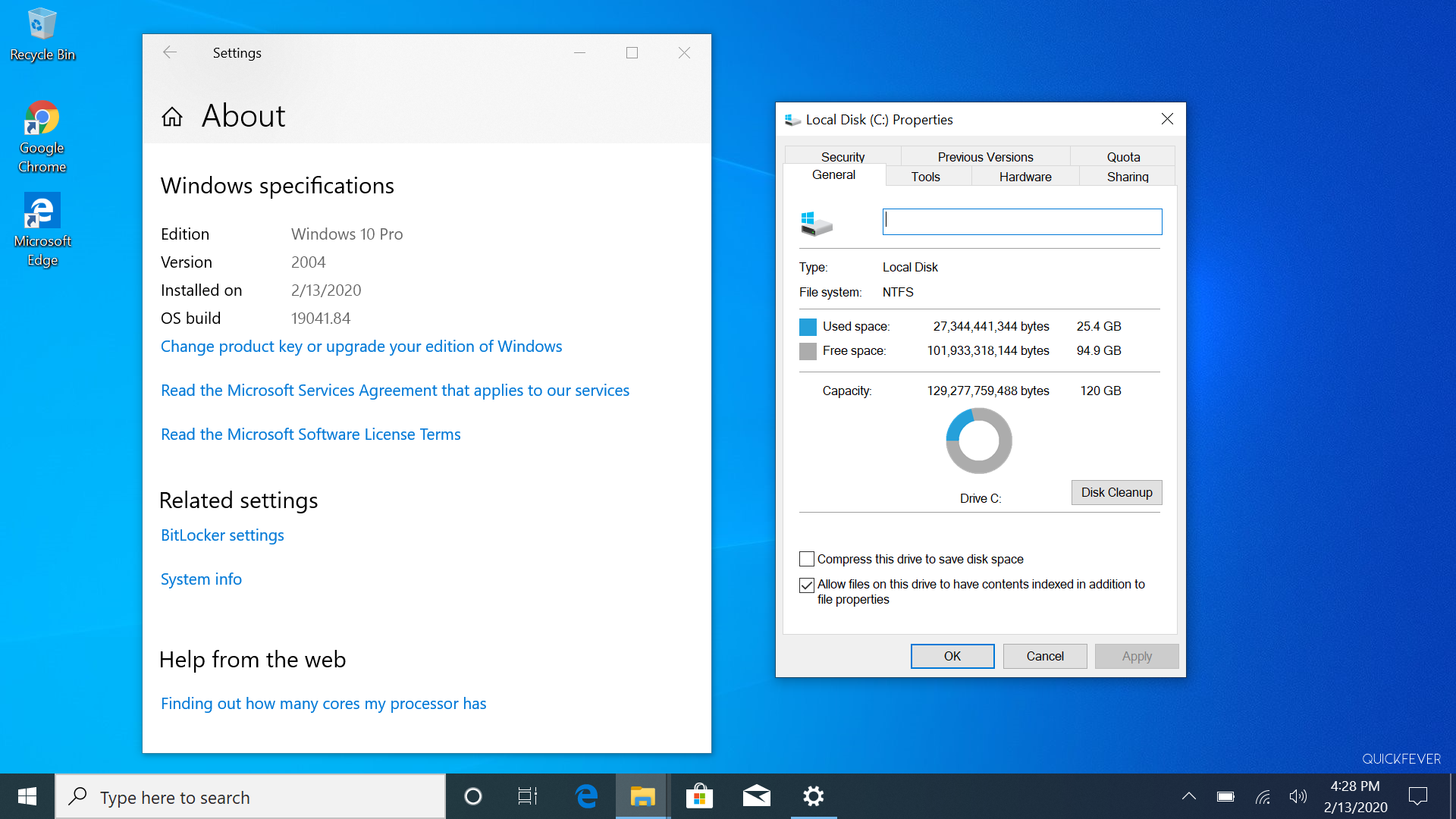
Test 3: 150 GB+ Drive with Recommended Applications
On a 150 GB SSD partition with Google Chrome, office software, and a standard set of utilities (our recommended essential Windows tools), occupied space climbed to 42+ GB.
4. Why Does Windows Install Size Vary Between PCs?
Two computers with the exact same Windows version can report completely different C: drive space usage. The reason comes down to four dynamic system components:
- Paging File (
pagefile.sys): Windows automatically sizes virtual memory based on physical RAM. A PC with 32 GB or 64 GB RAM gets a substantially larger initial pagefile than a laptop with 8 GB RAM, consuming several extra gigabytes of drive space immediately. - Hibernation File (
hiberfil.sys): By default, hibernation and Fast Startup allocate about 40% with 75% only for full type of your RAM size on disk. On a 16 GB RAM PC,hiberfil.sysreserves around 6 to 12 GB of C: drive space. - Windows Component Store (
WinSxS): Located inC:\Windows\WinSxS, this directory stores hard links and previous system file versions so you can uninstall faulty updates or rollback drivers. It typically ranges between 6 GB and 10 GB. - Reserved Storage: Starting with Windows 10 version 1903 and continuing through Windows 11, Windows automatically sets aside roughly 7 GB of disk space exclusively for updates, temporary files, and system caches to prevent update failures on crowded drives.
5. How Big Are Windows 10 and 11 ISO Files?
Before installing, you need to download the installation media image:
- Windows 10 22H2 (64-bit ISO): ~5.8 GB (using standard
install.wim). - Windows 10 22H2 (32-bit ISO): ~3.9 GB.
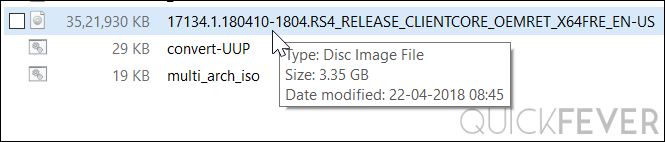
- Windows 11 24H2 / 26H2 (64-bit ISO): ~6.2 GB to 7.5 GB.
- Multi-Edition ISOs with
install.esd: When created with high-compression Electronic Software Download (ESD) format, file size drops to roughly 4.0 to 4.5 GB, but building the image takes longer.
Helpful resources for grabbing official images: check our walkthrough on how to get official Windows 10 ISOs, our tracker for downloading the latest Windows 11 ISO, and our tutorial on building custom ISO images via UUP Dump.
6. USB Flash Drive Requirements (Important Note)
Older guides often claim a 4 GB USB drive is sufficient. That is no longer true for modern Windows 10 or 11 releases.
Modern 64-bit ISOs exceed 5.5 GB, and the uncompressed install.wim image inside the sources folder is typically larger than 4 GB, which exceeds the single-file size limit of standard FAT32 partitions. To make a reliable bootable USB installer, you need at least an 8 GB USB flash drive (a 16 GB drive is recommended).
To prepare your USB installer without partition errors, check our dedicated tutorials:
- How to Create a Bootable USB for Windows 11, Linux & More: Complete guide using Rufus, Ventoy, and Etcher.
- Rufus for Windows: TPM Bypass, Local Account & More: Automatically splits or formats NTFS partitions with UEFI support to handle
install.wimfiles larger than 4 GB. - Windows 11 Media Creation Tool (MCT): Download & USB Guide: The official Microsoft utility for writing bootable media directly.
7. Windows 10 & 11 System Requirements
Below are the official baseline specifications required to run each operating system:
| Hardware Component | Windows 10 (Final 22H2) | Windows 11 (24H2/26H2) |
|---|---|---|
| Processor | 1 GHz or faster with SSE2, PAE, NX | 1 GHz 64-bit dual-core (Intel 8th Gen+ / AMD Zen 2+) with POPCNT |
| RAM | 1 GB (32-bit) or 2 GB (64-bit) | 4 GB minimum (8 GB+ recommended) |
| Storage Capacity | 16 GB (32-bit) or 32 GB (64-bit) | 64 GB minimum storage device |
| System Firmware | BIOS or UEFI | UEFI with Secure Boot capability |
| Security Module | Not strictly required | TPM version 2.0 |
| Graphics Card | DirectX 9 with WDDM 1.0 driver | DirectX 12 compatible with WDDM 2.0 driver |
| Display | 800×600 resolution | 720p high-definition (9-inch or greater) |
The 32 GB eMMC Reality Check: Many budget netbooks and mini PCs ship with soldered 32 GB or 64 GB eMMC storage. While Windows 10 will install initially, routine monthly quality updates will fail once the drive fills up. If your PC has under 64 GB total storage, Windows 10 will feel cramped, and Windows 11 will refuse to install through official channels.
If your hardware is low on storage or struggles with Windows, consider running a lightweight operating system instead:
- 12 Light and Fast Operating Systems for Old PC, Tablet and Laptop
- Top 7 Lightweight Linux Distros That Look and Feel Like Windows 10/11
- Chrome OS Flex: Direct Download & Setup: Excellent for resurrecting slow netbooks and old laptops.
8. Author Hardware Case Studies
To provide real context, here are two test cases from our own test machines:
Case Study 1: 100 GB M.2 NVMe SSD (Clean Install + 20 Apps)
Windows 10 Pro x64, 16 GB RAM, installed on a dedicated 100 GB M.2 NVMe SSD partition.

Even after installing around 20 desktop applications, occupied space sat comfortably around 20 GB. Running the built-in Disk Cleanup utility periodically keeps temporary caches from spiraling.
Case Study 2: 100 GB SATA SSD (Clean Drivers & Updates)
Windows 10 Pro x64, 16 GB RAM, installed on a 100 GB SATA SSD.
With all hardware drivers and current quality updates installed, the installation stabilized at roughly 20 GB before third-party applications were added.
9. How to Free Up Space When Your C: Drive Is Full
If your Windows installation partition is running out of space, here are four quick ways to recover several gigabytes immediately:
Method 1: Delete the Windows.old Folder (Save 15 to 25 GB)
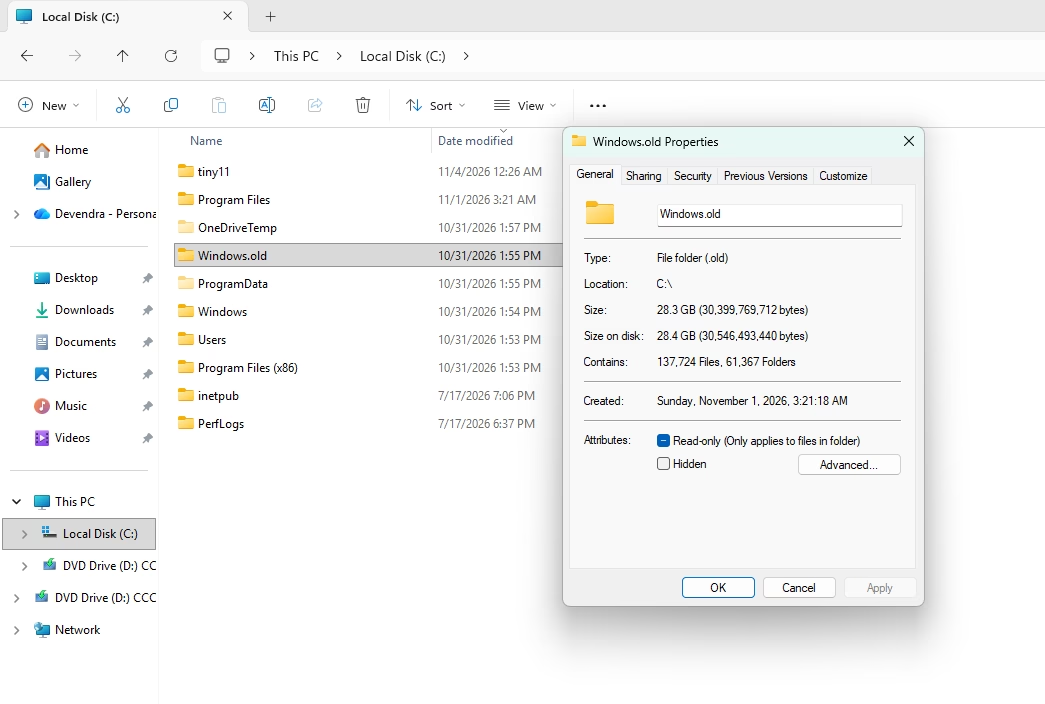
If you upgraded from an older build, Windows keeps a complete rollback backup in C:\Windows.old for 10 days, consuming 15 to 25 GB. To remove it safely, open Settings > System > Storage > Temporary files, check Previous Windows installation(s), and click Remove files.
Method 2: Enable CompactOS Compression (Save 2 to 3 GB)
Windows includes a native binary compression tool designed for storage-constrained devices. Open Command Prompt as Administrator and run: compact.exe /compactos:always. This safely compresses core system binaries and reclaims 2 to 3 GB without impacting daily performance or future cumulative updates.
Method 3: Disable or Reduce Hibernation (Save 4 to 12 GB)
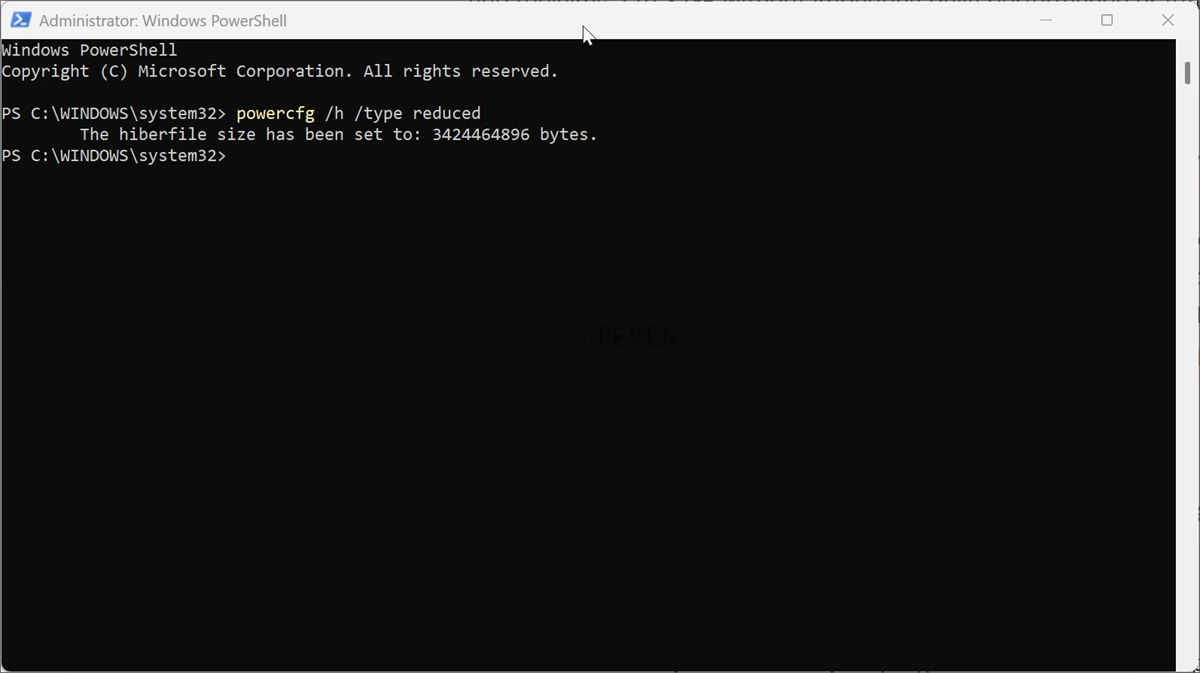
If you do not use Hibernate or Fast Startup, open Command Prompt as Administrator and run: powercfg -h off. This instantly deletes hiberfil.sys and frees up 4 to 12 GB of disk space (proportional to your installed RAM). Alternatively, run powercfg /h /type reduced to keep Fast Startup active while cutting the file size in half.
Method 4: Run Disk Cleanup with System Files (Save 3 to 6 GB)
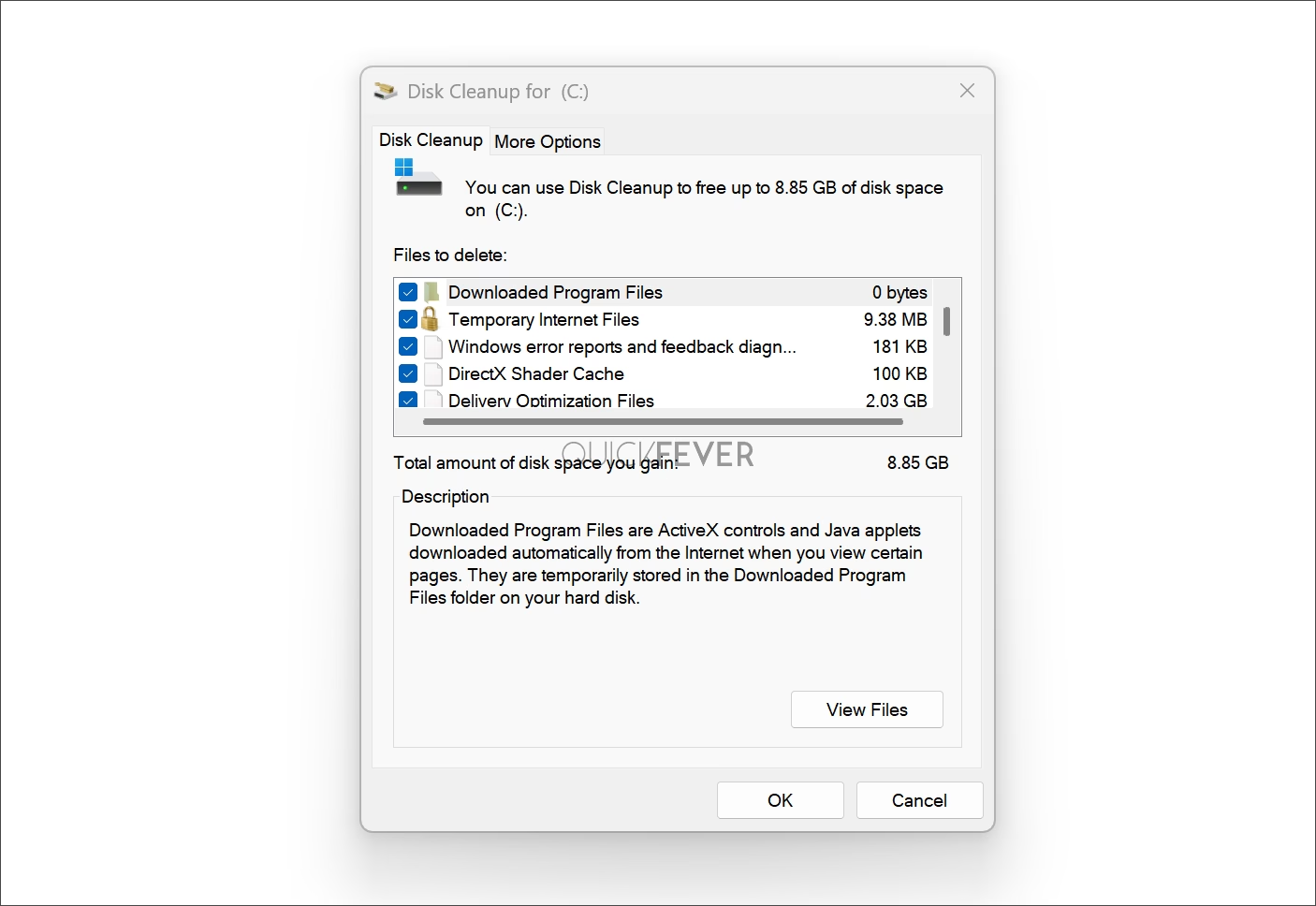
Press Win + R, type cleanmgr, select drive C:, and click Clean up system files. Check Windows Update Cleanup to purge obsolete cumulative update rollback packages that accumulate over months of use.
10. Summary: Recommended Partition Size
For a trouble-free experience where Windows can run routine updates without storage warnings:
- For Windows 10: Allocate a minimum of 64 GB to your C: drive (100 GB is ideal if you install larger productivity suites or games). Note that Windows 10 reached its official End of Support milestone on October 14, 2025, but remains functional under Extended Security Updates.
- For Windows 11: Allocate a minimum of 100 GB to 128 GB to your C: drive. Windows 11 feature updates and modern app sandboxes require generous staging headroom.









Realy Helping.. 👍