


Do you want to run Android OS on your PC? Whether you need it for testing apps, gaming, or just for fun, this guide will show you how to install and use Android OS on your computer. Learn about the best Android OS for PC options and how to set up them easily.
These operating systems can be downloaded in ISO format system image, allowing you to easily create a bootable USB and boot directly from USB without having to install it on a hard disc (though you can install it on a hard drive if you want). After the drill-down list of the best Android OS forks, we discussed other options to install or simulate an Android environment on a computer.
There are multiple reasons for running Android on a computer.
- Running Android apps and games on computers is fascinating.
- Android OS boots faster compared to Windows on old machines.
- You can WhatsApp your friends, and run a native VPN app, which is hard on Windows devices.
Android OS for PC -These are the options you have
You can use these Android OS to bring all your favorite Android games and apps to your computer. You’ve many options to run Android OS on your PC. Android is popular with millions of mobile users worldwide, installing and using Android on a computer is also possible, but how?
Natively installing android on your computer allows games and apps to run butter smooth and without any fuss. You can run the Android operating system for both 32-bit and 64-bit machines. We understand that by now you should have received enough information about the Android operating system on computers. You can now you can easily decide which Android operating system you can install on your computer. If you know of any Android device for PC we are looking forward to hearing from you as well.
Android OS for PC comparison table
| Option | Android version | Google Play | Status (Nov 2026) | Best for | Verdict |
|---|---|---|---|---|---|
Bliss OS Bootable x86 fork |
13 (v16.x), 12L (v15.x) | Yes (GApps builds) | Active, public images paused | Customization, modern PCs | Best bare-metal |
Waydroid Linux container |
13 default, 16 early support | GApps image | Active (v1.6.3, May 2026) | Linux desktop users | Best on Linux |
LDPlayer Emulator, Windows |
9 (LDPlayer 9), 14 (LDPlayer 14) | Yes | Active | FPS games, mid-range PCs | Best for gaming |
Google Play Games on PC Official client (beta) |
Google-managed | Yes | Active | Official, safe, single account | Limited catalog |
Googlebook OS Google, formerly Aluminium |
Android 17-based | Yes | On sale since Oct 2026 | New Android laptops | Buy, can’t install |
FydeOS Chrome OS fork |
Chrome OS base | No, sideload only | Active (v22 per article) | Chrome OS look, Intel PCs | Niche pick |
PrimeOS Free ISO for any PC |
11 (v2.1.3); v3.0 is Android 15 | Yes | Free ISO stale since 2022; v3.0 only on Primebook laptops | Older gaming setups | Legacy |
Phoenix OS Android-x86 fork |
7 | Yes | No known release since 2023 | Very old hardware, 32-bit | Avoid |
Android-x86 Original AOSP port |
9 (Android 11 manual build) | Manual | Stalled | Lightweight, near-stock | Legacy |
OpenThos Dual-boot focused |
Unknown | No | Abandoned | Historical interest | Avoid |
Updated November 2026. Always confirm exact version numbers on each project’s official site.
RELATED: read android os comparison here.
1. FydeOS – (Recommended)
Chrome OS fork with a built-in Android 13 subsystem and Linux apps. 64-bit only.
- Download FydeOS (Version 23.1). Pick the build that matches your GPU: Intel Modern, Intel Slim or AMD Graphics
- Use Rufus or balenaEtcher to flash the
.img.xzfile to a USB drive (no need to extract it) - Full guide: FydeOS 23 review, install and dual boot
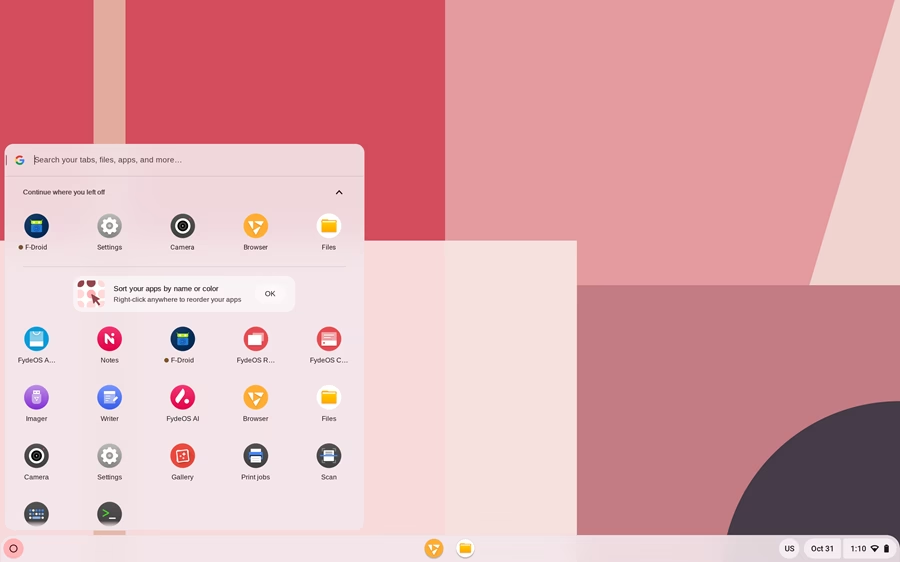
FydeOS is the closest you’ll get to a Chromebook that runs Android apps on a regular PC. It’s built on Chromium OS r150 and adds fyDroid, a new Android 13 subsystem that runs by default, so there’s nothing to set up. You can start installing apps right away from the bundled F-Droid store, or by double-clicking any .apk file in the Files app. Linux apps run alongside Android apps, and the Chrome-style browser handles everything else.
Google Play isn’t preinstalled, but you can add it. Turn on Developer Mode in FydeOS Settings (UEFI boot only), disable rootfs verification from the crosh shell, then install GApps Configurator from the FydeOS App Store. If you only need a few apps, F-Droid and APK sideloading are simpler and keep Google Play Services from running in the background.
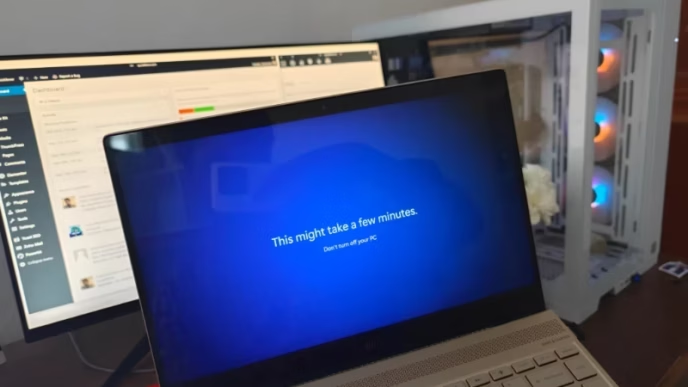
In our testing on an HP ENVY laptop (Intel Core i7 8th Gen), FydeOS 23 cold-booted in under 20 seconds and ran Android and Linux apps side by side without stutter. v23 also adds hardware video decoding (AV1, VP9, HEVC), game controls for Android titles, and a built-in VNC server for remote access.
Good to know
- Hardware: Works on Intel 6th–14th Gen and AMD Radeon systems. Discrete NVIDIA GPUs aren’t supported; hybrid laptops fall back to Intel graphics. No 32-bit or very old (pre-2011) PCs.
- Account: Google sign-in requires a free FydeOS account first. Guest mode and local profiles also work.
- Try before installing: Boot from USB and choose Try it first. Your apps and files are saved on the drive.
Best for: users who want a fast, Chromebook-like OS on an existing PC and still need Android apps. If you want Google’s official version and don’t need Android, use ChromeOS Flex instead.
2. Bliss OS – latest x86 fork
Learn how to dual boot Bliss OS with Windows
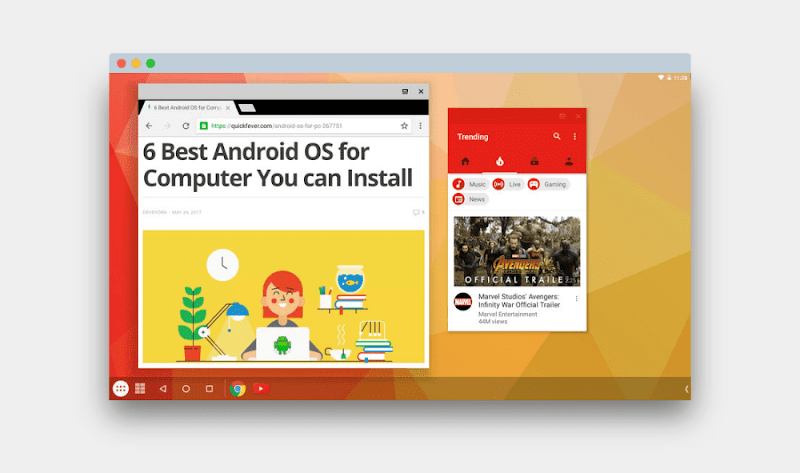
BlissOS is purely the best Android OS for PC with few modifications like the taskbar and system stability. You can also launch apps in Windowed mode rather than the full-screen which helps open two or more apps side by side. A note about Openthos and Bliss OS: When testing both OS failed to boot over UEFI firmware, they run successfully when the Legacy mode was turned on from the BIOS settings. So if you have a computer with only UEFI firmware you maybe not be able to boot both of the Android Operating systems from a bootable media device.
But if you insist and like to test them you can use virtual machine software to run them on the operating system you are using. Some modern computers might have support for Legacy mode, but you need to enable it from the BIOS settings. So technically if you are running on Windows 8 or newer your computer probably has support for UEFI firmware you might face problems booting these two so check in your BIOS settings if you can find Legacy mode and enable it.
People who care less about highly modified Android OS under a Windows look-alike skin but still want some usability features should try this.
There is project called gbOS86 that gets Google Book OS on your computer but it’s yet to became stable.
3. Googlebook OS (buy, can’t install)
Google’s new Android-based laptop OS, formerly codenamed Aluminium. Only ships preinstalled on Googlebook laptops.
- Googlebook official site
- Available from Acer, ASUS, Dell, HP and Lenovo, starting at $899
Googlebook is the first time Google has put full Android on a laptop. Google says it’s “built on the Android technology stack and paired with desktop foundations from ChromeOS.” PCWorld reports it’s based on Android 16 and 17 and is set to replace ChromeOS on laptops. Pre-orders opened on September 21, 2026, and the laptops reached stores on October 4.
You get the desktop Chrome browser with extensions, plus the Google Play Store with millions of Android apps, including Photoshop, Lightroom, CapCut, Netflix and HBO Max with offline downloads. A built-in Linux terminal handles developer tools. Googlebook also pairs closely with an Android phone: Continue On picks up tasks from your phone, Cast My Apps shows your phone’s apps in a window, and the Files app can browse your phone’s photos and files. Gemini is built in through features like Magic Pointer and Rambler voice-to-text.
Specs: Intel Core Ultra or Snapdragon X Elite processors, at least 16 GB RAM and 256 GB storage, up to 14 hours of battery life, and a Titan C security chip. Every Googlebook comes with a free year of GeForce NOW for streaming PC games, which you’ll need for AAA titles since the hardware can’t run most of them natively. PCWorld also reports Google promises 10 years of updates, released every three months.
The catch: There’s no download or ISO. You can’t install Googlebook OS on your own PC; you have to buy a Googlebook. If you want something similar on hardware you already own, try FydeOS or ChromeOS Flex.
Best for: buyers shopping for a new laptop who already use an Android phone.
4. Google Play Games on PC
Google’s own app for playing Android games on Windows 10 and 11. Games only, no regular apps.
This is the safest way to play Android games on Windows. It’s made by Google, so there’s no sideloading, no third-party emulator and no ads. You sign in with your Google Account, and your game progress and Play Points sync between your phone and PC. You can play with keyboard, mouse or controller, remap controls with the built-in Controls Editor, and run games at up to 4K.
The limitation: It only runs games from Google’s curated PC catalog. You can’t install regular Android apps or APKs. It’s available in 120+ countries, including India, the US and the UK, and you need a personal Google Account (not Workspace).
Minimum requirements
| Minimum | Recommended | |
|---|---|---|
| OS | Windows 10 (v2004) | Windows 10 (v2004) or Windows 11 |
| Storage | SSD with 10 GB free | SSD with 10 GB free |
| RAM | 8 GB | 8 GB |
| GPU | Intel UHD Graphics 630 or similar | Gaming GPU like NVIDIA GeForce MX450 |
| CPU | 4 physical cores | 8 logical cores |
You also need a Windows admin account and hardware virtualization turned on in your BIOS. The installer may ask you to enable Windows Hypervisor Platform, which can stop other emulators like LDPlayer from working until you turn it back off.
How to install
- Go to google.play/games and click Download.
- Run the installer. It checks your PC and stops if it doesn’t meet the minimum requirements.
- If asked, turn on Windows Hypervisor Platform and restart.
- Sign in with the same Google Account you use on your phone.
Best for: Windows users who want popular Android games without the risks of a third-party emulator.
5. Waydroid – Best for Linux users
Runs a full Android system in a container on Linux. Free and open source.
Waydroid isn’t an emulator. It runs Android in a lightweight container that shares your Linux kernel, so apps run at close to native speed. It works on x86, x86_64, ARM and ARM64 machines, and Android apps can open in their own windows next to your Linux apps (multi-window mode) or in a full-screen Android desktop.
The default image is Android 13 (LineageOS 20). Version 1.6.3 added initial Android 16 support, and recent releases also send Android notifications to your Linux desktop and add Vulkan support for Intel’s newer xe graphics driver. You choose between a plain VANILLA image and a GAPPS image with Google Play during setup. Since v1.6.0 you can switch between them later: right-click Waydroid in your app menu and choose Initialize Waydroid.
Requirements: A Linux desktop running Wayland (GNOME and KDE Plasma both work; X11-only setups need a Wayland compositor such as Weston). Install packages and steps are available for Ubuntu, Debian, Fedora, Arch, Zorin, Pop!_OS and mobile Linux distros.
Quick start (Ubuntu/Debian)
- Add the Waydroid repository and install it, following the official instructions.
- Open Waydroid from your app menu and choose the VANILLA or GAPPS image, or run
sudo waydroid init -s GAPPSin a terminal. - Install apps with
waydroid app install app.apk, or install F-Droid and use its store. - Turn on multi-window mode with
waydroid prop set persist.waydroid.multi_windows true.
Heads up: The Google Play image has to be registered as a device before the Play Store works. NVIDIA graphics need software rendering, which is much slower, so Intel and AMD GPUs work best.
Best for: Linux users who want Android apps in their desktop without dual booting or a VM.
Important: It looks like alost all the below OS are obsolete and shutdown.
6. Windows 11’s Android 13 Subsystem
Guide: Setup Android Subsystem on Windows 11
You don’t need to install a whole Android operating system when running Windows 11. When your hardware is Windows 11 compatible you can easily run Android apps. Thanks to a new update from Microsoft, the Android Subsystem is updated to Android 13. Users with a stable Windows 11 version will get the stable Android 11 Android subsystem. We have a dedicated guide to help you get started with Android apps on your Windows 11, check that as well.
7. Android-x86 project
Download Android-x86 | Android 9 / Android 11 manual build
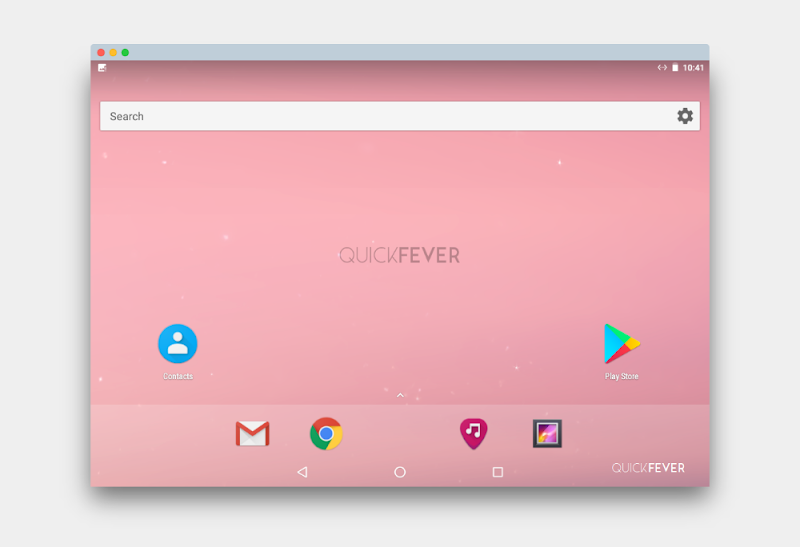
Android x86 was (?) the project to port AOSP-Android for x86 machines. The project plays a very significant role in all the mentioned Android operating systems. If you want a lightweight Android operating system without customization, install the Android OS build from here. You’ll get the same key features and interface seen on a real Android smartphone.
If you lack good computer hardware you can test the KitKat/Marshmallow x86 build which is a 350+MB image file you can burn into a USB to create bootable media. After, simply boot and use the Android OS. Also, android-x86 ports of Android Lollipop and Marshmallow you can use on computers with moderate hardware. For some reason, the project is floating in ice and we haven’t seen any major update in recent years.
Note: For most users, the 64-bit version should just work fine, people with a single onboard processor can use the x86_64 build. After Android 9 there isn’t a new release, perhaps it’s discontinued.
8. Phoenix OS – for everyone
Download Phoenix OS | Android 7 Dual boot guide, persistence USB
- Download Phoenix OS 64-bit
- Download Phoenix OS 32-bit (uploading soon)
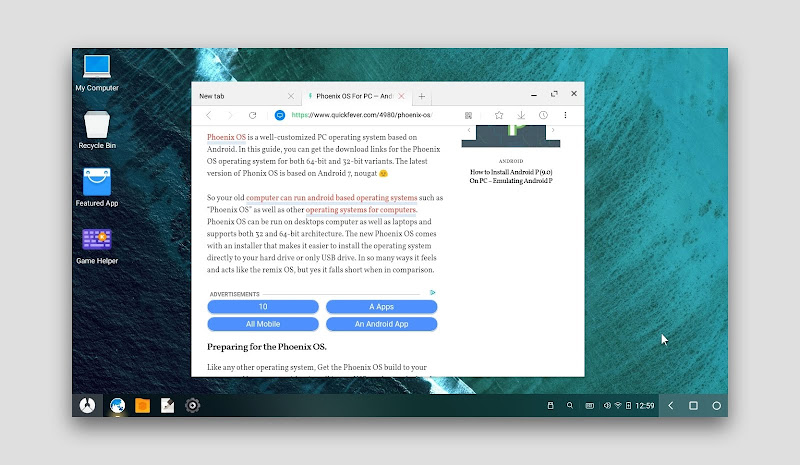
Phoenix OS was released shortly after the publication of the Remix OS. At the time it went popular, especially because it was the only Android operating system to work on 32-bit machines. PhoenixOS is a great Android operating system, which is probably because of its features and interface similarities to the remix operating system.
Both 32-bit and 64-bit computers are supported, but the newer version of Phoenix OS is only x64 architecture supported. Based on the Android x86 project, which powers other forks as well. It has many good features if you want to play games like PUBG Mobile. The Phoenix OS installer makes it easier to install the operating system on your hard drive/USB drive. This is the only Android x-86 fork that currently offering updates and hopefully, they will continue to do so in the future. This is one Android operating system for the computer which is based on Android 7. The downside is annoying ads and built-in apps.
9. Prime OS (Not recommended)
- Download PrimeOS (external link)
- Dual boot PrimeOS (Quickfever article)
based on Android 7
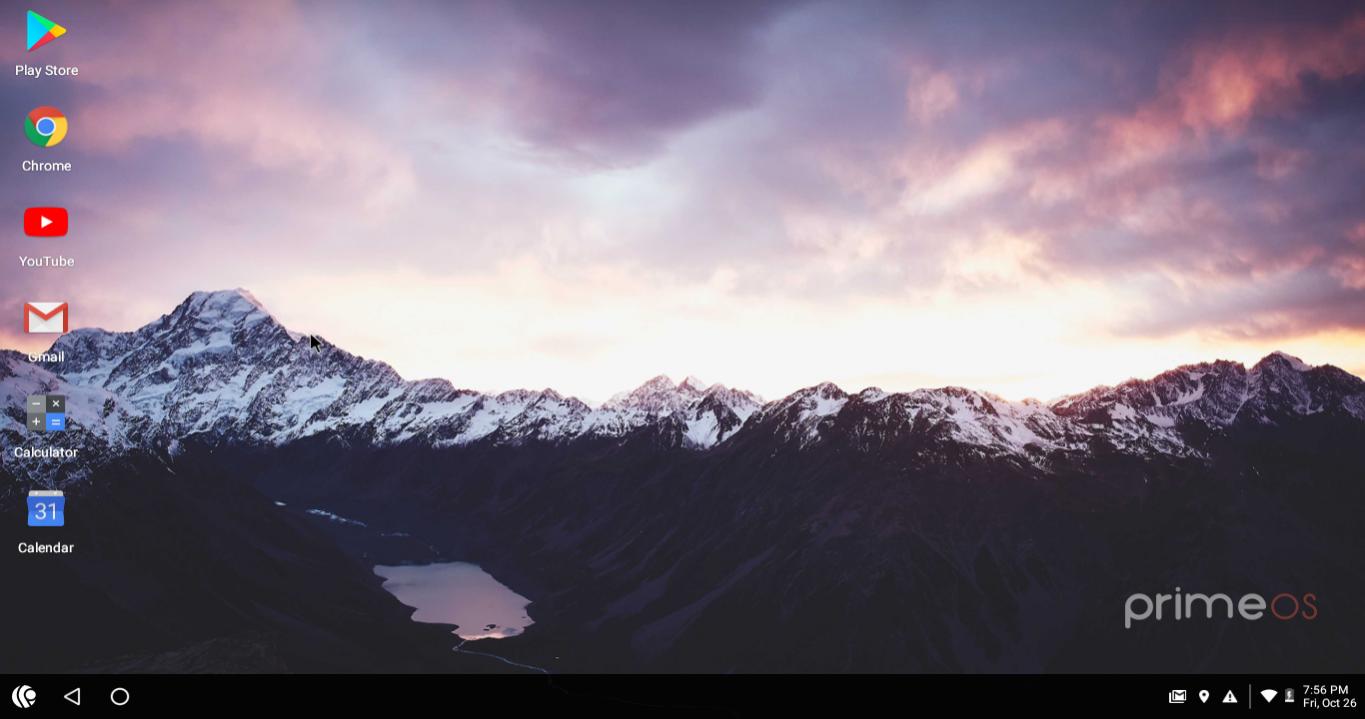
We Don’t recommend this: The PrimeOS version 2 is an overhaul based on Android 11 and this time we don’t appreciate it, you may encounter bugged interface, and the website forces you to click on partnered programs links. We initially thought to remove this from our list of best Android OS for PC but later decided to leave it here.
10. OpenThos
Download OpenThos / Project abandoned and unknown status ❓
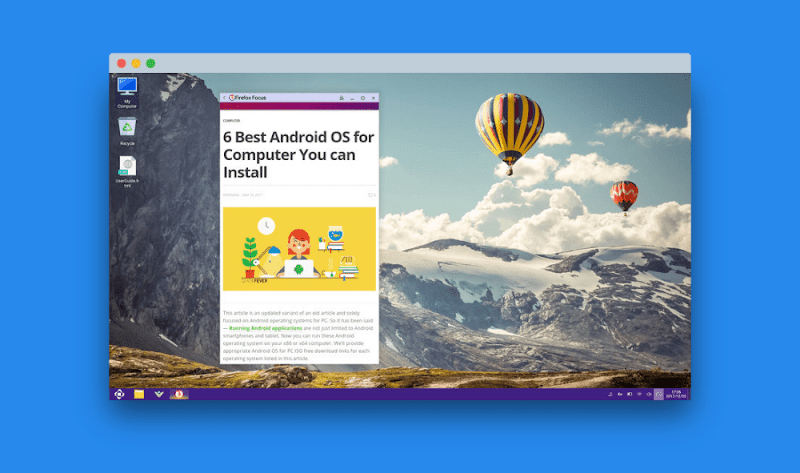
Openthos is new, and it supports Android apps and Linux apps in multi-windows. For this to run your computer’s CPU should be 64-bit architecture. Getting the ISO file of this operating system was a tedious task itself. First, you have to go through the link and enter the password, and later you need Baidu client software where you need to create an account (which is also problematic because everything is in Chinese) then you download the operating system image.
Moreover, tested in the Legacy mode as it failed to boot in UEFI mode. If you want to test putting an Android OS on your computer, you may probably want Phoenix OS or something near stock i.e. Android x86. OpenThos specs are good on paper but still, it has not achieved a great user experience just yet.
11. Remix OS
- Download the old Remix OS & review
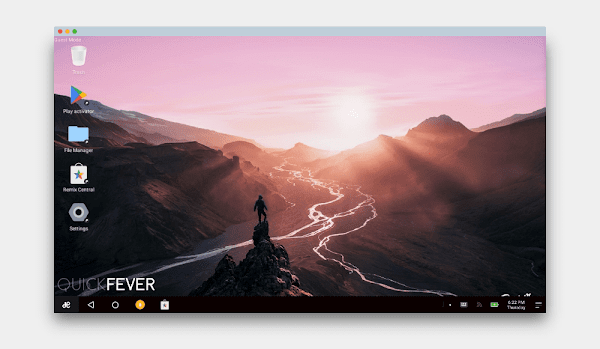
[Marshmallow, discontinued] Remix OS — the first best Android operating system is released in 2016 by Jide. It was the discussion topic because of its similarities to Windows 10: the taskbar, notification system, etc. Remix OS supports both 32-bit and 64-bit computer architecture and can be easily installed whether the PC is UEFI-based or Legacy. If you want a great Android operating system, then Remix OS will work best. For starters, you have to make a bootable USB remix OS so you can directly boot and run on a computer. Then if you wish to keep running it from USB, you can do so by creating a persistent USB that will allow running this Android operating system from a USB drive. Otherwise installing it on the hard disk is a better option when you solely want to have this as your primary operating system.
Remix OS was probably the greatest Android OS until it was pulled off and discontinued. You can still use this operating system by downloading its system image, but you need to know that you will be using a system released back in 2016 with no future updates.
12. Android 5 and 6 (android x86)
Android 5.1 for x86 fork: download and Android 6 download
If you have limited resources try the Android lollipop or marshmallow forks of the Android-x86 project. Android Lollipop is known to be the best fork available for x86 machines and popular Android emulators like LDPlayer run on version 5.1. To boot Android version 5 Android OS fork on your computer, download the appropriate ISO file using the links below and use Rufus to create bootable media.
13. Emulator; LDPlayer
Gaming Android Emulator for PC | Android Emulator
14. Virtual Machines
Virtual Machines are much like emulators as they help you test any Android operating system in a simulated environment. You control resources like CPU and RAM to allow. For instance, you can select how much RAM and disk space to assign along with the CPU cores. VirtualBox and VMWare are some favorite free Virtual Machines. It is always good to test and operate systems for you to use on your computer too quickly to know if you’re good to go with it.
Starting with a virtual machine is quite easy, first, download any of the Android OS ISO and save it on your computer. Open up your favorite Virtual Machine software and create a new environment and select the ISO image as a boot image. Please understand that installing an Android operating system on a virtual machine is not the best idea if plan to do intense tasks including Gaming.
Also, PUBG mobile players with emulators deal with game lag, and screen tearing so it’ll be super awesome if you play these games on the Android operating system. Emulators only take a percentage of computer resources and won’t be able to give you a smooth Android experience.
Frequently asked questions
1. Which Android OS for PC is best?
Now that you have options available for Android operating system for computer you need to figure out which features you want and your preference only then you can figure out which one you want from the list of Android operating systems given.
2. Can I install Android OS in PC?
Yes, you can install Android OS on your computer, the available options are using a bootable USB disk, but you can also use a virtual machine to install any of the Android Operating systems.
3. Which Android OS is 64bit?
Currently major Android OS forks comes only in 64-bit and we’ve tested many of them, Phoenix OS and Android-x86 are good in terms of stability, BlissOS is another good competitor in this segment.
4. Is Bliss OS for gaming?
Yes, Bliss OS can be regarded as one of the best Android OS for low-end PCs, so if you like to play Android games you want t to avoid it this operating system sensor is not gaming oriented.
5. Which is better Android-x86 or PrimeOS?
When comparing Android-x86 vs PrimeOS, we strongly believe that with the Android -86 project you will not regret anything since it is pure Android. On the other hand, Prime OS is a heavily modified fork of the same project.
Summing it up
Android OS on your computer is still fancy for many users, as they are hardwired to believe that Apple and Microsoft are the only ones building Operating systems for their computers. Boundaries and learn something new by installing Android on your computer. Choose any operating system from our list of the best Android OS for PC and you will not regret having the ability to run Android on your old laptop or computer.

a bit out of touch i think PRIME OS run well on dell laptops as main os ( no windows 11 an constant updates) been using it for a while to use prime video never had a problem , try it as main os instead of duel boot or bootable drive you may have to change yourmind by the way also on hp 8011 sf as im using it here
Nice post.
I’m looking forward to the next Android OS for PC.
Test
Okey i got it
I have an old acer one aspire AOD150 netbook that I’m going to try to install fyde os on. The processor is super old though so I”m not sure it will work. It’s got an intel Atom i686, with it being 32 bit I may run into a lack of compatibility. I had this old netbook collecting dust in old electronic stuff I just can’t seem to throw away and my daughter was wanting a chromebook for middle school. Figured I’d give a shot converting this old netbook into a chromebook. I managed to get Cub Linux up and running on it but I don’t love the OS. Anyone have any insight? Besides to toss the netbook in the trash, quit being a miser, and purchase my kid a decent chromebook for sub $300
Did you try Chrome OS flex, I’ve used the abandoned CubLinux it was good. Don’t buy a Chromebook machine those are literally trash, buy any laptop that has an i3-10th+ generation that’ll be more than enough to turn that into Chromebook.
okey i got it now
Is Prime os official site dead? I can’t visit the site now.
The one thing everyone needs to know about Phoenix OS is that while it installs easily, and runs almost flawlessly, the major issue is that when your loading apps, after about 10 or 15 apps (sorry I can’t remember exactly) you can no longer install anymore apps until you track down the Chinese guy who put Phoenix OS together and PAY him. I don’t even know what the fee is, what I do know is that most of what Phoenix is owes a huge debt to the X86 project and that’s an open source project. I could be totally wrong about this but charging for work done by the open source x86 project to me seems a bit unethical. I deleted Phoenix because of my feelings about the charge.
Please what android os can I try I’m running a core 2 duo with 2gb of ram and ati radeon hd 3650. I tried phoenix os but it was stuck at 86_64:/# while booting
These Android OS doesn’t work well with Graphics Card.
It’s a good article. Prime, Lineage, Bliss and Phoenix, and even the vanilla Android-x86 are all good.
I’ve tried phoenix, bliss, and Prime but no matter which system i use in the end, whether is boots or not, i never have any sound. it can’t be all the os, it has to be me, anyone have any idea on why I can’t get sound out of any version of android??
Thanks
Krissy
It’s a hardware-level issue, these Android maybe don’t have drivers for your system, or their audio generic driver fails to work.
You’re probably right but it’s beyond frustrating. I do allot of streaming and even the Nvidia shield can’t hold a candle to a PC that’s running Android. Oh well I’ll keep looking
Krissy
DARK MATTER IS A REALLY GOOD ANDROID OS FOR PC TOO. PROLLY THE MOST CUSTOMISABLE OUT RIGHT NOW. ALSO POINTED AT GAMERS. WORKS WITH GEARLOCK AND ALL KINDS OF STUFF. Is based off Andx86 project. PERSONALLY IM AN ANDROIDx86 project * fan. Their stuff is ALWAYS ON POINT, BUT ID HAVE TO SAY IT BE Andx86
Bliss
Dark Matter
Pheonix.
I need a solid 32 bit uf for a dell latitude st2 tablet. I cant seem to get any android on there. But i see it online ppl doing it. Has an intel atom if anybody knows.
I HAVE INSTALLED PHOENIX OS BUT ERROR SHOWS ” MINIMUM BASH LIKE LINE IS SUPPORTED.. BLA BLA BLA. PLEASE HELP ME PLAY PUBG IN MY LAPTOP . THAT’S IT.
MY RAM: 2GB, INTEL CORE I3 PROCESSOR, @1.90 GHZ, 64 BIT, SONY VAIO.
IF ANYONE IS THAT INTELLIGENT ENOUGH COULD U PLS SEND ME THA LINKS OF MY SOLUTION RATHER THAN SAYING BLA BLA AND NOT WORKING ACTUALLY. MY EMAIL ID : sangam21giri@gmail.com
REGARDS !
Yes we do support it, it’d be great if they push a public version of the PrimeOS.
can someone suggest me the best andriod OS for gaming ? , i currently have android x86 os installed , and it does not open high grahpics games like asphalt 8 and bilitz brigade , so i wanted to try out bliss OS?
You should try Phoenix OS, Bliss OS is like the Stock Androidx86 with nav and multi-tasking feature.
Tro prime OS
It is specifically designed for gaming
Hello Devandra,
which version of android shall I install in packard bell easynote entg81ba ?
I have tried different version of
linux, Centos 7, redhat 7 ubuntu 16.4 but to not avail. I would like to try android. ( processor is N3050 celeron apparently that family of processor are not supported.)
Its a try-to-know process. Try either Marshmallow or Kitkat x86_64 buils that might work.
(apologizing for relying late)
The thing you should be looking is ” x86_64 ” android port that may support single board computer. However, I am unsure if that will work. How about you test and let me know. 🙂
Example ISO you’ll need: android-x86_64-6.0-r3.iso
installed 4 OS on my notebook : Win, Ubuntu, Remix, Phoenix
Remix to play certain game that can’t be played on Phoenix nor x86 after some tweaking for it’s root
this game can’t be played on Phoenix/x86 because their virtual debug console (the alt+f1) can’t be deactivated like remix
currently about to try BlissOS
Tried Remix OS Player
the app said it’s not supporting non Intel processor, mine AMD
Nox kinda bloatware if You don’t prepare some disk space for it
I see blisspop is amd CPU compatible, you can try that. Or I’d suggest run an older android-86 build like lollipop.
There’s no such thing as CUP’s! It’s CPU(Central Processing Unit), acronyms have purpose, so you should check your spelling before assuming intelligent people would know what you mean by CUP!
Also, AMD should be spelled in all caps, that how the logo appears as itself, but even AMD is an acronym, Advanced Micro Devices, same as the file format JPEG(not JPG), it’s Joint Photographic Experts Group, which is why I fix every file extension with JPEG, except for PNG, BMP and TIFF!
And I learned all this and more working under-the-counter at a PC store in Green Hills(Nashville), TN from Sept. 2009 till 2010 and at Nossi College of Art back in 2005 to 2008!
What’s your point. These “thinsg” are called typos. Ohh
Do u get any reward, grammar Nazi? Jeez chill out, we all get it. amd or AMD, those are just typo. U need to socialize more
When you write “u”, it’s not very likely it’s a typo. English is not my language, but I do my best to write and speak correctly.
Yes, by the way “thinsg” is just a typo, “u” is not.
Is openThose English too or only Chinese?
It have English system image as well.
I have question…
Is NOX player also bootable? like Uh, Remix OS.
Unfortunately no, NOX is an android emulator works on Windows OS. But why don’t you use Phoenix OS, good android OS. 🙂
No it is a emulator not OS
In the past I have installed Remix OS in mi PC with AMD procesor and it worked, try it maybe it works.
My Amd processor not support any Android os
awwww, that’s bad.